


Every change has a story: introducing Object Level History in Flyway Desktop
You open a stored procedure to make what should be a quick fix, and something doesn't add up. There's a filter you don't recognize, or a column that has changed type, or a join that looks like it was added in a hurry. Who changed this? When? And, most importantly, why?
We're excited to announce that object level history is now available for Redgate Flyway Enterprise users of Flyway Desktop. Pick any object in your schema model and you can see every commit that's ever touched it: who made the change, when they made it, the reason they gave, and exactly what changed in the object's definition.
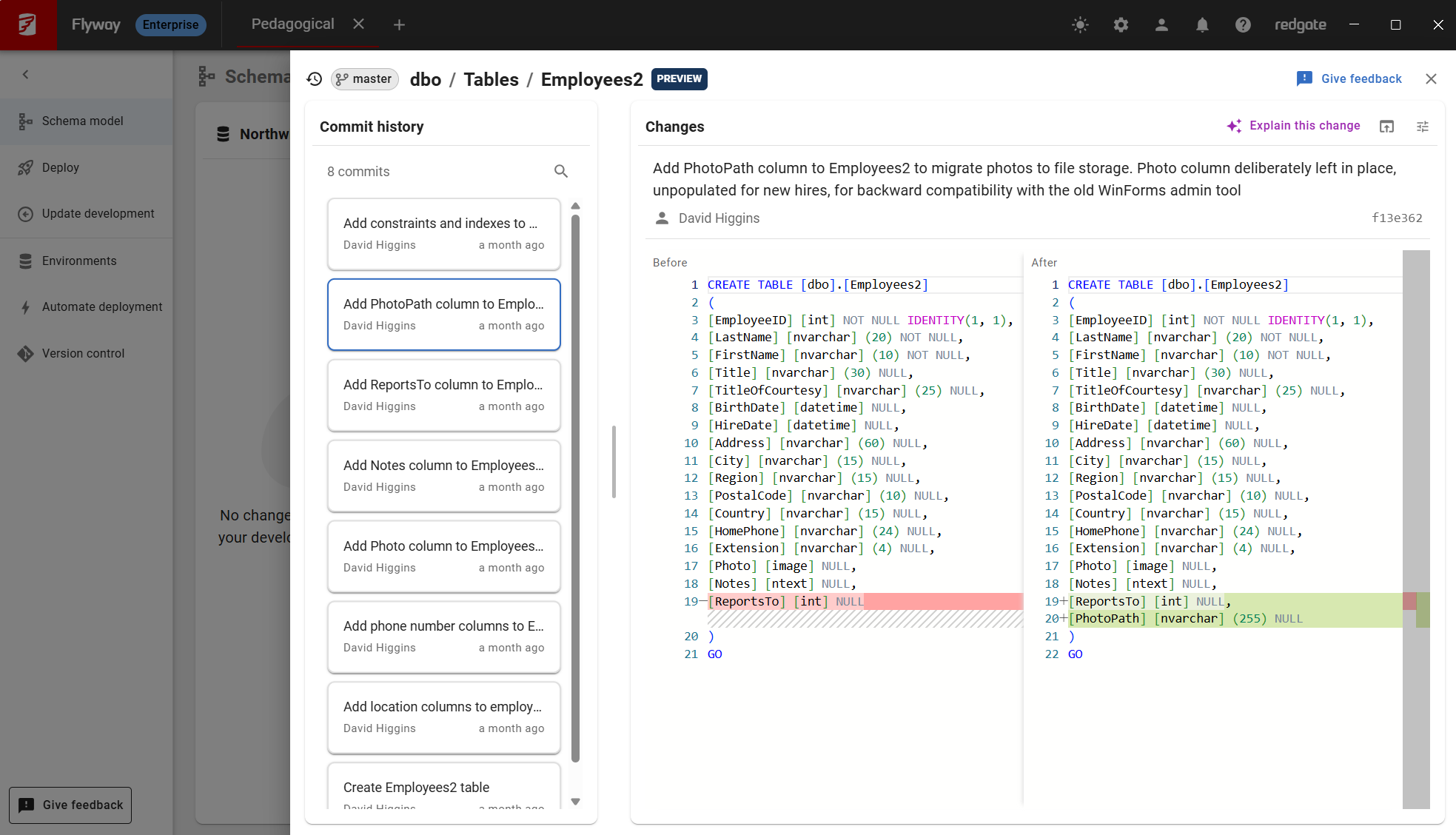
What is Object Level History?
Your schema model already lives in Git, so the history is there. The hard part is getting to it. Tracking down a single object usually means working out which file it lives in, running git log in a terminal or clicking through your Git host's web interface, and then piecing the story together yourself. It's slow enough that most people don't bother, and that's how context gets lost. Or it's done out of necessity, which is time-consuming and interrupts your flow. Object level history brings that story into Flyway Desktop, scoped to the one object you're looking at.
Schema level history, which we're introducing soon, gives you the broader picture: who changed what across the whole schema, and when. Use the schema level history to find your bearings, then drop into an object's history to understand the detail.
Finding your way in
Getting to an object's history takes three steps:
- Open the Schema model page in your Flyway Desktop project.
- Select an object in the objects table to open it in the object viewer.
- Click the View object history button (the clock icon) in the object viewer's header.
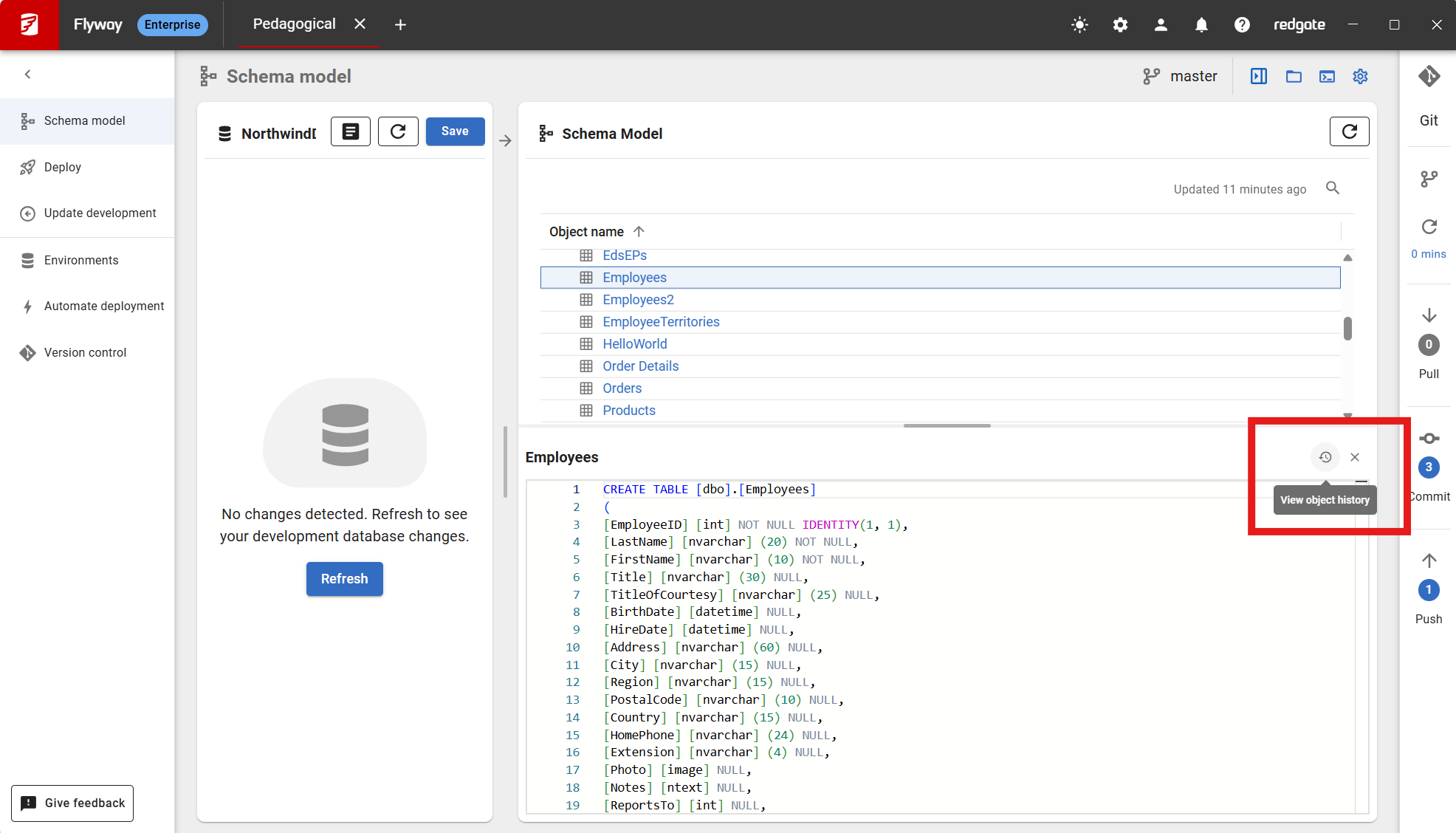
The history opens in a drawer alongside your work, so you never lose your place in the schema model.
To use object level history, you need Flyway Enterprise and a project that's in a Git repository. If your project isn't in Git yet, the drawer gives you an Initialize repository button to get started.
What you can do with object level history
Every commit, at a glance
The commit history panel lists every commit that's changed the object, newest first. Each card shows the commit message, the author, a short commit hash, and how long ago the change was made (hover over it for the exact date and time). The most recent commit is selected for you, so the latest change is the first thing you see. When something breaks, this is where you'll find out what changed recently and who to talk to about it, without leaving Flyway Desktop. The history even follows an object's file through renames, so the trail doesn't stop just because something moved.
Before and after, side by side
Select a commit and the Changes panel shows you exactly what that commit did to the object, with the Before and After versions side by side and syntax highlighting for your database. Seeing the precise change helps you understand why an object looks the way it does before you touch it, so you don't accidentally undo a deliberate fix. You can use the diff settings menu to highlight whitespace changes or switch between side-by-side and inline display styles. You can also drag the divider between the two panels to give the diff more room.
Let Redgate AI explain it
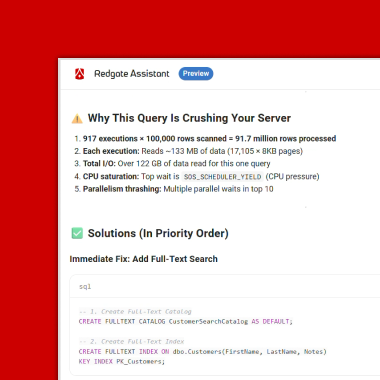
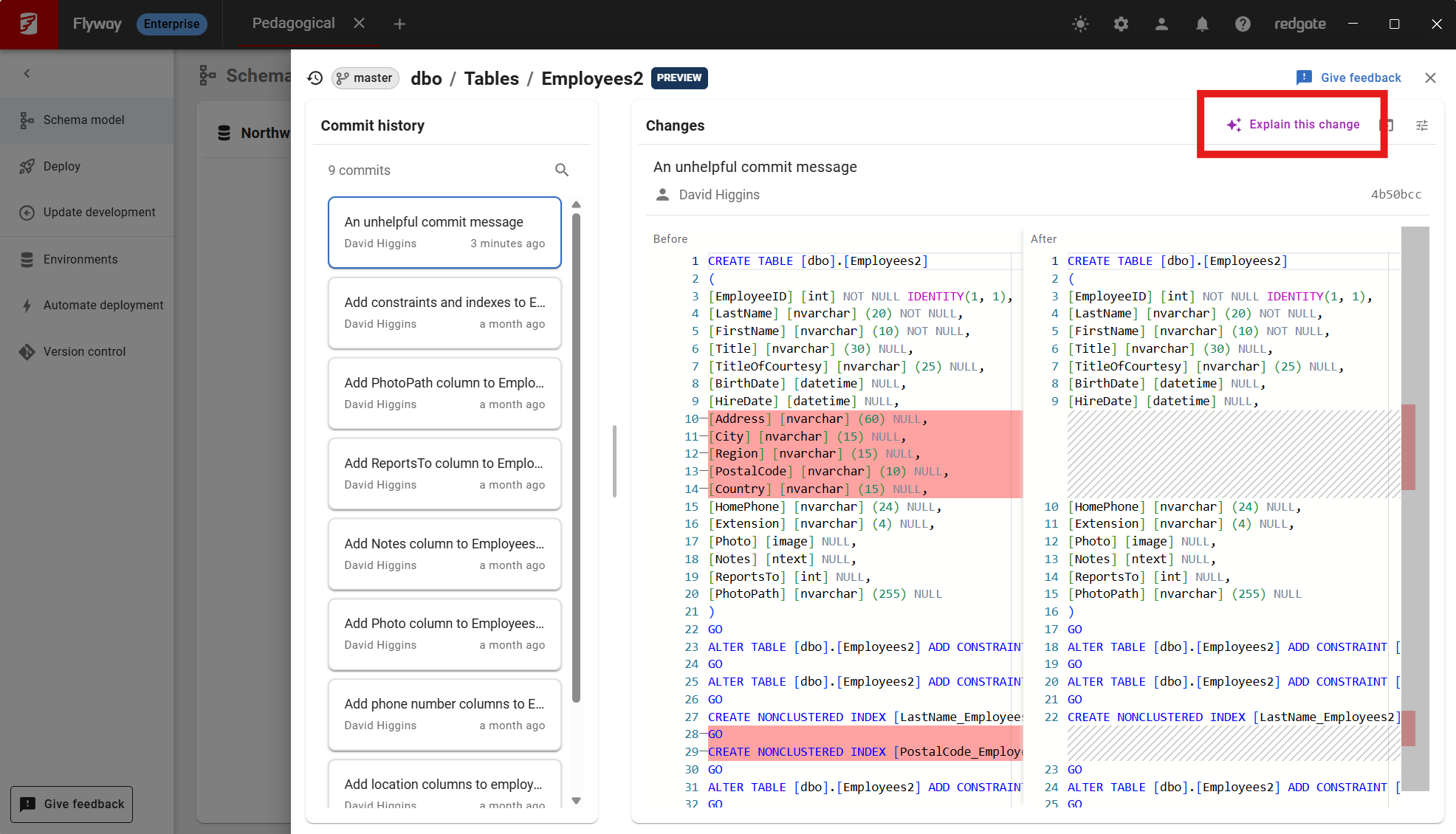
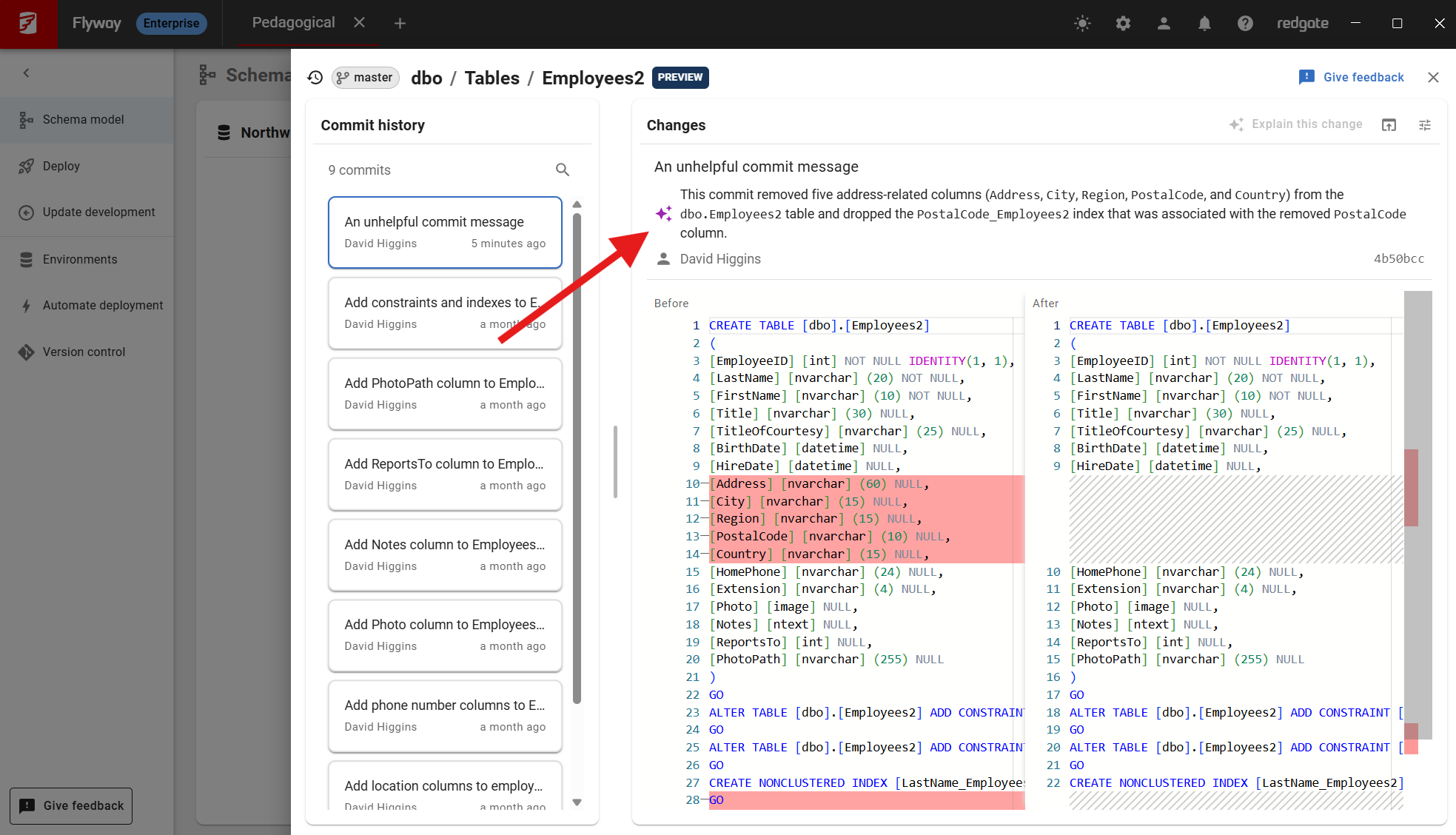
Not every commit message tells the whole story as you can see in the visual below. Click Explain this change and Redgate AI gives you a short, plain-English summary of what the commit did to the object you're looking at. It also mentions any other notable changes made in the same commit, which is especially useful when a change to one object only makes sense alongside changes to others. It's a quick way for anyone, including new team members, to understand how a key object has evolved without having to interrupt a colleague.
The explanation only runs when you ask for it, and it appears just below the commit message. To use it, turn on Redgate AI features in Flyway Desktop and sign in to your organization.
Jump straight to the source
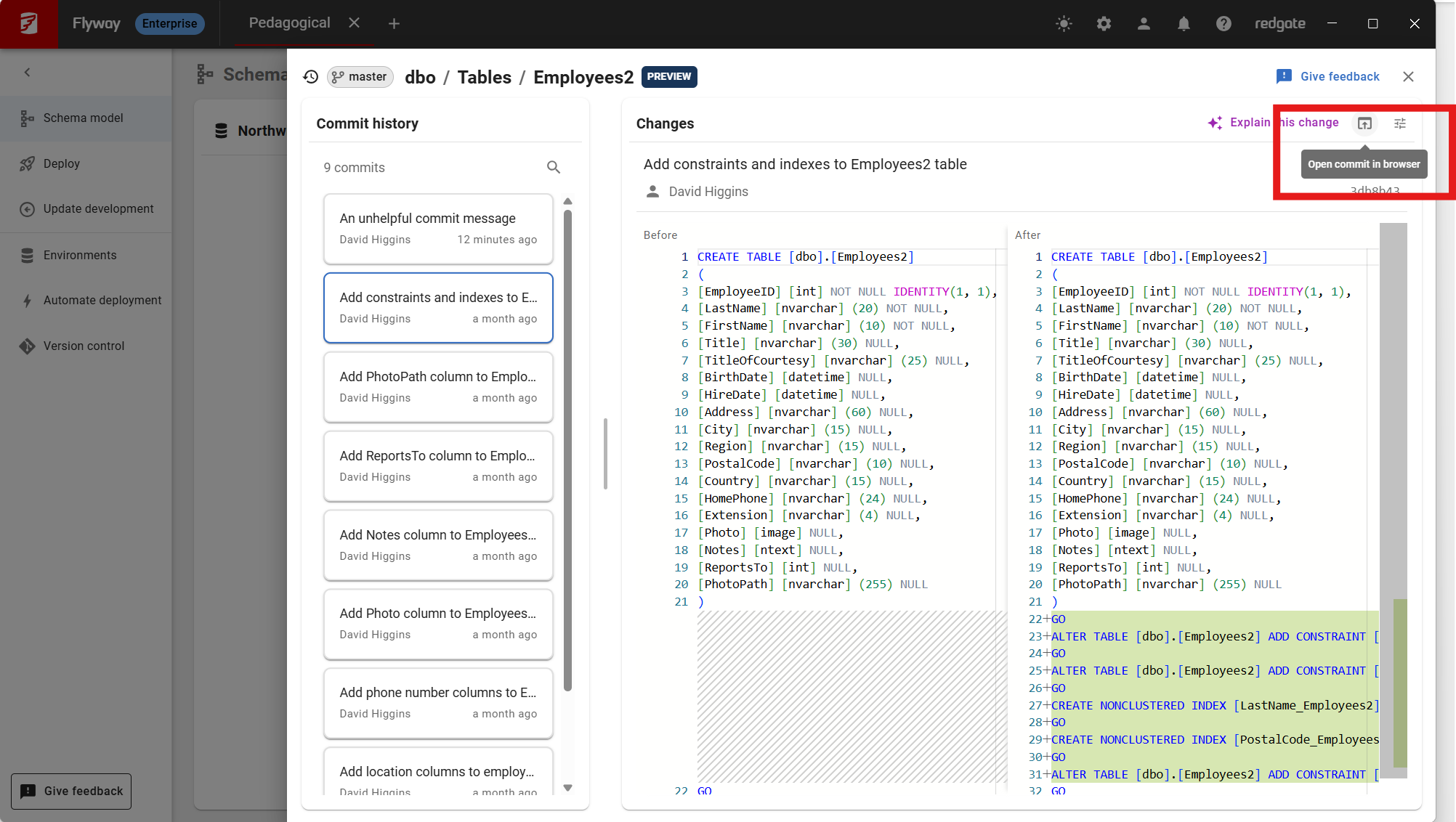
Sometimes you need the bigger picture: the pull request, the review comments, or the linked work item. Click Open commit in browser to go straight to the commit on your Git host. That puts the change in the context of the discussion that shaped it, so you can review it with confidence rather than guessing at the reasoning. GitHub, GitLab, Bitbucket and Azure DevOps are all supported.
See your work in progress in context
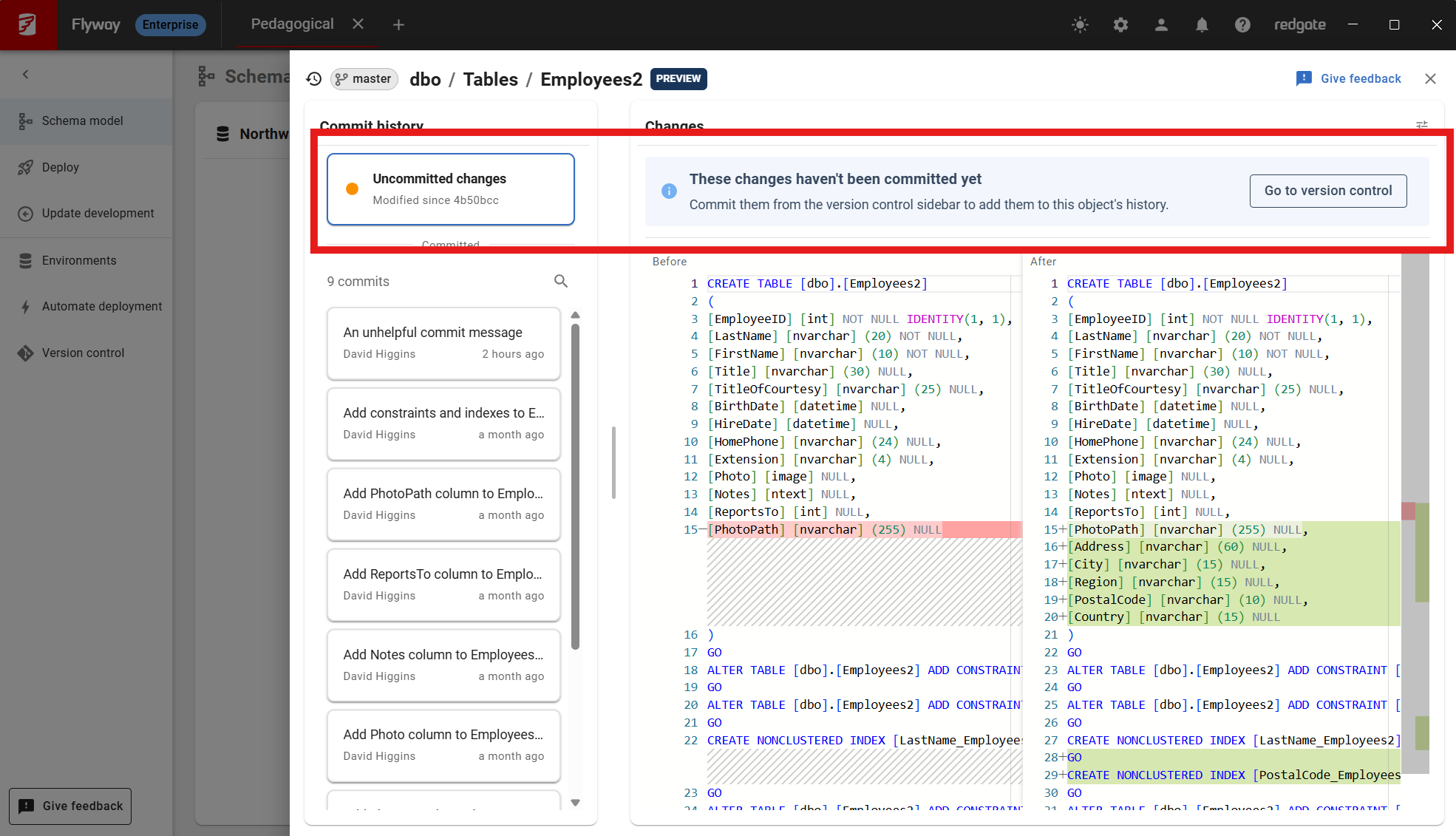
If you've changed an object locally and haven't committed yet, an Uncommitted changes entry appears at the top of the history. It shows how your edits compare with the last committed version, so you can see your change in the context of everything that came before it. When you're happy, the Go to version control button takes you straight to the commit sidebar.
Provide your feedback
Object level history is a new feature in Flyway Desktop, and we're shaping what comes next around feedback from the people using it.
Whether it's helped you track down the cause of a bug, there's something you think is missing, or you'd like to see it somewhere else in Flyway Desktop, we want to hear about it. Click the Give feedback button in the object history drawer to tell us what you think.
If you'd like to chat with the team directly, email us at DatabaseDevOps@red-gate.com or book a 30 minutes' chat on Zoom.
This document contains proprietary information and is protected by copyright law.
Copyright © 2026 Red Gate Software Limited. All rights reserved
Tools in this post
You may also like

Blog
DORA, NIS2, FINMA: Warum Datenbanksicherheit in DACH auf die Vorstandsagenda gehört

Blog
Redgate Flyway's Product Updates – September 2026

Blog
Loading comments...