





Control your dependencies in Flyway Desktop for Oracle and SQL Server Databases
One of Flyway’s biggest strengths is its ability to track your database schema as individual SQL DDL scripts on disk. This gives you full version control over every object, along with a complete audit trail of what changed, who changed it, when it changed, and why.
For teams working with Oracle and/or SQL Server, this level of transparency is essential and this latest release provides even more support for how you handle changes across dependent objects.
More control over dependencies
Flyway already gives you flexibility in choosing which schemas to track and lets you refine this further with filtering objects, specifying static data, and setting comparison options.
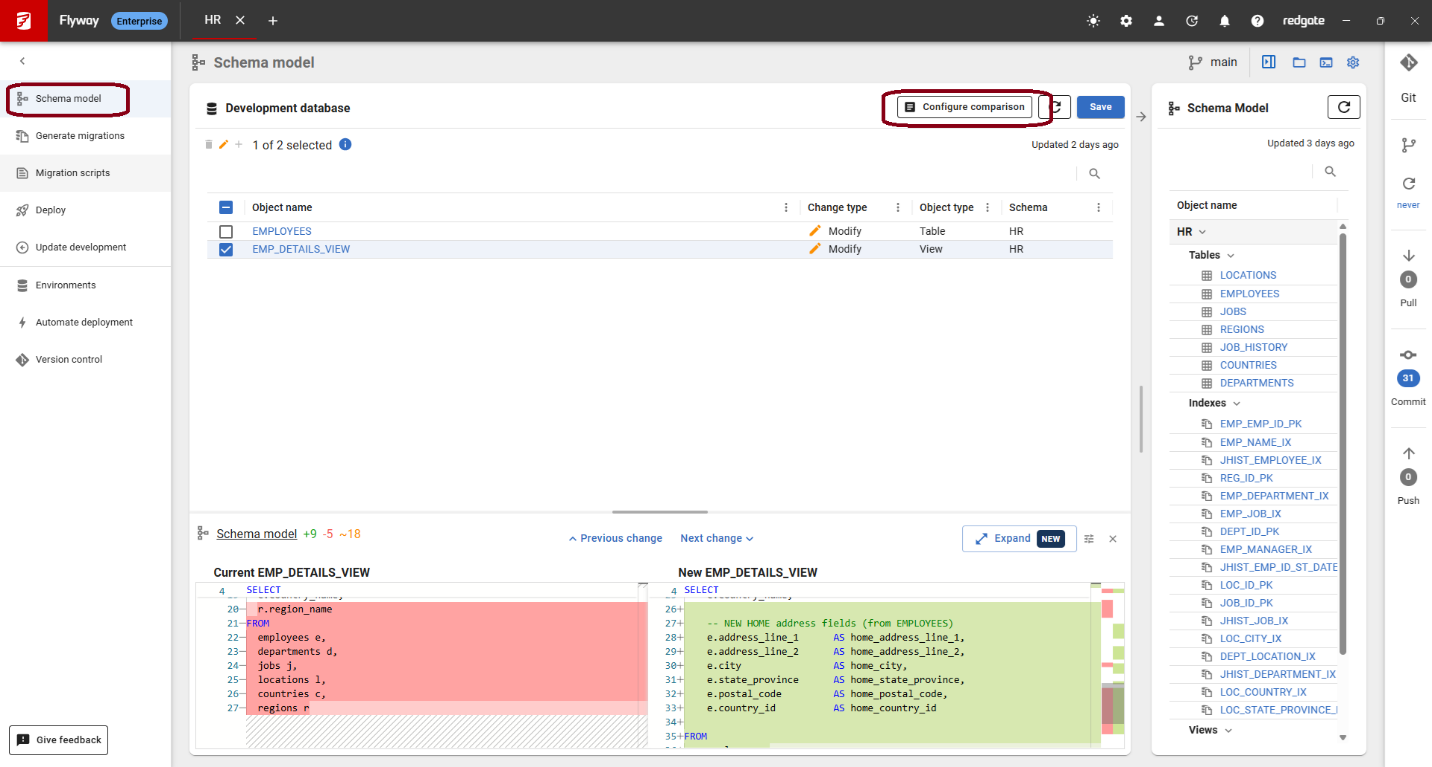
By default, Flyway has always included dependencies for Oracle and SQL Server projects. For SQL Server projects, there is a comparison option to turn this off. We now have the same option for Oracle projects as well. You can see this and all the comparison options by clicking “Configure comparison” on the Schema model page:
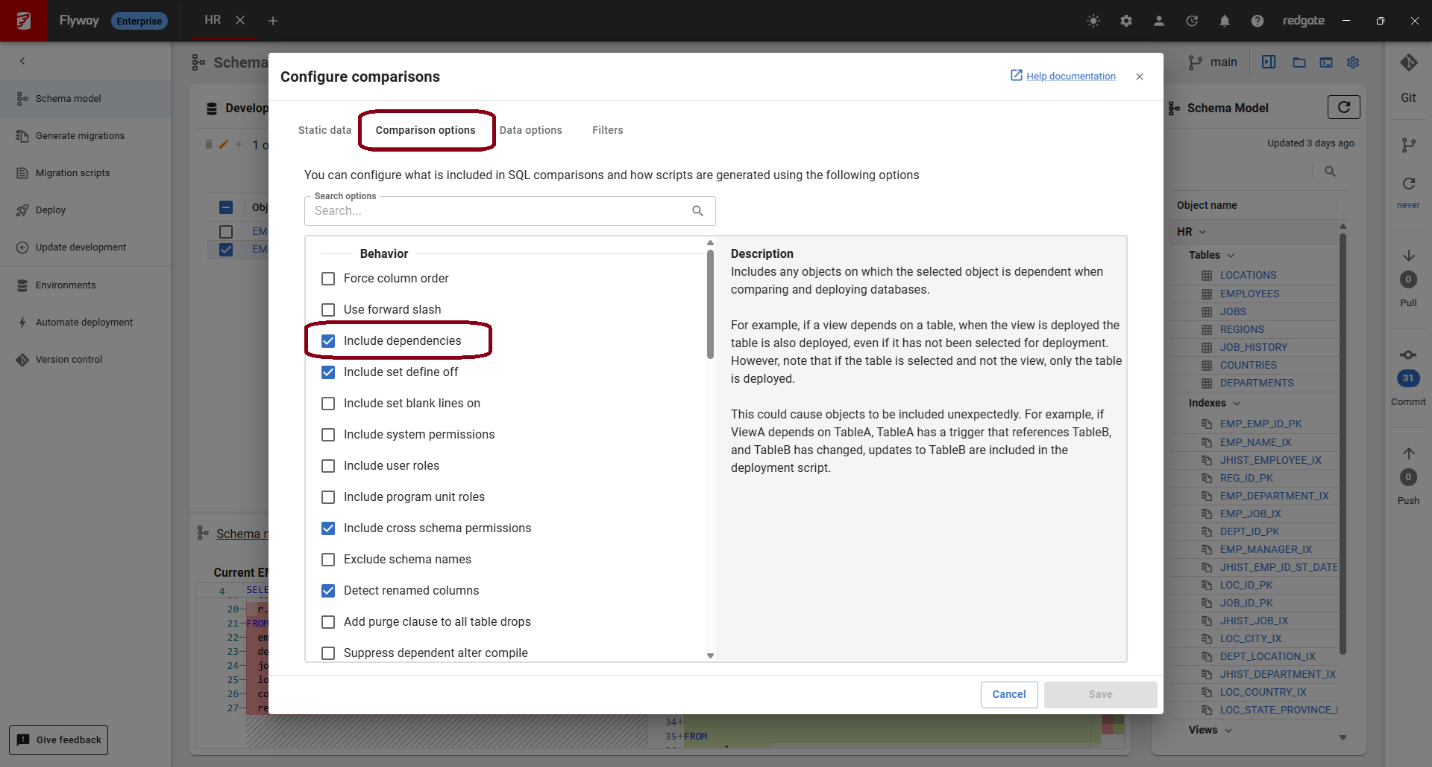
I wouldn’t recommend turning this off though, especially since this latest release allows you to handle dependencies as part of your development process if this is checked.
This option is on by default for both Oracle and SQL Server, because understanding dependencies helps prevent situations where a deployment fails due to a missing or partially committed change.
Flyway surfaces dependency information
When dependencies are included, which is the default option, Flyway Desktop will tell you about dependencies in three key scenarios:
- Saving changes to the schema model
- Doing a manual state-based deployment from the Deploy page
- Generating migration scripts
By default, all dependencies are selected so they can be included in the action you were performing. You can review these selections and adjust them to meet your needs.
Example – Dependencies shown when saving the schema model
In this example, the HR sample schema is already in version control. In the development database, we’ve added columns to the EMPLOYEES table to store each employee’s home address. We’ve also updated the EMP_DETAILS_VIEW to return these new fields. (The example scripts are included below.)
Refreshing the project in Flyway Desktop shows two modified objects; EMPLOYEES table and EMP_DETAILS_VIEW view. Selecting each object at the top shows the DDL and highlights the exact differences in the bottom.
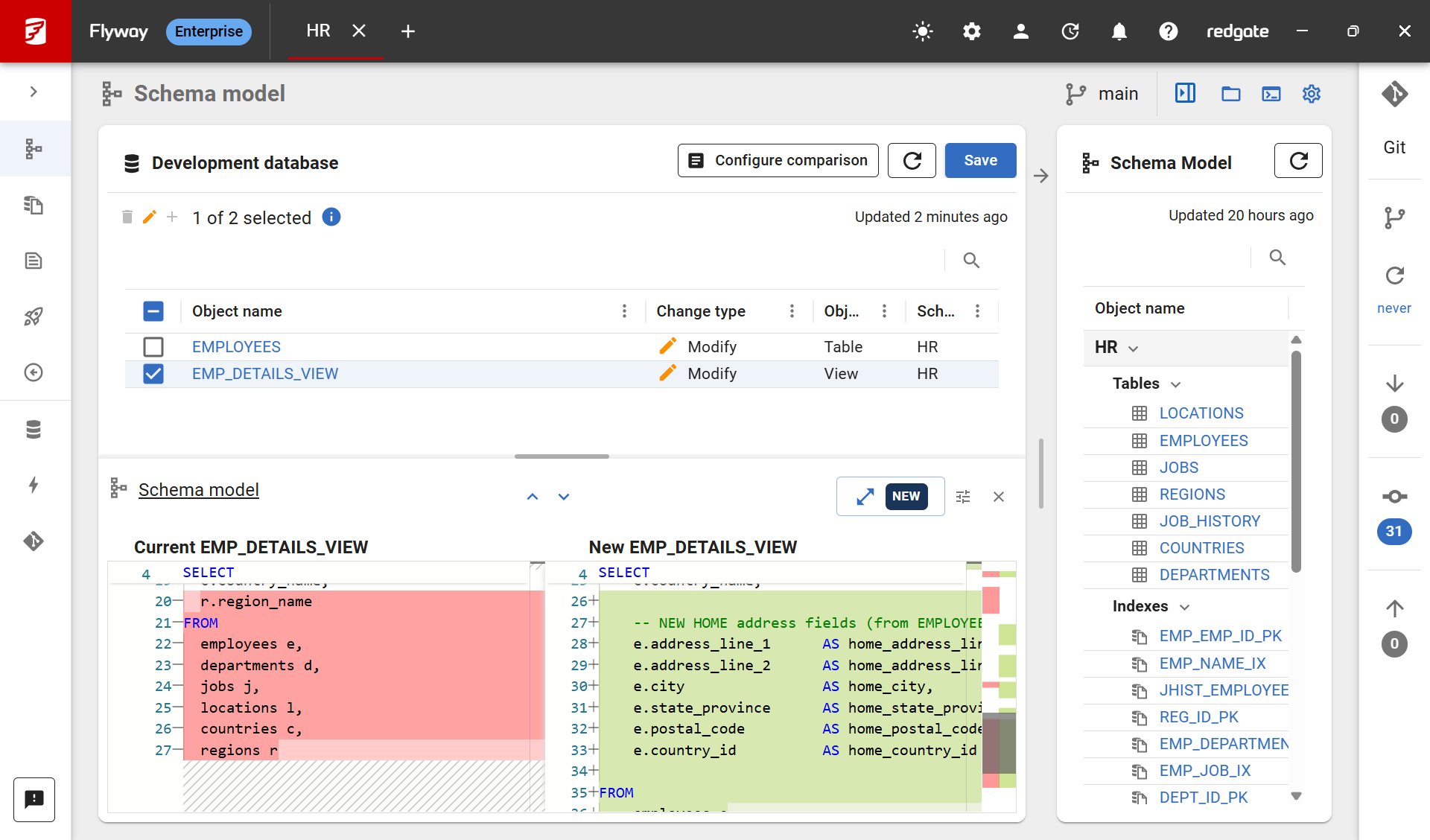
If I only select EMP_DETAILS_VIEW and click Save, Flyway now warns me that this view depends on the altered EMPLOYEES table. I can see how that table has changed in the diff viewer at the bottom of the Review dependencies pop up as well.
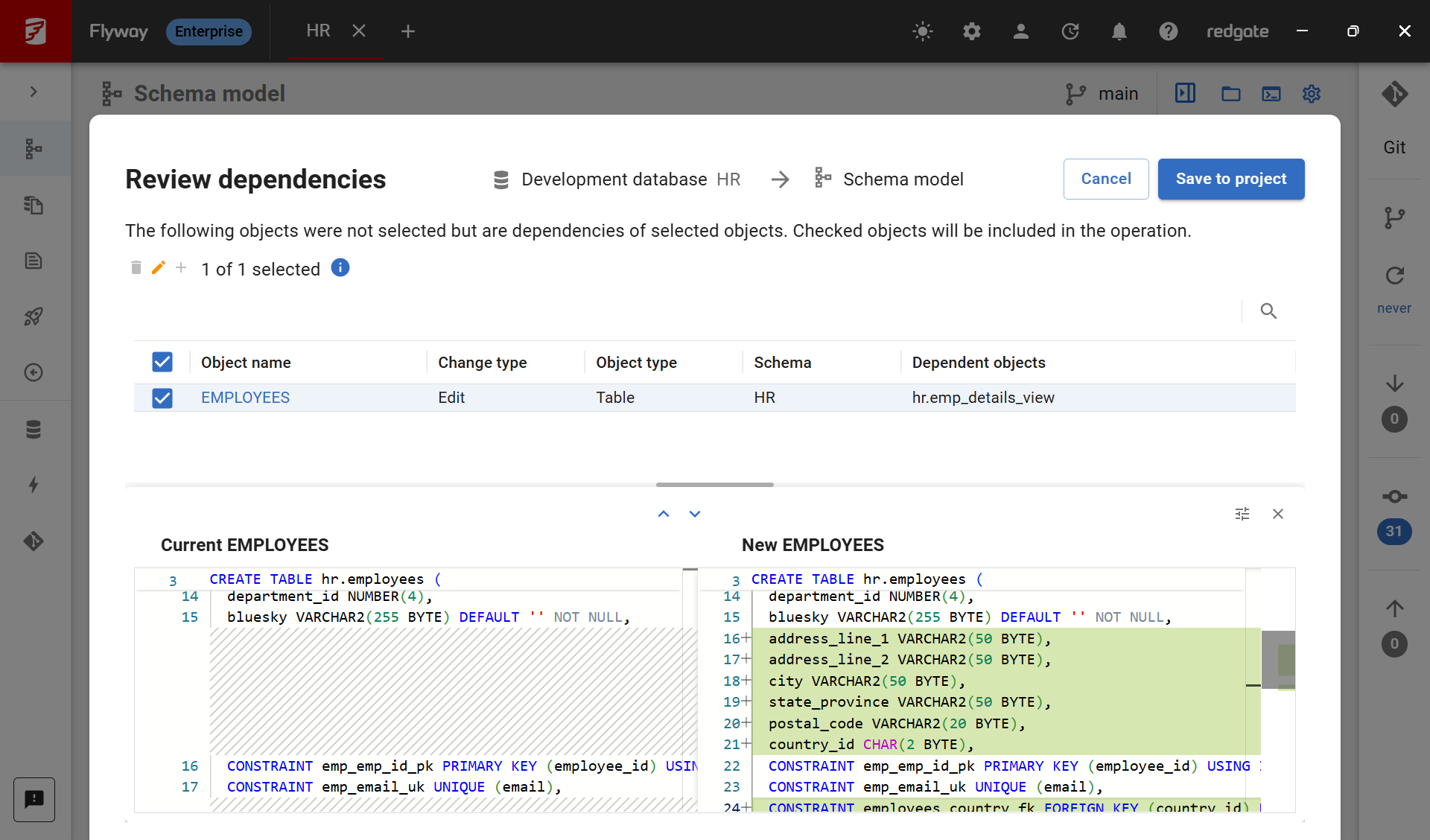
By default, the objects are selected so they can be saved to the project as well. If you know the changes are completely independent, you can decide to deselect the objects before continuing.
Summary
Showing dependency information when your tracking changes or preparing for a deployment raises awareness of the relationships between your objects. By giving you more control over the dependencies, deployment issues are less likely to arise. Update to the latest version of Flyway Desktop and start taking advantage of smarter dependency insights today.
Example scripts
The example above used the sample HR schema from Oracle. The Flyway project was created and all the objects in the HR schema had been saved to the schema-model on disk. Next, I used the following SQL to change the objects in the development database. These changes were then reflected on the Schema model page as shown in the screenshots above.
Add home address fields to EMPLOYEES table
|
1
2
3
4
5
6
7
8
9
10
11
|
ALTER TABLE HR.EMPLOYEES ADD
(
ADDRESS_LINE_1 VARCHAR2(50),
ADDRESS_LINE_2 VARCHAR2(50),
CITY VARCHAR2(50),
STATE_PROVINCE VARCHAR2(50),
POSTAL_CODE VARCHAR2(20),
COUNTRY_ID VARCHAR2(2),
CONSTRAINT EMPLOYEES_COUNTRY_FK FOREIGN KEY (COUNTRY_ID)
REFERENCES HR.COUNTRIES (COUNTRY_ID)
)
|
Modify EMP_DETAILS_VIEW to include home address
|
1
2
3
4
5
6
7
8
9
10
11
12
13
14
15
16
17
18
19
20
21
22
23
24
25
26
27
28
29
30
31
32
33
34
35
36
37
38
|
CREATE OR REPLACE VIEW HR.EMP_DETAILS_VIEW
AS
SELECT
e.employee_id,
e.first_name,
e.last_name,
e.email,
e.phone_number,
e.hire_date,
e.job_id,
e.salary,
e.commission_pct,
e.manager_id,
e.department_id,
-- Existing WORK address (from LOCATIONS)
d.department_name,
l.location_id,
l.street_address,
l.postal_code,
l.city,
l.state_province,
c.country_id,
c.country_name,
-- NEW HOME address fields (from EMPLOYEES)
e.address_line_1 AS home_address_line_1,
e.address_line_2 AS home_address_line_2,
e.city AS home_city,
e.state_province AS home_state_province,
e.postal_code AS home_postal_code,
e.country_id AS home_country_id
FROM
employees e
LEFT JOIN departments d ON e.department_id = d.department_id
LEFT JOIN locations l ON d.location_id = l.location_id
LEFT JOIN countries c ON l.country_id = c.country_id;
|
This document contains proprietary information and is protected by copyright law.
Copyright © 2026 Red Gate Software Limited. All rights reserved
Tools in this post
You may also like

Blog
Redgate Flyway's Product Updates – September 2026
Blog
Redgate Flyway’s Product Updates – May 2026
Blog
Loading comments...