





Streamlining Flyway Setup with the Guided Shadow Configuration
A Shadow Database is a disposable, 'sandbox' database that Flyway uses to generate and verify migration scripts. Configuring it involves several decision points, such as how it should be provisioned, where it should be created, and whether it should be shared across a team working on the same project or scoped to individual users.
Our new Guided Shadow Configuration in Flyway Desktop simplifies this process, allowing you to provision a shadow database with just a few clicks. It provides sensible default settings and can automatically create the shadow database. Team members can set up a working shadow database quickly, while still having the option to customize the configuration, if needed.
Why is the Shadow database needed?
In the Flyway development workflow, developers make changes directly to a development database and then save those changes to the schema model. Flyway then needs a reliable way to capture those changes into migration files for deployment.
In some cases, Flyway can just compare the current schema model to the production version of the schema and generate a migration script to capture the differences. However, this simple process only works if each migration is deployed before the next one is generated. More commonly, teams generate multiple migrations ahead of deployment, often with several developers contributing in parallel, so the database Flyway needs to compare against is no longer the one currently deployed.
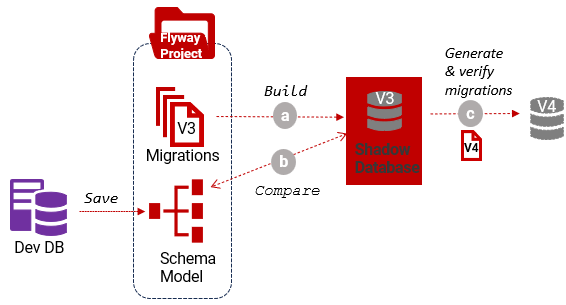
In these cases, Flyway uses the Shadow database to execute the current set of committed migrations and establish the schema they define (V3, in the diagram below). It compares this to the schema model and generates the SQL migration containing only the changes for the next version of the database schema (V4). You can read more about this workflow here.
Try out the guided shadow provisioning
Open Flyway Desktop (v8.6.1 or later), create a new project and connect it to a development database. We also highly recommend you populate your project's schema model before continuing.
Note: Guided Shadow Provisioning is currently only supported for migrations-based SQL Server projects. It is in preview and is enabled by default. You can enable or disable this and any other preview features from Settings → Preview features.
With these steps complete, you're ready to configure the shadow database. This is a 'highlights tour' of the Guided Shadow feature; more in-depth documentation can be found here.
Select a migration reference point
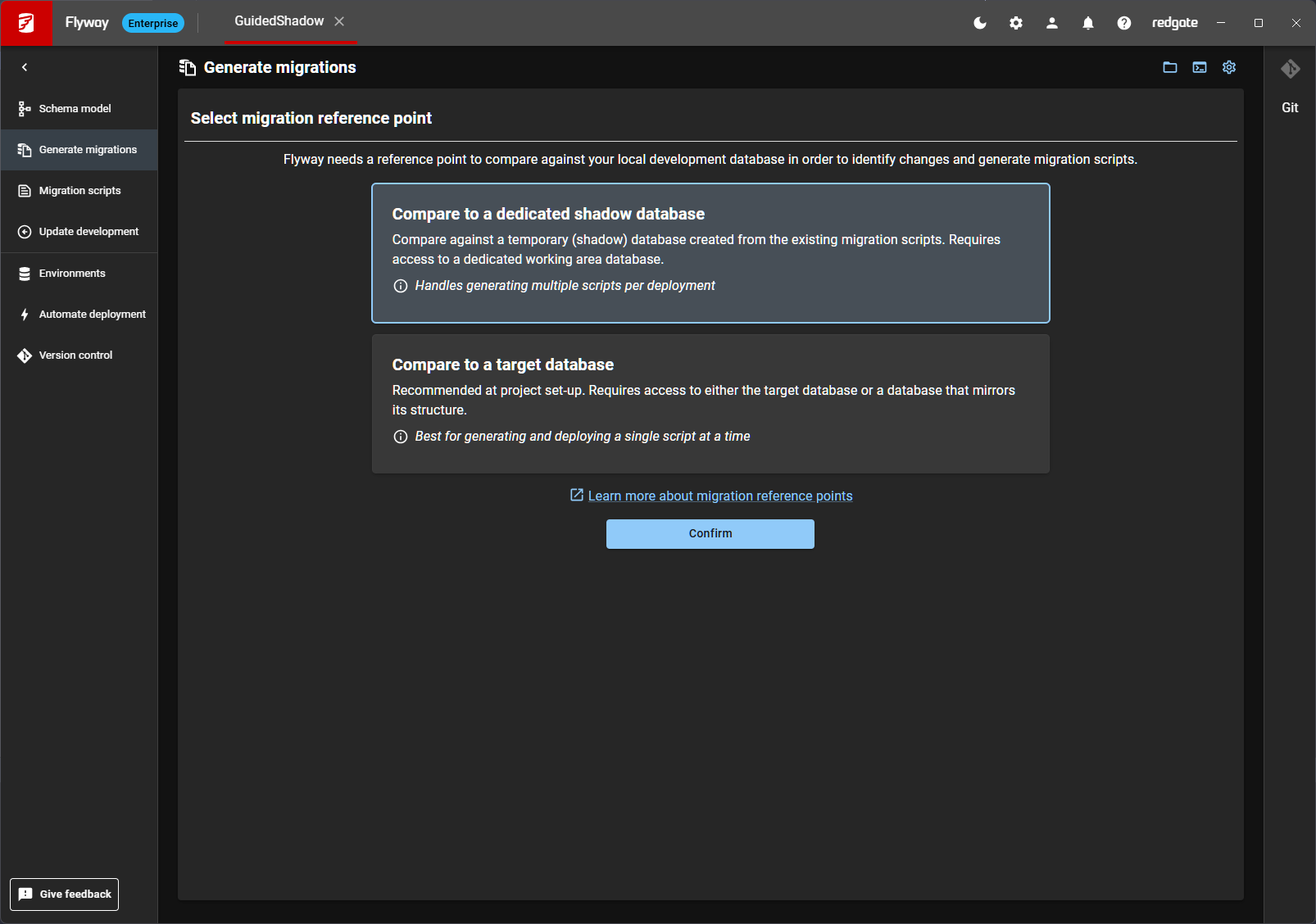
Go to the Generate Migrations page, and you will need to select the migration reference point. You'll see two options:
- Compare to a dedicated shadow database – the recommended option, supporting the generation of multiple migrations between deployments.
- Compare to a target database – requires no additional infrastructure and works well when each migration is deployed before the next one is generated. However, without a shadow database, the generated migration cannot be verified in an isolated environment before deployment.
One-click Shadow provisioning
After selecting Compare to a dedicated shadow database, you will be presented with the Guided Shadow Configuration dialog. If you accept the default options of Create a shadow database for me and Configure setup for me then Flyway will take care of the rest.
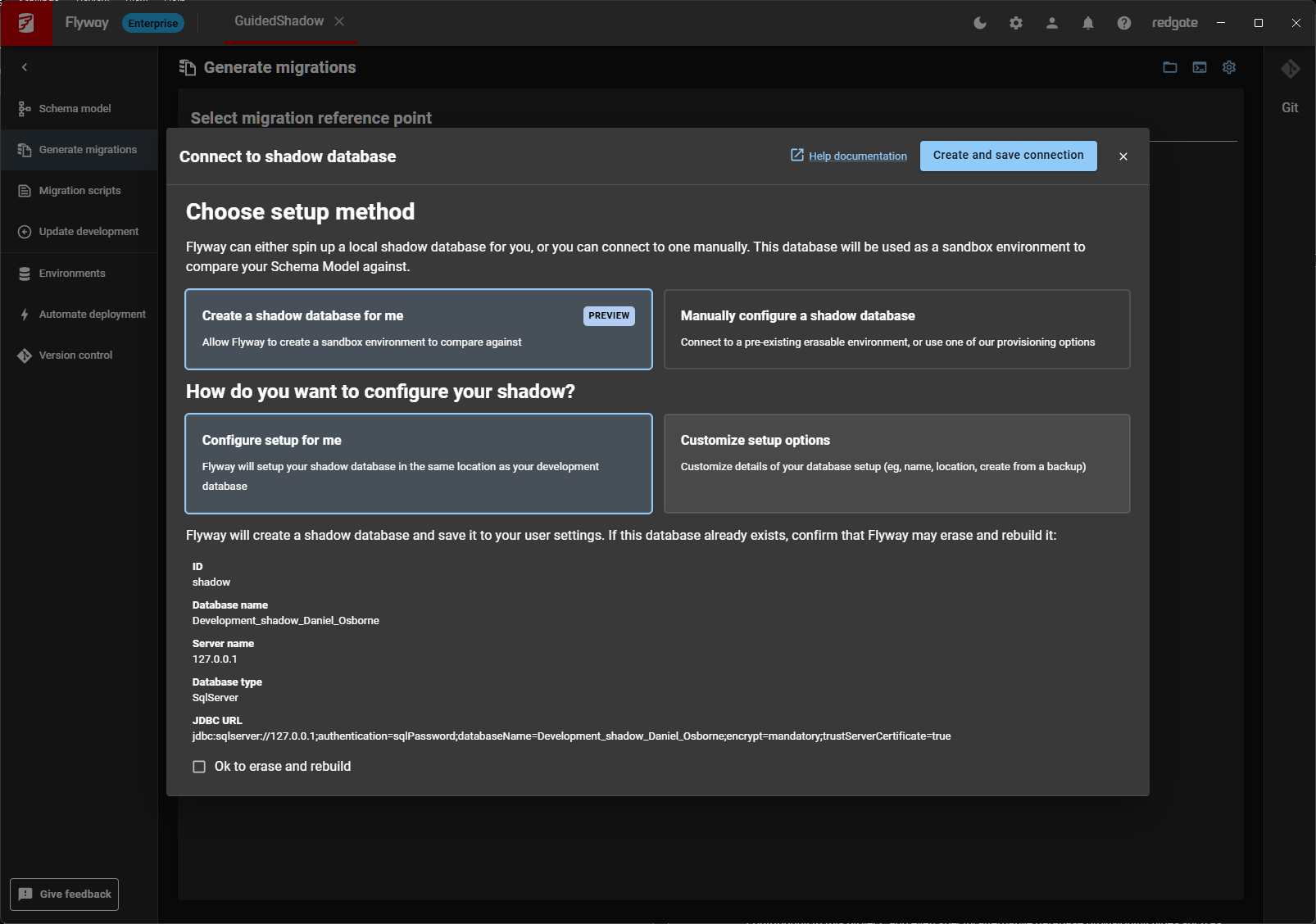
You will get an empty shadow database named [current_dev_db_name]_shadow_[your_name] in the same location as your development database. Flyway simply pulls many of the settings (e.g., host, port, authentication) from the development database and reuses them. This 'default' shadow database connection is user specific and stored in the flyway.user.toml file. It will not be shared with other Flyway project participants.
Confirm it's OK for Flyway to erase and rebuild this database, hit Create and save connection, and Flyway will create the shadow database and connect to it.
Customized Shadow provisioning
If you want to use a shadow database that you’ve already created instead of letting Flyway create it, select Manually configure a shadow database and provide the connection details. If you want Flyway to create the shadow database for you, but need more control over how and where it is created, select Customize setup options, as shown in the screenshot below:
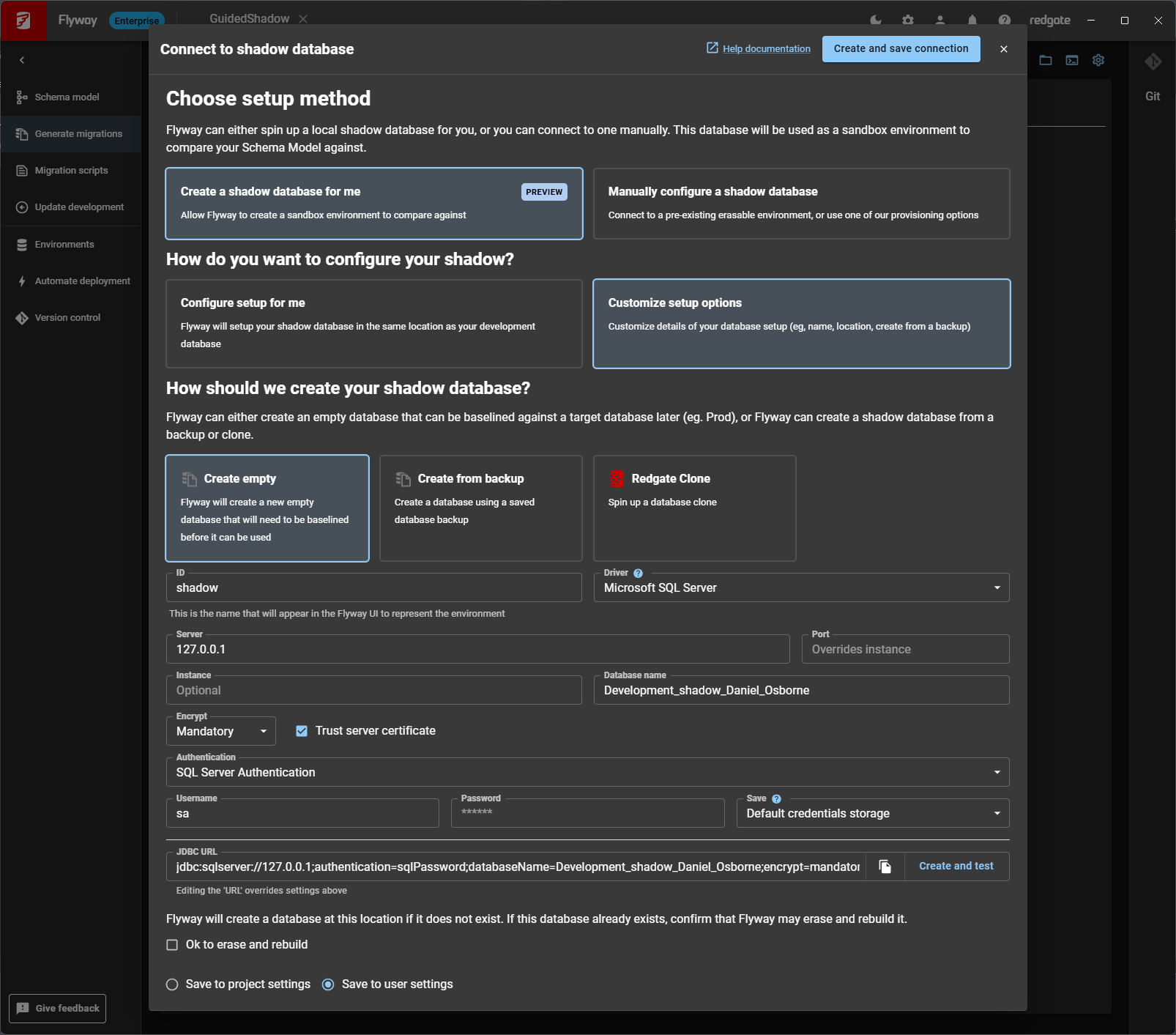
From here you can change the database name, location, and connection details. If you want the Shadow database to be shared amongst all users contributing to this project, rather than user-specific, you can also switch to saving the configuration details to the project rather than the user settings.
With the options discussed so far, the shadow database starts empty, which assumes that a baseline migration file exists that captures the production version of the schema, so that Flyway generates migrations only for subsequent changes. Alternatively, you can select a different provisioning method, such as the backup provisioner or Redgate Clone, which allows Flyway to build a shadow environment that closely matches your current production server.
Either option can make Flyway adoption significantly easier for customers with databases containing hundreds or even thousands of objects, where complex dependencies make baseline scripts difficult or unreliable to produce. This approach also avoids large baseline scripts and considerably reduces the time required to provision a shadow database.
Summary
Guided Shadow Configuration removes much of the friction involved in setting up a shadow database, making it easier for teams to adopt migration-generation workflows in Flyway Desktop. Whether you rely on simple defaults, need to customize how the shadow database is provisioned, or want to create it from a backup or clone, Guided Shadow Configuration helps you get started quickly.
Feedback
With everything we release we want to make sure it meets our standards and your expectations. If you use the new guided shadow and would like to provide any feedback, please fill in our survey.
This document contains proprietary information and is protected by copyright law.
Copyright © 2026 Red Gate Software Limited. All rights reserved
Read next

Product learning article
Automating Flyway Desktop Development using the Flyway CLI
This article is for any developers who want to learn how to use the Flyway CLI to automate the database development workflow used in the Flyway Desktop GUI, where we capture the schema changes made to a local development database, and then use schema comparison to auto-generate and validate a Flyway versioned migration script.
Tools in this post
You may also like

Blog
Without Governance, AI Is Just Faster Failure

Blog
10 Mistakes I’ve Made When Migrating Databases to the Cloud

Blog
Loading comments...