


Generating SQL Server Demo Code with SQL Prompt AI
I'll use it to build the demo code for a SQL Server temporal-table solution. I'll look at where it saves time, how better and more precise prompting helps, and why you still need enough SQL Server knowledge to know when the answer isn't quite right!
The AI division of labor
Many developers and DBAs are wrestling with the challenge of finding the right 'division of labor' between what's still best left to human experience and judgment, and what AI can do more efficiently. AI doesn't just automate the tedious work around writing code; it's increasingly writing the code itself, the part of the job that most developers love! Which tasks should we hand over to AI, with our role more about controlling and verifying the output?
If I'm creating business code for customers, it's my job to understand the requirements, come up with the design, and implement it. I might use AI to handle tedious work, suggest algorithms, or compare approaches, but I still own the solution, and it's my responsibility to ensure it works under all circumstances, scales smoothly, and so on.
Writing demo code to showcase a feature is different. Setting up the structures, data, and queries needed can take a lot of time, and I'm quite happy to let AI do most of the work. If I can get it to produce code that's clean enough to demonstrate what I need, it can take care of the details.
When I'm in the flow of this process, I even start to understand what the buzz of 'vibe coding' might feel like, even if I still steadfastly resist!
Working with Prompt AI
For me, the big advantage of using Prompt AI, rather than a more general AI tool, is that it sits right inside SSMS, where I'm already writing SQL, so I can ask for code, run it, inspect the results, and refine it without constantly switching context.
Prompt AI is a focused inline helper in the SSMS query editor. You open it (Alt+Z), prompt it, and it will generate, modify, explain, or optimize your SQL code, using context from the database schema and your query window. This means it already knows what objects exist and what code I'm working on, rather than relying on me to explain everything in the prompt.
I can use it to generate the SQL I need, then use my own knowledge and SQL Prompt's other features to check, understand, refine, and improve what it produces as I build out a demo.
Other useful tools in SQL Prompt
This article focuses on Prompt AI, but there is also the Redgate Assistant (Alt+A), an AI interface that draws on additional information from features, such as code analysis and execution plans, and from other Redgate tools, to help review, improve, or troubleshoot the generated SQL. There are also, of course, all the 'traditional' non-AI features in SQL Prompt to check the syntax, help me find issues, format the code, and many other cool things.
An example: a temporal table solution to user preference tracking
This is our user story: a customer has an application that stores many user preferences, and users can change them at any time. Occasionally, after a new release, a user reports that something isn't behaving as expected. Is there a problem with the new code, or is it related to the user's preference settings?
To answer these questions, the Ops team wanted an easier way to track which preferences changed, how and when. Without that history, investigating the issue can mean digging through logs and application code trying to reconstruct what happened.
This is a good use case for SQL Server temporal tables. They aren't new - this Simple Talk Article by Alex Grinberg has been on the site for nearly 10 years - but most programmers don't use them regularly. I've come up with a design and want to show the users how it would work. Prompt AI will help me build the demo, test it, and get it ready to show the users.
Build the demo tables
I'm going to let Prompt AI do most of the demo code, but I need to guide it heavily on the schema design to make sure it reflects how the solution will work in the customer's environment.
To get started, use Alt+Z to open the Prompt AI entry dialog, and enter your instructions.
Prompt AI prompting tips
- Edit longer prompts outside of SQL Prompt and paste them in.
- Add the prompt to your code as a comment to make it easier to adjust your code later.
- Check out Mastering AI Prompts: How to Get the Best Out of SQL Prompt AI by Redgate's Adam Atreides
If you already have a good idea of the design you need, then your prompt should describe that as specifically as possible. I only needed two tables, but it still took a couple of iterations. For example, my initial prompt rather loosely asked it to "create a user table", which it interpreted literally and created a table called "User", which is a reserved word. You may also need to be specific about what you don't want. I instructed it not to include system versioning in the first step.
I want to demo the use of the system-versioned temporal table feature in SQL Server 2016+ to track changes to a table. Create an ApplicationUser table with an ApplicationUserId as a primary key/identity column and a Name column. Create another table called ApplicationUserPreference with an ApplicationUserPreferenceId identity column, a UserId column, a PreferenceName column, and a Value column. Make the UserId an FK to the ApplicationUser table, with an alternate key on ApplicationUserId, PreferenceName. Do not add any system versioning yet.
Here are the tables that it created:
|
1
2
3
4
5
6
7
8
9
10
11
12
13
14
15
16
17
18
19
20
21
22
|
-- Create the ApplicationUser table
CREATE TABLE dbo.ApplicationUser
(
ApplicationUserId INT IDENTITY(1, 1) PRIMARY KEY,
Name NVARCHAR(100) NOT NULL
);
-- Create the ApplicationUserPreference table
CREATE TABLE dbo.ApplicationUserPreference
(
ApplicationUserPreferenceId INT IDENTITY(1, 1) PRIMARY KEY,
ApplicationUserId INT NOT NULL,
PreferenceName NVARCHAR(100) NOT NULL,
Value NVARCHAR(255) NOT NULL,
CONSTRAINT FK_ApplicationUserPreference_ApplicationUser
FOREIGN KEY (ApplicationUserId)
REFERENCES dbo.ApplicationUser (ApplicationUserId),
CONSTRAINT AK_ApplicationUserPreference
UNIQUE (
ApplicationUserId,
PreferenceName
)
);
|
This gave me what I wanted. I changed its original nvarchar(max) for the Value field to nvarchar(255), in the code shown above, but that's all.
Add demo data
Sometimes I found that Prompt AI would add demo data without me asking, and other times not. Also, sometimes the code it creates won’t fit the style you want, especially if you are sharing the output with others. For example, initially it used three separate inserts intoApplicationUserPreference, one for each user. This didn't really matter to the output, but to get a more succinct statement, I asked for a specific form of INSERT statement:
Using as few INSERT INTO…VALUES statements as possible, create 3 users with 2 or 3 preferences each
|
1
2
3
4
5
6
7
8
9
10
11
12
13
14
15
16
17
18
19
20
21
22
23
24
25
|
-- Insert sample users
INSERT INTO dbo.ApplicationUser
(
Name
)
VALUES
('John Doe'),
('Jane Smith'),
('Robert Johnson');
-- Insert preferences for John Doe (ApplicationUserId = 1)
INSERT INTO dbo.ApplicationUserPreference
(
ApplicationUserId,
PreferenceName,
Value
)
VALUES
(1, 'Theme', 'Dark'),
(1, 'FontSize', '12'),
(1, 'Language', 'English'),
(2, 'Theme', 'Light'),
(2, 'FontSize', '14'),
(3, 'Theme', 'System'),
(3, 'Language', 'Spanish'),
(3, 'NotificationsEnabled', 'True');
|
At this point, I was ready to start building the code to show how to capture history.
The baseline: initial user preference values
To demonstrate how the system versioned temporal table feature tracks changes to a table, I need a baseline to compare against. That way, they will see the values change as the demo updates them and records their history. So, before adding system versioning, I asked SQL Prompt AI to generate a query showing the current user preferences:
Now I want to join the ApplicationUser and ApplicationUserPreference tables to show the ApplicationUserId, Name, PreferenceName, and Value columns.
This outputs the following query:
|
1
2
3
4
5
6
7
8
9
|
SELECT u.ApplicationUserId,
u.Name,
p.PreferenceName,
p.Value
FROM dbo.ApplicationUser u
INNER JOIN dbo.ApplicationUserPreference p
ON u.ApplicationUserId = p.ApplicationUserId
ORDER BY u.ApplicationUserId,
p.PreferenceName;
|
Since I'm writing up this demo for a blog post, I want the results to be nicely formatted on the page, which can be a pain to get right. Here is a very useful Prompt AI technique to help with that:
- Copy the text of the query output (from the grid or as text)
- Paste it into a comment
- Highlight it, click Alt+Z, and enter the prompt: Format as a markdown table.
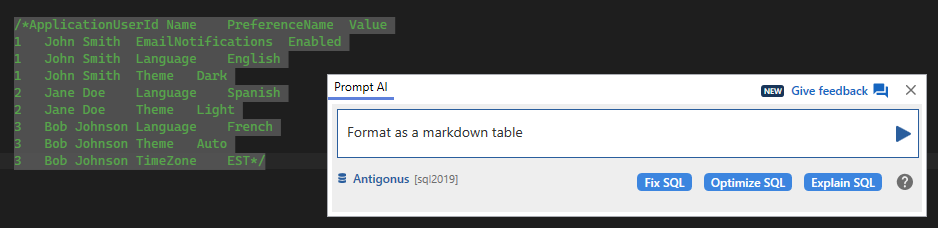
This is the nicely-formatted output:
| ApplicationUserId | Name           | PreferenceName       | Value   |
|-------------------|----------------|----------------------|---------|
| 1                 | John Doe       | FontSize             | 12      |
| 1                 | John Doe       | Language             | English |
| 1                 | John Doe       | Theme                | Dark    |
| 2                 | Jane Smith     | FontSize             | 14      |
| 2                 | Jane Smith     | Theme                | Light   |
| 3                 | Robert Johnson | Language             | Spanish |
| 3                 | Robert Johnson | NotificationsEnabled | True    |
| 3                 | Robert Johnson | Theme                | System  |
Add system versioning to capture change history
We can now add the temporal period columns to our user preference table and enable system versioning, so we can start capturing the history of changes to user preferences. Again, I had specific requirements about how this should be done, which I made clear in my prompt:
Each time a user changes a preference, we need to capture the change history, and for this task we're going to use system-versioned temporal tables. To show how this works, provide the T-SQL to convert the ApplicationUserPreference table into a system-versioned temporal table. I don't want the history table to be named the default, so call it ApplicationUserPreference_History. I also want to name the start and end times for the temporal periods RowStartTime and RowEndTime and make them to-the-second accurate.
Here is the result. I had to add the DATEADD function to avoid errors due to timing issues, but other than that, this produced what I wanted:
|
1
2
3
4
5
6
7
8
9
10
11
12
13
|
-- First, we need to add the temporal period columns to the main table
ALTER TABLE dbo.ApplicationUserPreference
ADD RowStartTime DATETIME2(0) GENERATED ALWAYS AS ROW START NOT NULL
CONSTRAINT DF_ApplicationUserPreference_RowStartTime
--Louis: added due to timing issue errors due to rounding up of seconds
DEFAULT DATEADD(Second, -1, SYSUTCDATETIME()),
RowEndTime DATETIME2(0) GENERATED ALWAYS AS ROW END NOT NULL
CONSTRAINT DF_ApplicationUserPreference_RowEndTime
DEFAULT CONVERT(DATETIME2(0), '9999-12-31 23:59:59'),
PERIOD FOR SYSTEM_TIME(RowStartTime, RowEndTime);
-- Enable system versioning with custom history table name
ALTER TABLE dbo.ApplicationUserPreference
SET (SYSTEM_VERSIONING = ON (HISTORY_TABLE=dbo.ApplicationUserPreference_History));
|
Of course, Prompt AI's output is non-deterministic, so you are likely to get different results. Sometimes it names constraints, sometimes not. For a demo this isn't important, but when generating code you intend to deploy, you will want to check names and styles of any output.
When the tech reviewer of this article tried the prompt, Prompt AI explicitly created a history table and made the period columns HIDDEN. Always check that the generated code is exactly what you want.
Generate some test changes
Next, we need to devise and run some test changes to user preferences to see how they are tracked. This is tedious stuff to handwrite, so it's a great job for Prompt AI:
Create a series of queries that will change John Doe's Language to 'Spanish', then back to 'English'. Then set Jane Smith's Language to 'French'. If a preference exists, update it. If a preference does not exist, insert it. Use a suitable delay between changes to ensure the temporal history is visible. Keep the queries as simple as possible so they can be executed one at a time. Don't use variables for the user names, and make sure not to leave any pseudocolumns in the output.
This prompt took a couple of iterations to get right. For example, SQL Prompt AI initially used a variable to update by AppplicationUserId. While technically a better approach for a real application, it makes it harder for a demo because I don't necessarily want to run all the code at once. In one iteration, Prompt AI included some WAITFOR statements, which is a nice touch as they ensure the temporal history is clearly visible, given our temporal data is only accurate to the second. However, it didn't add them consistently over multiple tries, so I adjusted the prompt.
Nevertheless, this final prompt creates a nice set of queries, and I just had to comment out the ones that were for finding the ApplicationUserId values, which I didn’t need.
|
1
2
3
4
5
6
7
8
9
10
11
12
13
14
15
16
17
18
19
20
21
22
23
24
25
26
27
28
29
30
31
32
33
34
35
36
37
38
39
40
41
42
43
44
45
46
47
48
49
50
51
52
53
54
55
56
|
-- Change John Doe's Language preference to 'Spanish'
-- Check if the preference exists
IF EXISTS
(
SELECT 1
FROM dbo.ApplicationUserPreference p
JOIN dbo.ApplicationUser u
ON p.ApplicationUserId = u.ApplicationUserId
WHERE u.Name = 'John Doe'
AND p.PreferenceName = 'Language'
)
BEGIN
-- Update the existing preference
UPDATE p
SET p.Value = 'Spanish'
FROM dbo.ApplicationUserPreference p
JOIN dbo.ApplicationUser u
ON p.ApplicationUserId = u.ApplicationUserId
WHERE u.Name = 'John Doe'
AND p.PreferenceName = 'Language';
END
ELSE
BEGIN
-- Insert a new preference
INSERT INTO dbo.ApplicationUserPreference
(
ApplicationUserId,
PreferenceName,
Value
)
SELECT ApplicationUserId,
'Language',
'Spanish'
FROM dbo.ApplicationUser
WHERE Name = 'John Doe';
END
-- Wait a moment to see the temporal data change
WAITFOR DELAY '00:00:05';
-- Change John Doe's Language preference back to 'English'
UPDATE p
SET p.Value = 'English'
FROM dbo.ApplicationUserPreference p
JOIN dbo.ApplicationUser u
ON p.ApplicationUserId = u.ApplicationUserId
WHERE u.Name = 'John Doe'
AND p.PreferenceName = 'Language';
-- Wait a moment to see the temporal data change
WAITFOR DELAY '00:00:05';
/* Not needed
-- Find Jane Smith's ApplicationUserId
SELECT ApplicationUserId
FROM dbo.ApplicationUser
WHERE Name = 'Jane Smith';
*/
/* Similar code for adding a new preference (set Jane Smith's Language preference to 'French') omitted ...*/
|
The beauty of AI is how it reduces the coding effort of generating the repetitive insert-and-update code, but you always need to keep a close eye on it to ensure the correct design decisions are being made, because "your results may vary". For the same prompt, the tech reviewer reported that Prompt AI for some reason elected to use scalar subqueries, @@ROWCOUNT checks and PRINT statements!
Query the change history
Now, finally, what about seeing the temporal history, which is the whole point of this demo? I asked SQL Prompt AI to write the query to show the current and historical values. Again, this took a couple of iterations because Prompt AI initially queried the current and history tables separately and combined them with UNION ALL, without demonstrating the temporal table syntax at all. I adjusted the prompt to guide it onto the right path:
Write a query that uses the FOR SYSTEM_TIME ALL clause to show the current value and the history of preferences. It should return the Name, PreferenceName, Value, and the time range (RowStartTime and RowEndTime) for each preference change.
|
1
2
3
4
5
6
7
8
9
10
11
12
13
|
-- This provides both current and historical data in one query
SELECT u.Name,
p.PreferenceName,
p.Value,
p.RowStartTime,
p.RowEndTime
FROM dbo.ApplicationUser u
JOIN dbo.ApplicationUserPreference FOR SYSTEM_TIME ALL p
ON u.ApplicationUserId = p.ApplicationUserId
WHERE u.Name IN ( 'Jane Smith', 'John Doe' )
ORDER BY u.Name,
p.PreferenceName,
p.RowStartTime;
|
This returns the following, remembering that our requirement was:
"Create a series of queries that will change John Doe's Language to 'Spanish'. Then back to 'English'. Then set Jane Smith's Language to 'French'"
| Name      | PreferenceName | Value   | RowStartTime        | RowEndTime           |
|-----------|----------------|---------|---------------------|----------------------|
| Jane Smith| Language       | French  | 2026-03-01 05:18:48 | 9999-12-31 23:59:59  |
| John Doe  | Language       | English | 2026-03-01 05:17:39 | 2026-03-01 05:18:38  |
| John Doe  | Language       | Spanish | 2026-03-01 05:18:38 | 2026-03-01 05:18:43  |
| John Doe  | Language       | English | 2026-03-01 05:18:43 | 9999-12-31 23:59:59  |
An obvious problem with 'vibe coding' is that if you don't already know the right way to do something, you are likely to get suboptimal results from AI without realizing it. Fortunately, in this case, I already knew that it needed to use the FOR SYSTEM_TIME ALL clause and could correct its 'mistake'.
My advice is to keep learning, look up any new commands and keywords it uses, and verify and test everything that AI generates. You can ask Prompt AI or the Redgate Assistant (Alt+A), or any other LLM engine that you are allowed to use, to review, fix or optimize the generated code.
For example, when I asked the Redgate Assistant if the initial UNION ALL query was "the best way to demonstrate how to retrieve the temporal history of changes to user preference data", it said…
"The query returns the current and historical rows but shows the manual workaround instead of the feature it's meant to demonstrate. Anyone learning from it would pick up the wrong habit."
It also immediately provided the correct FOR SYSTEM_TIME ALL query.
Clean up
Deleting a temporal table is not a straightforward task, but with Prompt AI it is…if you are specific about what you want!
Create a script to drop the ApplicationUser and ApplicationUserPreference table along with its temporal history table.
|
1
2
3
4
5
6
7
8
9
10
|
-- Script to drop the ApplicationUserPreference table with its temporal
-- history table and the ApplicationUser table
-- Step 1: Turn off system versioning on ApplicationUserPreference table
ALTER TABLE dbo.ApplicationUserPreference SET (SYSTEM_VERSIONING = OFF);
-- Step 2: Drop the ApplicationUserPreference table
DROP TABLE dbo.ApplicationUserPreference;
-- Step 3: Drop the history table
DROP TABLE dbo.ApplicationUserPreference_History;
-- Step 4: Drop the ApplicationUser table
DROP TABLE dbo.ApplicationUser;
|
And that's it! This article only demonstrates a subset of what I’d normally include in a full temporal-table demo. A fuller version would also show how schema changes affect temporal tables, such as adding or dropping columns. I haven't covered that here, but you can use the same prompting pattern to explore those cases yourself.
Working better with Prompt AI
Prompt AI, like any LLM engine, works much better when the human operating it knows how to write a prompt that constrains the problem as far as possible and has the domain knowledge to recognize a good answer from a bad one.
Writing a good prompt means being specific and providing context. SQL Prompt AI has more "built-in" context than a generic AI tool because it has access to:
- Your database schema metadata – the structure of tables, columns, indexes, and relationships that currently exist in your database
- Your current query window– the T-SQL code you're working with
- Your conversation history – Requests and context from recent interactions
…but it might not use all of these when responding to your prompt, especially if that prompt is vaguely worded. This can lead to some 'surprising' results.
For example, in the Clean Up part of the demo, my initial prompt was a vague request for a script to "safely remove all database objects created in this demo". It gave me one that very conservatively removed only the demo data. When I questioned why it wasn't removing the objects, it gave me a script to drop every object in the database, including my Flyway schema history table. When I asked why it was removing objects that were not part of the demo, it said it did not know which objects were created in the demo versus what already existed in the database. When I pointed out that the demo objects were all created in the current query window, which it had access to, it gave me roughly the script I wanted.
So how could I have helped it give me what I needed, faster? It advised that I could:
- Be more explicit: "Drop the tables ApplicationUser, ApplicationUserPreference, and ApplicationUserPreference_History" (or provide a table list).
- Use comments in your script: mark sections with
--DEMOOBJECTSSTARTand--DEMOOBJECTSEND
By being precise and explicit, by adding comments and other useful context, Prompt AI, like any other AI tool, will give you the output you want, much faster.
But even then, you still need enough knowledge to spot a good answer from a suboptimal one, and this is not always easy, especially if you're using AI to explore a new technology. Apart from studying and testing the code, you can use other AI tools to check the code for changes and optimization, such as Prompt AI's "Fix | Optimize | Explain" functions, the Redgate Assistant, or other external tools.
Conclusion
For this demo, SQL Prompt AI did exactly the kind of work I wanted to hand over: creating the supporting tables, sample data, test changes and queries I needed to demonstrate a SQL Server temporal-table solution.
This, for me, is a useful division of labor. AI takes care of a lot of the repetitive code needed to build out a demo, while I concentrate on what the demo needs to prove and on checking that the generated code does it properly. The more precisely you can describe what you need, and the more you know about the technology you're demonstrating, the faster you'll get to output that does what you want, and the better the results are likely to be.
This document contains proprietary information and is protected by copyright law.
Copyright © 2026 Red Gate Software Limited. All rights reserved
Tools in this post
You may also like
Article
Avoid T-SQL Technical Debt using SQL Prompt Code Analysis
SQL Prompt can help prevent the build-up of technical debt in your database code. It alerts the team immediately to issues that might not prevent your code from working as expected, but could eventually cause problems with performance, or maintenance, or even security.

Article
Creating Idempotent DDL Scripts for Database Migrations
How to write idempotent DDL scripts that Flyway can run several times on a database, such as after a hotfix has already been applied directly to the production database, without causing errors.

Article
Sharing SQL Prompt Code Snippets and Styles via the Redgate Platform
SQL Prompt users can now share formatting style or code snippets in designated Team spaces on the Redgate Platform. Louis Davidson explains how it works.
Article
SQL Prompt AI Versus Smart Quotes
SQL Prompt AI can repair certain types of broken SQL almost instantly, saving hours of clean-up time. Just prompt it clearly, check the results are exactly what you intended, and you're ready to run.

Live training session
New features added to SQL Prompt
Our development team have been busy adding new features and functionality to make SQL Prompt even more awesome. In this 30-minute training session Redgate Solutions Engineer, David Ong, will be joined by Terry Malone and Owen Standage from our SQL Prompt Dev Team to look at each of the new features and how they work, including a few exclusives for SQL Toolbelt Essentials’ subscription users. Command Palette: Find and execute SQL Prompt and SSMS functionality, and search for database objects, via a single keyboard shortcut. Redgate Platform: Share formatting styles and snippets with your team. Bulk actions: Apply bulk formatting, bulk
Article
What's new in SQL Prompt 9.5: SSMS 18 and VS 2019 support, improved suggestions and more
Faris Hilmi presents the highlights of the latest SQL Prompt 9.5 release, including SSMS 18 and VS 2019 support, schema filtering for code completion suggestions, new code analysis auto-fixes and more.
Loading comments...