





Microsoft continues to blur the line between low-code visual tools and code-first development for Power BI, recently launching a set of official Fabric AI Skills and the Power BI Desktop Bridge preview feature. Together, they allow AI agents to install command-line tools, inspect a running Power BI Desktop process, update a report or model in the Power BI project format (PBIP), and reload the report so that changes appear immediately.
This is great news – no more closing and opening Power BI Desktop to make changes to a report or semantic model inside a Power BI Project file!
This complete guide walks through everything you need to know, including the full setup. Learn how to install the Fabric AI Skills, enable the bridge in Power BI Desktop, convert a report to the PBIP format, and use GitHub Copilot’s agent mode to make live edits. It also covers agent hooks, a governance feature that lets teams control what the AI agent installs and runs – keeping dependencies scoped to your project instead of your whole machine.
What do you need to use the Power BI Desktop Bridge?
To use the Power BI Desktop Bridge to automate tasks in Power BI Desktop and Github Copilot, you’ll need the following:
Visual Studio Code
Visual Studio Code (VS Code) is a wonderful, free development tool. Now’s a great time to learn it if you haven’t already, with an increasing number of AI features that integrate with Microsoft products being added.
GitHub Copilot
More specifically, GitHub Copilot with the agent experience enabled. Keep in mind that this is a ‘free’ tool, and the companies behind these tools are interested in growing their customer base, so are likely less strict on data privacy. Free is not really free, after all.
So, if you’re working with company Power BI reports, a GitHub Copilot Enterprise license is the preferred choice for data security and privacy. It also lets you isolate GenAI models to the ones deployed in your Azure tenant. If you only have a free or personal subscription, use sample Power BI reports that you don’t mind being used for training.
Power BI Desktop
This is quite essential (and self-explanatory)! Ideally, have it updated to the release containing the June 2026 preview features.
You will also need:
Node.js installed on your machine. The Fabric AI Skills rely on two npm-based command-line tools.
- The Power BI Modeling MCP server extension for VS Code. This extension is free and gives the agent a direct connection to the semantic model.
- A Power BI report saved in the Power BI project file format (PBIP). I’ll provide a sample later in the walkthrough.
And that’s everything. It’s a long list of prerequisites, yes, but provides the kind of foundation that feels more and more necessary in today’s AI world. Thankfully, aside from GitHub Copilot, everything is (mostly) free.
How to install the Microsoft Fabric AI Skills
The Fabric AI Skills are a set of instructions that Microsoft now maintains in its own GitHub repository. You install them as plugins inside the GitHub Copilot agent panel in Visual Studio Code. Here’s how.
First, open Visual Studio Code, followed by the Copilot chat panel:

Click the gear icon labeled Open Customizations:

Next, under the Plugins options, select Install Plugin from Source:
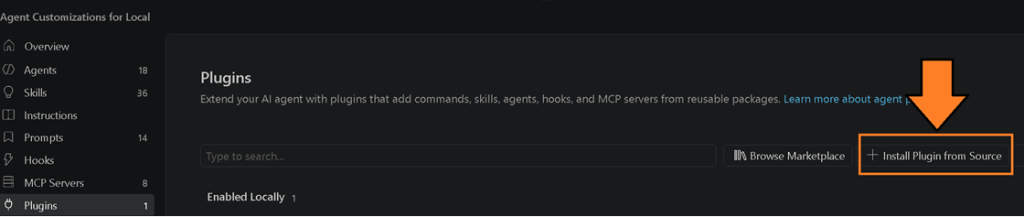
Now enter the repository URL at the top of VS Code: https://github.com/microsoft/skills-for-fabric

Select the skills you want. For this walkthrough I used the Power BI authoring skill, but you can of course enable whatever skill(s) you need:
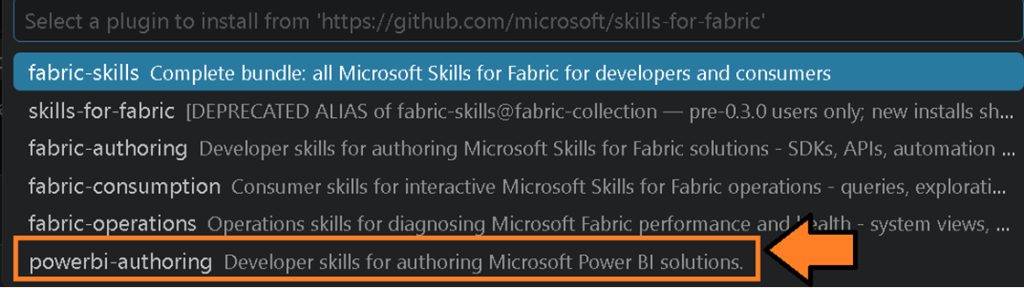
Once the skills are imported, GitHub Copilot can use them when you ask questions about Power BI development. The skills contain prompts and tool definitions that guide the agent toward commands that manipulate Power BI report (PBIR) files, Tabular Model Definition Language (TMDL) definitions, and the running Power BI Desktop instance.
Not familiar with the terms PBIR and TMDL? They are the text-based formats for the report (PBIR) and semantic model (TMDL) that are stored when you save a Power BI file as a Power BI Project (PBIP).
Simple Talk is brought to you by Redgate Software
How to enable the Power BI Desktop Bridge
The Power BI Desktop Bridge is the preview feature that makes hot reloading possible. It was introduced in the June 2026 release of Power BI Desktop, so make sure you are on that version. Without it, every change the agent makes to the report files would require you to close Power BI Desktop and reopen it manually. With the bridge enabled, the agent can ask Power BI Desktop to reload the report after it has finished making changes.
Here’s how to enable the Power BI Desktop Bridge:
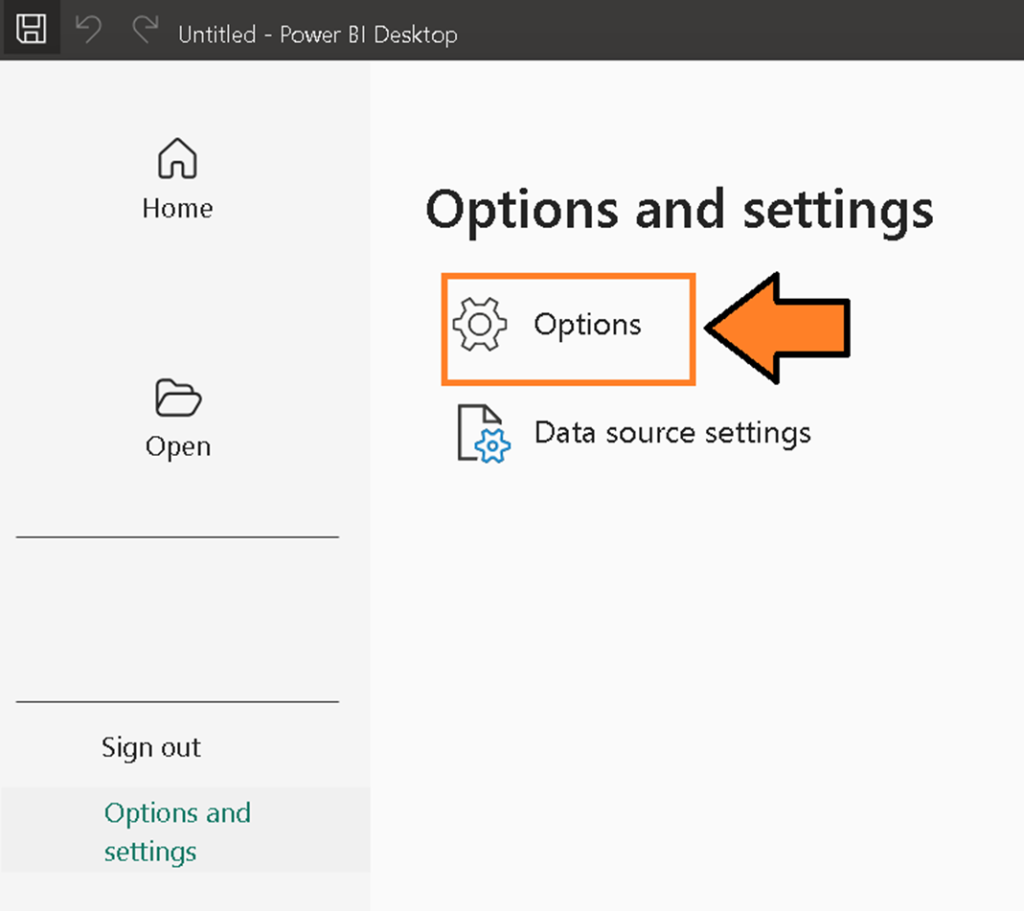
Open Power BI Desktop and go to File > Options and Settings > Options:
Select Preview Features from the left-hand menu. Check the box for Enable external access to Power BI Desktop through secure local APIs, then click OK:
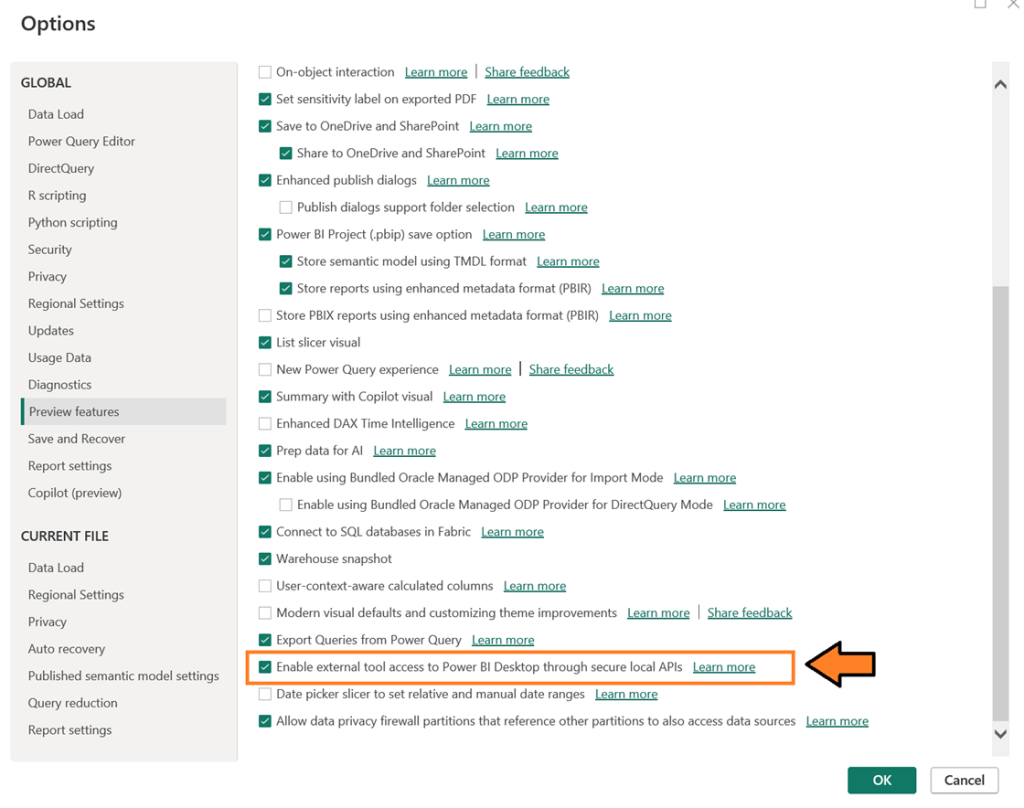
Power BI Desktop will now prompt you to restart, so do so. Upon restarting, the Power BI Desktop Bridge preview feature is now loaded.
How to set up a Power BI project
We now need a PBIP file to work with. Here, I’ll use a small sample .pbix report and save it as a Power BI Project so that the agent can edit the text-based report and model files directly. Here’s how to do it.
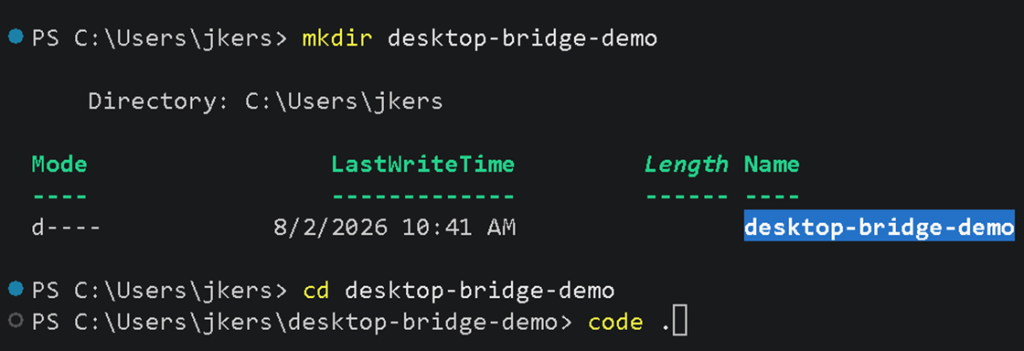
Open Visual Studio Code and select Terminal > New Terminal from the menu:

In the terminal, run the following commands to create and open a fresh workspace:
|
1 2 3 |
mkdir desktop-bridge-demo cd desktop-bridge-demo code . |
mkdir desktop-bridge-demo creates a folder for the PBIP version of the sample project. cd desktop-bridge-demo moves into that folder.code . o opens VS Code with that folder loaded.
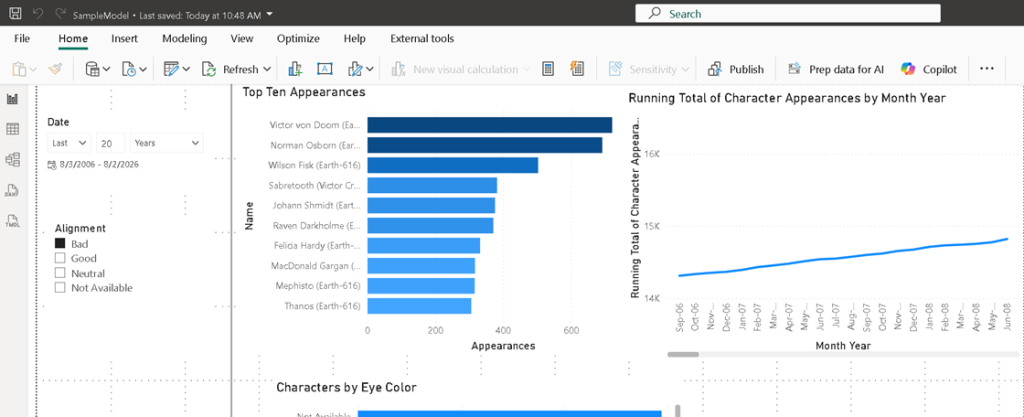
You must now download the sample .pbix file here and open it in Power BI Desktop. You should see a report similar to the one below:
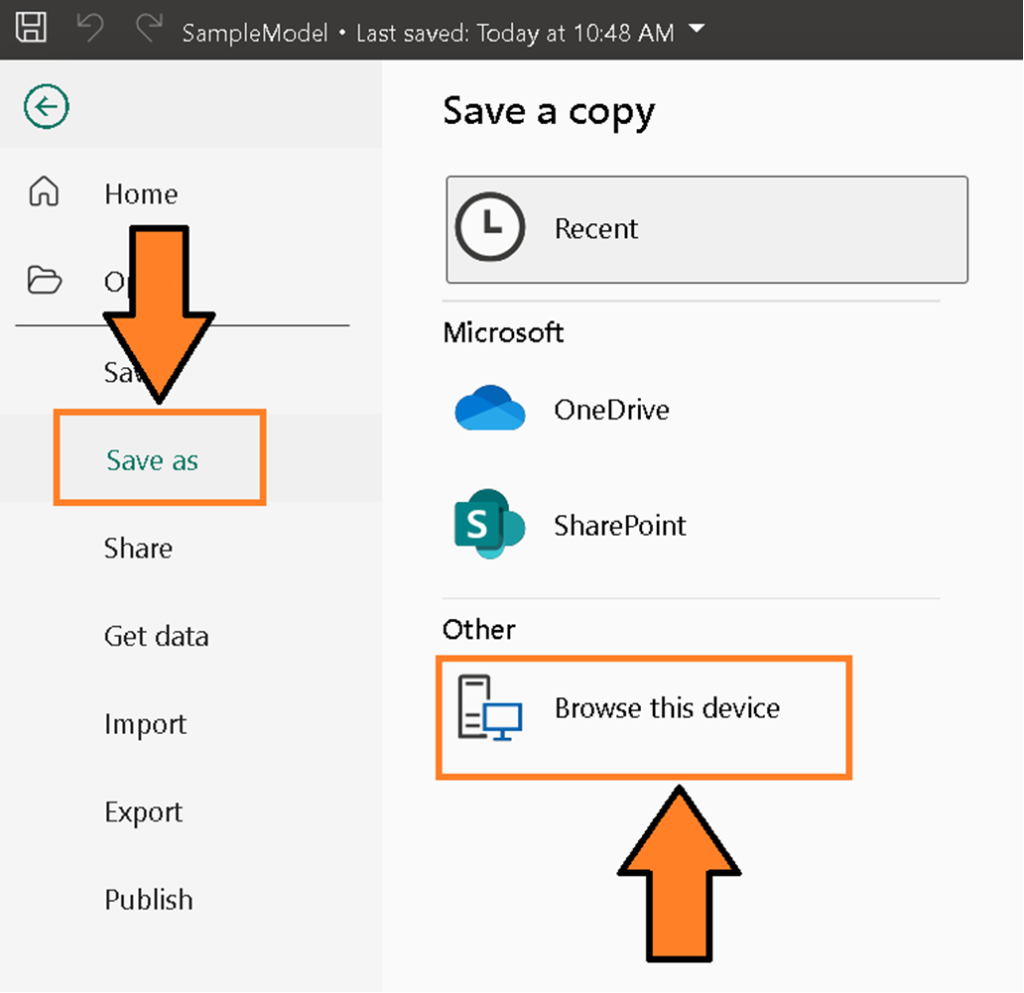
In Power BI Desktop, go to File > Save As > Browse this device:
Navigate to the desktop-bridge-demo folder you created earlier, then change Save as type to Power BI project files:
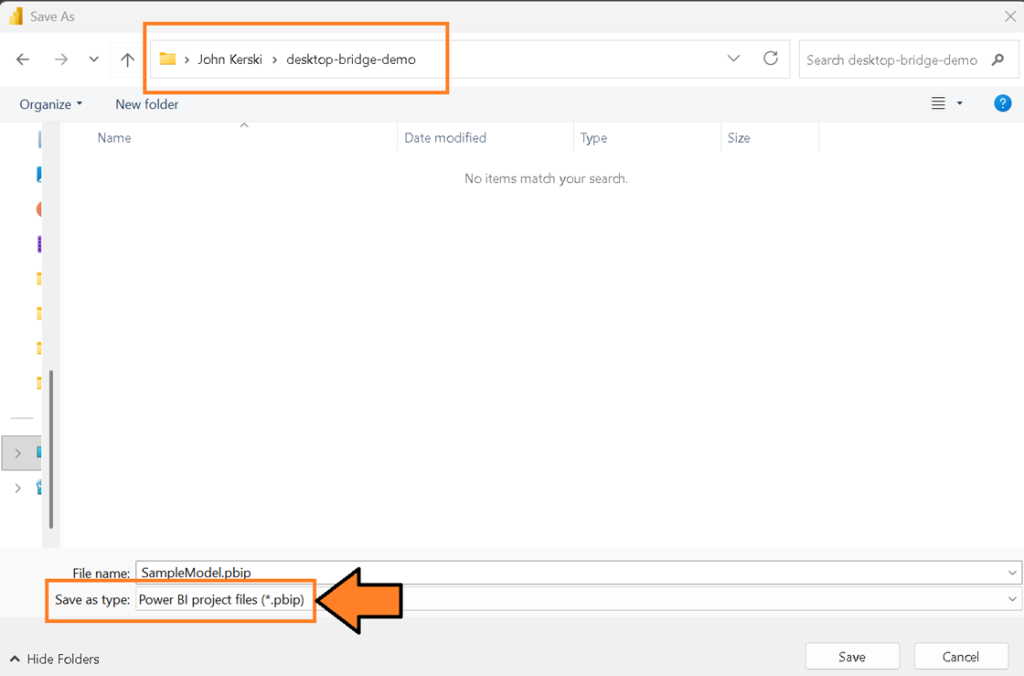
This is the critical step. Without it, the files remain in the binary .pbix format and the agent cannot edit them directly.
Back in Visual Studio Code, you should now see SampleModel.Report and SampleModel.SemanticModel folders. These contain the text-based Power BI report (PBIR) and Tabular Model Definition Language (TMDL) files that represent this report. This text-based format is exactly what the AI needs so it can make changes, validate them, and commit the diff to Git.
How to interact with the Power BI Desktop Bridge
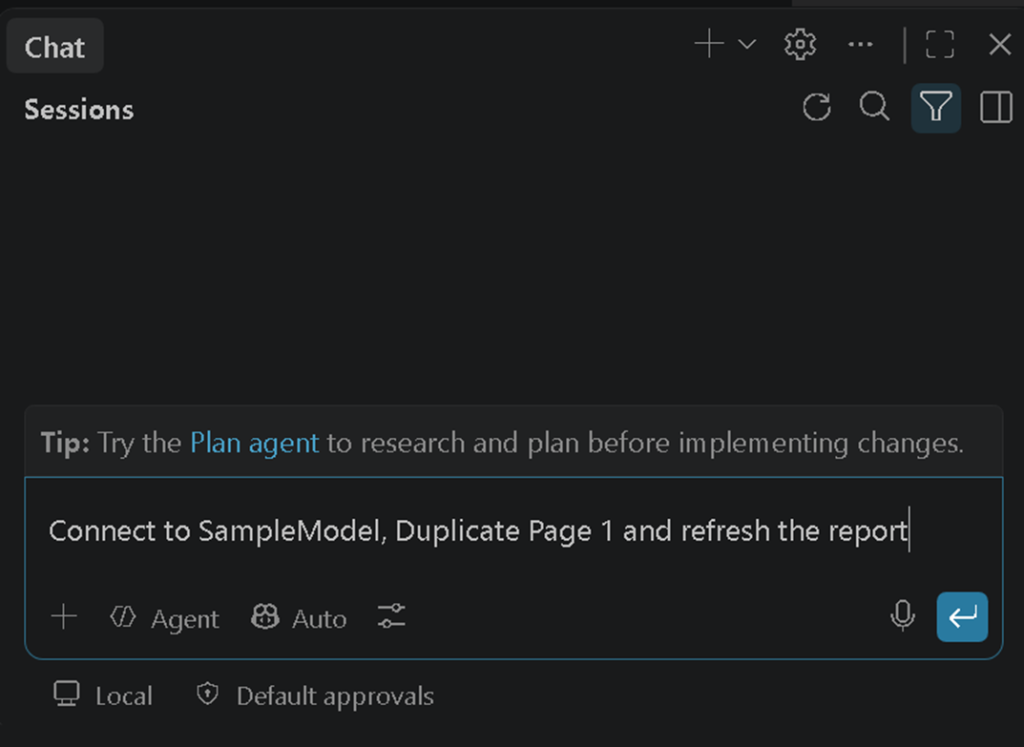
Now we can ask GitHub Copilot to interact with Power BI Desktop and automatically update the report. Open the Copilot chat panel in Visual Studio Code and make sure Agent mode is selected:
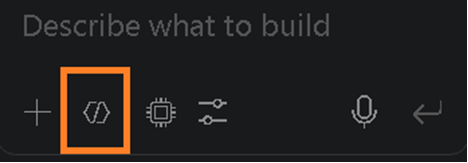
Ask the agent to duplicate the report page and reload. Then, connect to SampleModel, duplicate Page 1, refresh the report, and install the required command line interfaces (CLIs).
Regarding the latter: depending on the AI model you use, the agent sometimes skips the CLI installation step, so I add that phrase to coax it along. I’ve found that with some of the more frontier AI models in 2026, such as Claude Fable, this is not necessary.
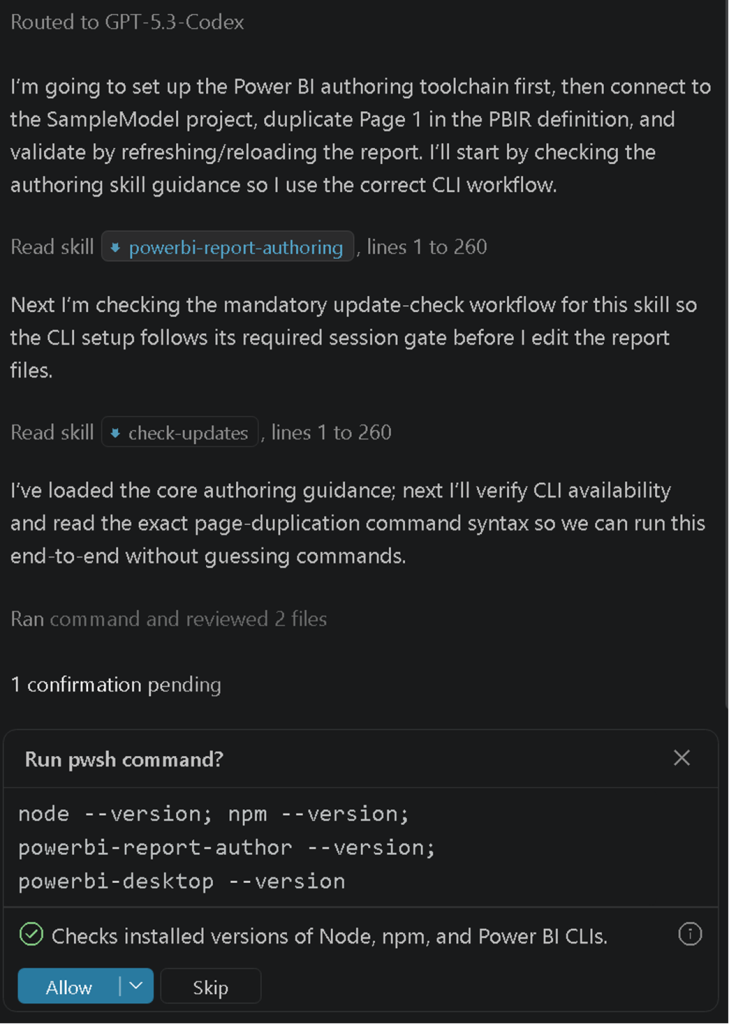
So what exactly is the agent installing? Well, the Fabric AI Skills don’t talk directly to Power BI Desktop. Instead, they instruct the agent to install and run two npm packages:
- Power BI Desktop Bridge CLI (@microsoft/powerbi-desktop-bridge-cli): this finds the running Power BI Desktop process and can trigger a reload.
- Report Authoring CLI (@microsoft/powerbi-report-authoring-cli): this validates, updates, and formats PBIR files.
These packages are registered by Microsoft on npm, so the agent downloads them with commands that look like npm install -g powerbi-desktop-bridge or similar global installs. The skills then call the installed binaries by name, such as powerbi-desktop or powerbi-report-author.
At the time of writing, the instructions in the skills files use a global install. This is fine for a quick demo but creates problems for teams, because:
- The installed version is not tracked in source (version) control.
- Different projects may need different versions of the CLI.
- Global installs can conflict with other tools or organizational policies.
- A security fix in one global package affects every project on the machine.
If you’ve worked in Python, JavaScript, or .NET (dotnet), you’re probably already used to keeping dependencies local to the workspace. We have virtual environments, local node_modules, and solution-level packages for exactly this reason. We can do the same here with GitHub Copilot agent hooks, which I cover in the Agent Hooks section.
You may also be interested in…
The full selection of .NET articles and guides on Simple Talk.
Now, back to the step-by-step guide. When the agent asks to install the npm packages, approve the installation:
As the agent progresses, it uses the skills to duplicate the appropriate JSON files in the .Report folder:
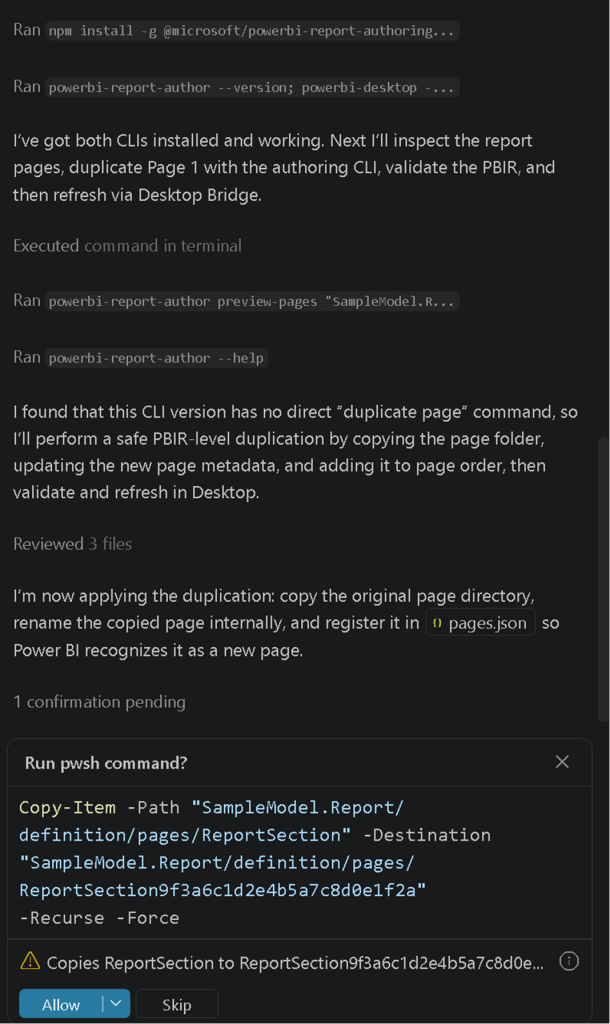
Next, the agent runs the powerbi-report-authoring CLI to validate the report. This is a crucial step whereby the CLI ensures the changes the agent made meet PBIR standards:
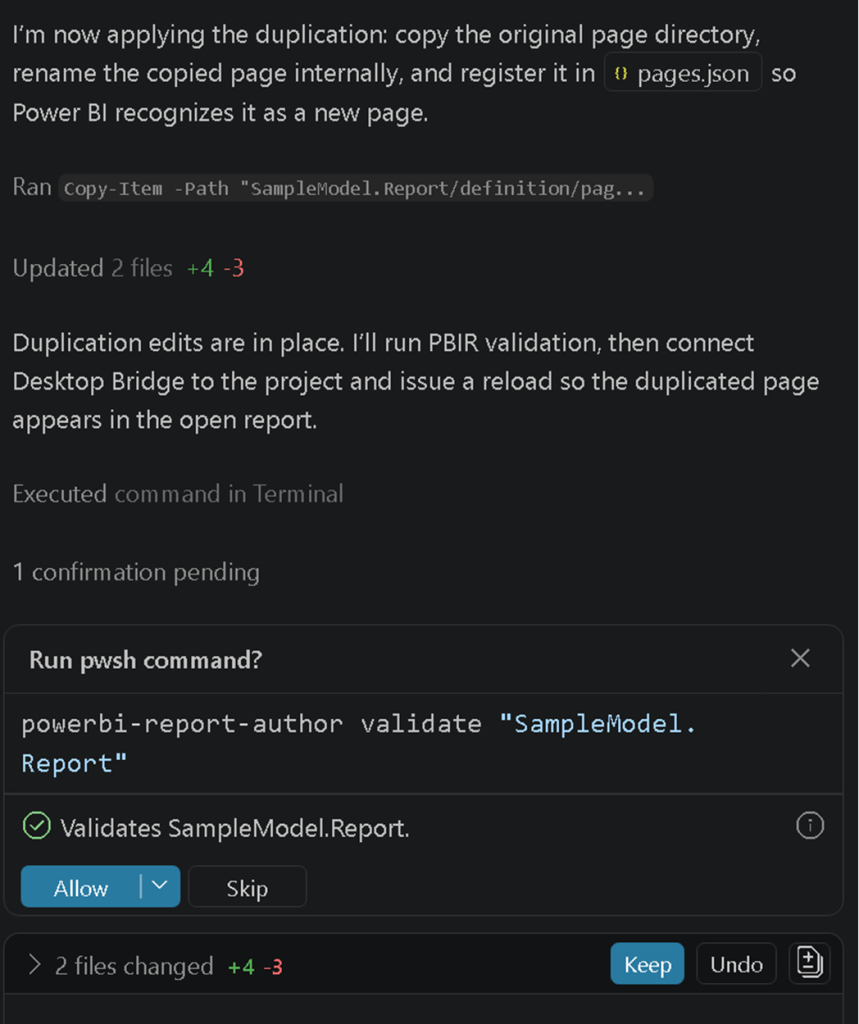
If the validation passes, the agent turns to the powerbi-desktop CLI. It first runs a status command to find the port that the local Power BI Desktop instance is listening on.
Every time you open a .pbip file in Power BI Desktop, a local version of Analysis Services starts on a random port, which lets agents and applications issue commands such as creating a Data Analysis Expressions (DAX) measure:
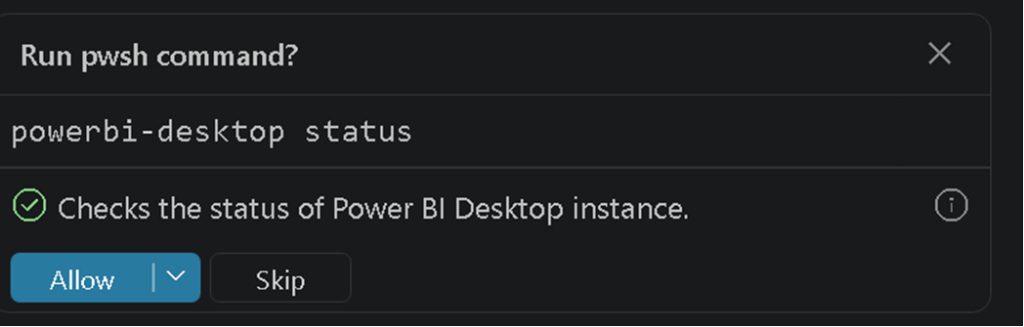
Once the port is identified, the agent issues the reload command:
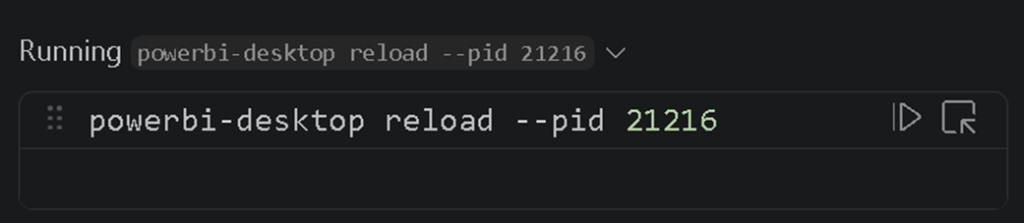
In the past, you would have had to close and reopen Power BI Desktop to see the change. Now, the report updates immediately:
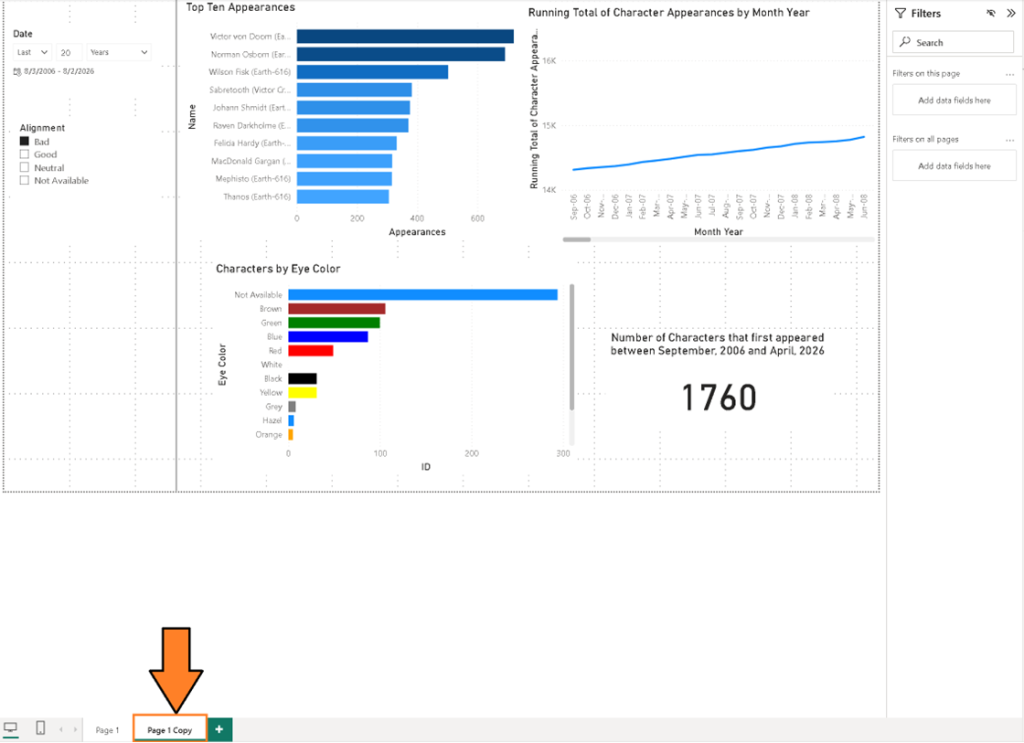
This is the part that feels amazing the first time you see it. It also removes a lot of friction from agentic development. I expect Microsoft will continue refining these skills and CLIs as the bridge moves toward general availability.
Note: You may notice that the Allow button slows down the process, but you can select auto-approve for the duration of the session so you do not have to respond to each permission. This is good design: Copilot asks you for permission for each tool and CLI call by default, and you have to deliberately lift those restrictions.
Finally, just remember that this is a demo. Any time you’re working with AI and Power BI, I highly recommend using Git so you can roll back changes that the agent may mess up.
Move fast. Govern at scale.
Agent hooks in Visual Studio Code and GitHub Copilot
Agent hooks are a relatively new feature in Visual Studio Code and GitHub Copilot. They let you run a script before the agent executes a tool command. With a hook you can log the command, deny it, rewrite it, or redirect it to a local version.
The hook lives in a .github/hooks folder in your project and is defined in JSON. The key property is pre-tool-use, which tells Copilot to run a script before it runs any tool command. That includes terminal commands such as npm install, or CLI invocations such as powerbi-report-author validate.
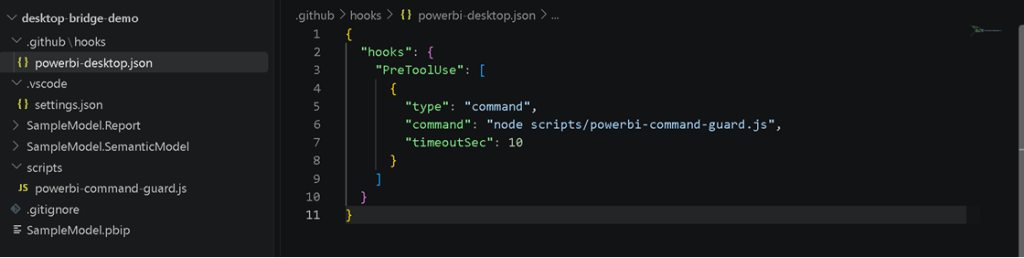
In my project, I created a .github/hooks folder and added a JSON file that references a small JavaScript file in the scripts folder. The JavaScript file does two things.
First, if the agent tries to run npm install -g, it rewrites the command to initialize a local package.json and install the package as a development dependency instead.
Second, if the agent tries to run one of the Power BI CLIs directly, it prefixes the command with npx so that the local copy in node_modules is used.
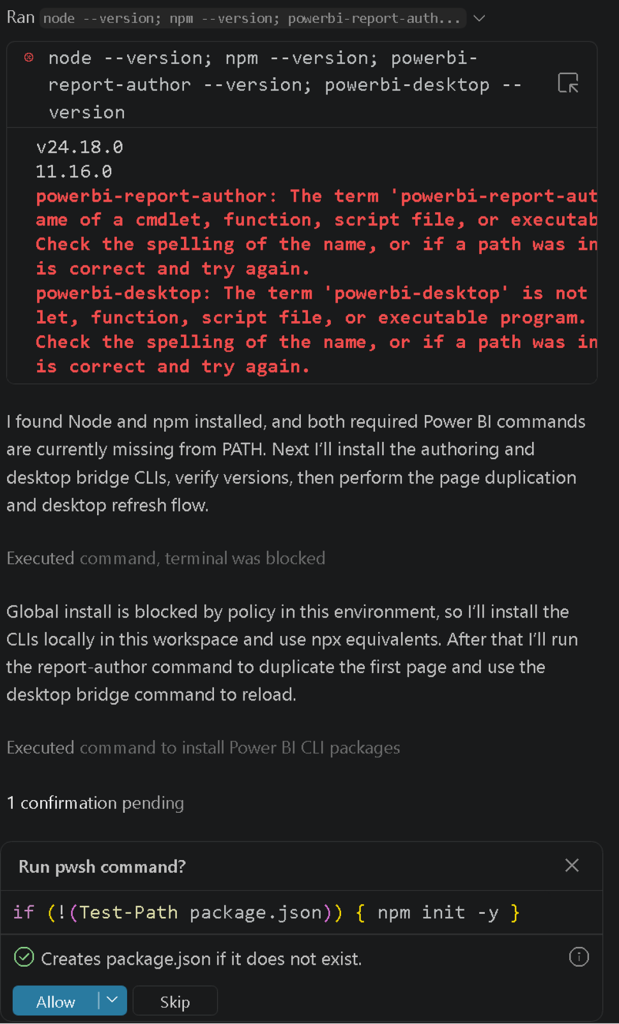
I’ve shared the hook file and script as gists: here (hook file) and here (the script executed by the hook file.)
The value of hooks is not just limited to this one scenario, however. Any time you want to enforce policy on what an agent is allowed to do, reduce token usage, or keep dependencies scoped to a workspace, hooks give you a place to intercept and shape the agent’s behavior without modifying the original skills files.
This is important because the skills files are maintained by Microsoft and, if you edit them locally, your changes will be overwritten the next time the plugin updates.
Prompts to help you leverage the bridge
This combination – Fabric AI Skills, the Power BI Desktop Bridge, and agent hooks – opens up a range of automation scenarios. Here are a few prompts you can try once the setup is in place:
- “Connect to my report and list the pages, measures, and tables in the model.” This is a good way to verify that the agent can see both the files on disk and the running Power BI Desktop process.
- “Create a new report page named Executive Summary and add the Total Sales and Profit Margin measures as cards.” The agent can update PBIR files and then reload the report so you see the new page immediately.
- “Take snapshots of each page and build documentation on the report, its visuals, and any bookmarks.” The report authoring CLI supports taking snapshots in PNG format and can help with documentation.
When writing prompts, I find it helps to be explicit about the model or report you want the agent to connect to and to include the word “reload” when you want the changes reflected in Power BI Desktop. The skills are good at inferring context, but explicit instructions reduce the chance the agent asks for clarification or takes the wrong approach, which uses up tokens.
Why does all of this actually matter for teams?
The Power BI Desktop Bridge is more than a convenience. It moves Power BI development closer to a workflow where the source files in Git are the source of truth and an agent can apply changes to them reliably.
The bridge handles the mechanical step of reloading the report so the developer can stay focused on the intent of the change rather than the tooling. Agent hooks then add a governance layer on top of that – crucial in regulated environments or on shared virtual desktops where administrators often want to control what software is installed, and where.
Hooks let you enforce those policies without blocking AI-assisted development entirely. You can redirect installs to a local scope, deny commands that touch production systems, or log every command for audit purposes.
In summary: how to use the Power BI Desktop Bridge to automate tasks in Power BI Desktop and GitHub Copilot
The Power BI Desktop Bridge and the official Fabric AI Skills give GitHub Copilot the ability to interact with Power BI Desktop in ways that previously required manual steps. By enabling the preview feature and installing the skills, you can ask an agent to update a report or model and see the result without restarting Power BI Desktop.
Behind the scenes, the skills install two npm-based CLI tools that handle process discovery, validation, and reloading. The current version of the skills installs those tools globally but, with GitHub Copilot agent hooks, you can redirect the installs to your workspace and run the tools locally with npx.
If you’re working on a team interested in agentic development, I encourage you to experiment with the desktop bridge and hooks. They’re a small addition to your project but can have a large impact on how safely and consistently your team uses AI-assisted development with Power BI.
FAQs
1. What is the Power BI Desktop Bridge?
It’s a preview feature in Power BI Desktop (introduced June 2026) that exposes secure local APIs, letting an AI agent detect a running Power BI Desktop instance, update report or model files, and trigger a reload without restarting the application.
2. What do I need to use it?
Visual Studio Code, GitHub Copilot with agent mode, an updated version of Power BI Desktop, Node.js, the Power BI Modeling MCP server extension, and a report saved in PBIP (Power BI Project) format rather than .pbix.
3. How do I enable the bridge in Power BI Desktop?
Go to File > Options and Settings > Options > Preview Features, then check “Enable external access to Power BI Desktop through secure local APIs” and restart the application.
4. What are the Fabric AI Skills?
A set of Microsoft-maintained instructions installed as plugins in GitHub Copilot’s agent panel (from the microsoft/skills-for-fabric GitHub repo) that guide the agent to safely edit PBIR and TMDL files and call the bridge’s CLI tools.
5. What are agent hooks used for?
Agent hooks are scripts that run before a Copilot tool command executes. They let teams intercept, rewrite, deny, or redirect commands – for example, forcing global npm installs to become local project dependencies instead.
This document contains proprietary information and is protected by copyright law.
Copyright © 2026 Red Gate Software Limited. All rights reserved



Load comments