



Do you know where you were on June 15, 2023? Do not fret, neither do I. But I do remember a blog post written by Rui Romano announcing the preview of the Power BI Project (PBIP) format back then.
Many in the Power BI world rejoiced at this news. Microsoft was finally taking steps toward better practices seen in software development and applying them to the analytics space.
As it happens, June 15, 2023 was just the first step. Since then, PBIP has evolved into the format we have today and I am happy to see that, as of September 2026, PBIP is generally available as a fully-supported feature for Power BI by Microsoft.
Before I explain the mechanics of PBIP, let me outline the real problems it was designed to solve.
TL;DR: A Power BI Project (PBIP) saves a Power BI report and its semantic model as folders of plain-text files instead of one binary .pbix file. The model is stored as TMDL and the report as PBIR JSON, so Git can show exactly what changed and teams can review, merge, script and automate their work.
Why does the Power BI Project (PBIP) format exist?
Have you ever worked in Power BI and someone handed you a new version of a report and you had to figure out what changed? I have. A lot of people in this industry have, too.
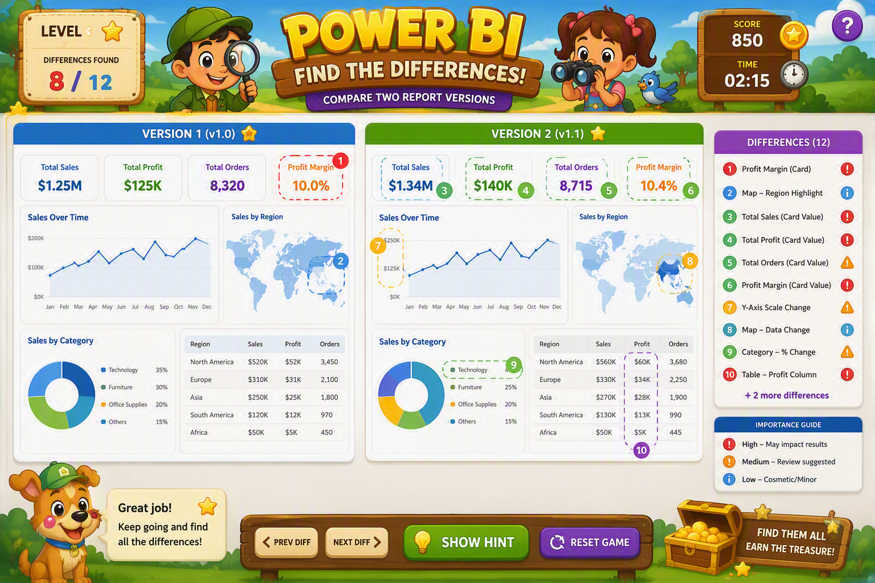
The problem is, Power BI history is usually stored in a binary format, .pbix – and comparing two binary files is not easy! In many cases, teams end up opening the reports side-by-side and hunting for differences.
In a way, it’s like playing the classic game of ‘spot-the-difference’ – except, in our case, it may be five, ten, or even hundreds of differences that matter.
Why comparing .pbix versions is so hard
It’s not just the counting that’s difficult – the real challenge is actually figuring out which differences matter, and which ones might cause issues in production.
Further, have you ever tried to keep track of different versions of your Power BI files with your folder looking like this?:
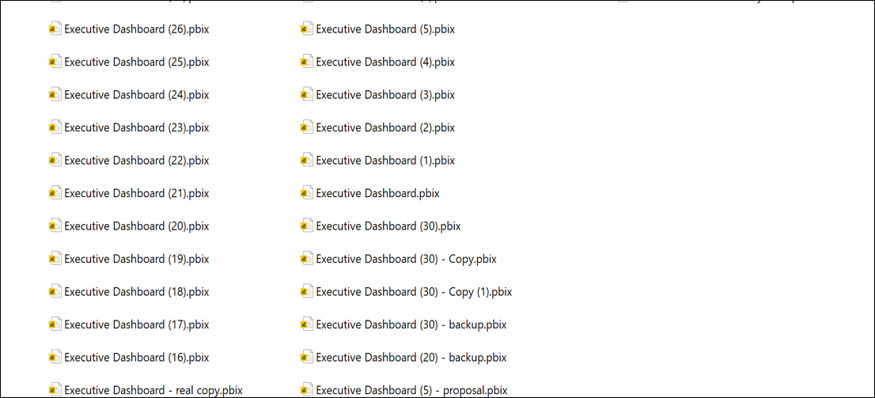
The issue is the same. A .pbix file is binary, which makes it difficult to use a tool like Git the way we do with plain text files such as .html, .js, and .md. Git is excellent at tracking changes in text, but with .pbix we’re mostly stuck saving duplicate copies of each version.
This, of course, fills up repositories quickly, and removes the benefit of reviewing the actual changes. Quick aside: I do know Git Large File Storage is an option, but that’s a bridge too far for many just learning Git.
If you’ve worked in this industry long enough you know, that when a published report starts misbehaving, understanding what changed recently is often one of the best clues to what broke.
That’s the kind of problem PBIP was designed to solve.
The limits of a single .pbix file for teams
Comparing versions and bloating a Git repo are just two symptoms of a bigger issue. A .pbix file is a fine way to move one report from one person to another, but was never built to support a team working on that report together over time.
Reusing a tested table, measure pattern, or report page from one file in another usually means rebuilding it by hand instead of copying it over.
Tools don’t have it much easier, either. Yes, Power BI Desktop can expose a semantic model over its local XMLA endpoint, but that still means standing up Desktop and making a live connection just to inspect a model.
Linting, automated checks, and AI assistance are all far simpler when the model and report definition are already sitting in plain text – both on your own machine and inside a build pipeline that has no Desktop to connect to.
None of this means Power BI authors were doing something wrong. The file format simply did not expose the pieces that a mature delivery process needs. We’ve been building reports with an incredibly capable visual tool, living in a low-code world while trying to build practices that are better suited to high-code files.
PBIP has changed this.
What is a Power BI Project (PBIP)?
A Power BI Project is still a Power BI report and semantic model. It’s not a different product, and you don’t need to stop using Power BI Desktop. The change is how the work is stored on disk.
Instead of keeping the report and model inside one .pbix file, Power BI Desktop saves your report and semantic model as separate folders with a small project entry-point file (.pbip) that can be double-clicked to open your report in Power BI Desktop.
The SampleModel project I use in my own training sessions looks like this:
|
1 2 3 4 5 6 7 8 9 10 11 12 13 14 15 16 17 |
SampleModel/ ├── SampleModel.pbip ├── SampleModel.Report/ │ ├── .pbi/ │ ├── .platform │ ├── definition.pbir │ ├── definition/ │ └── StaticResources/ ├── SampleModel.SemanticModel/ │ ├── .pbi/ │ ├── .platform │ ├── definition.pbism │ ├── definition/ │ ├── diagramLayout.json │ ├── DAXQueries/ │ └── TMDLScripts/ └── .gitignore |
PBIX vs PBIP: a quick summary
| Feature | .pbix | PBIP |
|---|---|---|
| Storage | One binary file | Folders of plain-text files |
| Git diffs | Whole-file copies only | Line-level changes |
| Semantic model | Inside the binary | TMDL, roughly one file per table |
| Report | Inside the binary | PBIR, separate JSON files for pages and visuals |
| Data | Ships in the file | Stays in the git-ignored .pbi/cache.abf |
| Automation and linting | Needs Desktop | Works on plain text, including in build pipelines |
What’s inside a PBIP folder structure?
There are a few details in this structure that will help you understand how it works.
The .pbip entry-point file
Firstly, the .pbip file is the project entry point. It points Power BI Desktop at a report folder. When you double-click this file in File Explorer, Desktop reads the artifacts array, follows report.path, and opens the SampleModel.Report folder:
|
1 2 3 4 5 6 7 8 9 10 11 12 13 14 |
{ "$schema": "https://developer.microsoft.com/json-schemas/fabric/pbip/pbipProperties/1.0.0/schema.json", "version": "1.0", "artifacts": [ { "report": { "path": "SampleModel.Report" } } ], "settings": { "enableAutoRecovery": true } } |
The .Report folder holds the report definition, including pages, visuals, bookmarks, themes, and the reference to its semantic model.
Note that if the .pbip file is ever missing, you can double-click definition.pbir in the .Report folder instead, and Power BI Desktop opens the report directly.
It also tells Desktop which semantic model the report should connect to:
|
1 2 3 4 5 6 7 8 9 |
{ "$schema": "https://developer.microsoft.com/json-schemas/fabric/item/report/definitionProperties/2.0.0/schema.json", "version": "4.0", "datasetReference": { "byPath": { "path": "../SampleModel.SemanticModel" } } } |
Thick reports vs thin reports
The definition.pbir above points to the local semantic model with a relative path, often called a thick report because the report and model travel together. byPath uses a relative path, not an absolute path, and always forward slashes, even on Windows – so the reference still works after you clone the repository somewhere else.
When Power BI Desktop opens a thick report, it also opens the referenced semantic model in full edit mode. But what does it look like when the report instead references a semantic model already published to the cloud (sometimes called a thin report?)
Here is the thin report version of the JSON:
|
1 2 3 4 5 6 7 8 9 |
{ "$schema": "https://developer.microsoft.com/json-schemas/fabric/item/report/definitionProperties/2.0.0/schema.json", "version": "4.0", "datasetReference": { "byConnection": { "connectionString": "Data Source=powerbi://api.powerbi.com/v1.0/myorg/pql-assert-demo;initial catalog=TestingModel;access mode=readonly;integrated security=ClaimsToken;semanticmodelid=xxxxx-ba64-40ab-9c9f-363dbxxxx" } } } |
Notice that byPath becomes byConnection, with the traditional connection string to a semantic model stored in the Power BI or Microsoft Fabric service.
Why PBIP keeps your data out of Git
With byConnection, Desktop opens the report connected to the remote semantic model – but does not open that model in edit mode. That boundary lets a report author focus on the report, while a separate team keeps ownership of the model.
- The
.SemanticModelfolder holds the tables, relationships, measures, roles, Power Query expressions, and other model metadata. - Each item folder, whether
.Reportor.SemanticModel, also contains two supporting files:.platform, which tells Fabric the item’s type, display name, and logical ID for Git sync.
.pbi, a folder of cached, machine-specific files such ascache.abfandlocalSettings.json. This is the folder your.gitignoreshould exclude if you are using version control.
This last point is, in my opinion, the most underrated part of the PBIP format. The cache.abf file is where the actual data behind a semantic model is stored, and it lives inside the excluded .pbi folder.
That means, when you commit or sync a PBIP project to Git, the schema goes up – but the data does not.
This is a meaningful contrast with a .pbix file, where the data ships along with everything else. Here, since the data never enters the repository, cloning a PBIP project doesn’t freely hand someone a copy of your data. Anyone who pulls the project still needs to refresh it with their own credentials before they see live data.
Simple Talk is brought to you by Redgate Software
How to convert a PBIX to PBIP in Power BI Desktop
Power BI Desktop is the supported way to turn an existing PBIX report into a project. You don’t need a conversion utility or a special deployment tool.
To save an existing PBIX as a project, open the report in Power BI Desktop and select File > Save As. Then, select Power BI project files as the file type:
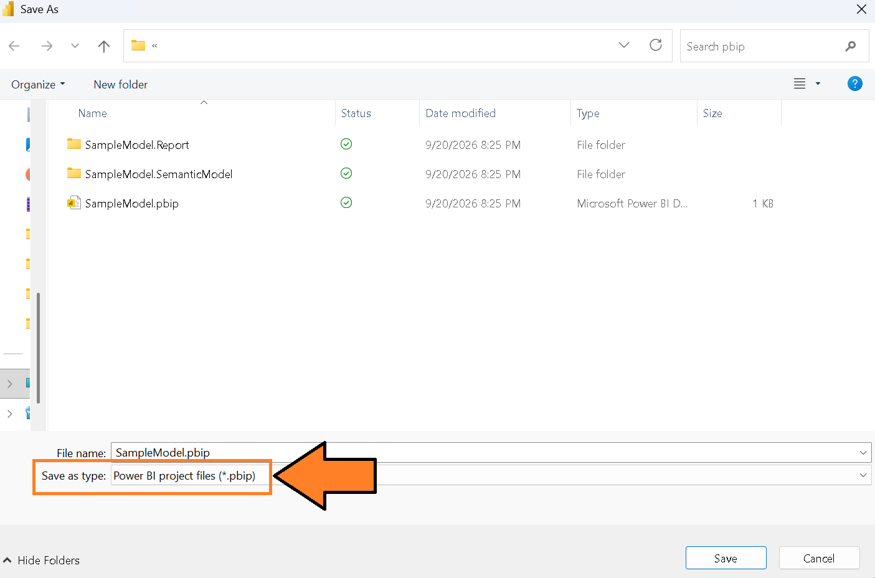
Choose a short local folder path and save it there.
Avoid a deeply nested OneDrive folder; PBIP turns one file into several nested folders, and Windows path limits can result in deeply-nested paths failing to save.
Power BI Desktop creates the aforementioned .pbip, .Report, and .SemanticModel items (if not a thin report). It also creates a default .gitignore if/when one doesn’t already exist in the target folder (or its parent Git repository).
It’s important at this point to mention that PBIP is actually a format that consists of other formats: one for the semantic model and one for the report. Let’s review those two in a little more detail.
You may also be interested in:
13 things I wish I knew about Power Query (when I first started)
Tabular Model Definition Language (TMDL): the Power BI semantic model in plain text
The semantic model is the part of a Power BI solution that describes tables, columns, relationships, measures, calculation groups, roles, cultures, and data-source expressions.
Before Tabular Model Definition Language (TMDL), a PBIP semantic model could be saved as a single model.bim file in Tabular Model Scripting Language (TMSL).
TMSL is JSON, which is useful for the Analysis Services engine – but one large JSON document is not friendly for people working together!
In version control, many small files is better than just one large file as they avoid merge conflicts – the tedious process of manually reconciling two people’s changes to the same file.
While TMDL doesn’t eliminate merge conflicts outright, splitting a model into per-object files makes them less common.
How TMDL splits a model into files
The SemanticModel/definition folder in my SampleModel project shows this split in practice:
|
1 2 3 4 5 6 7 8 9 10 11 12 13 14 |
SampleModel.SemanticModel/ └── definition/ ├── database.tmdl ├── expressions.tmdl ├── functions.tmdl ├── model.tmdl ├── relationships.tmdl ├── cultures/ │ └── en-US.tmdl └── tables/ ├── MarvelFact.tmdl ├── DateDim.tmdl ├── AlignmentDim.tmdl └── ... |
Every table that is actually loaded into the model – MarvelFact, DateDim, AlignmentDim, and so on – gets its own file under tables/.
Anything that is not loaded, however, works differently. The queries shown in italics in the Power Query Editor – along with parameters and Power Query M functions – all live together in a single expressions.tmdl file instead of getting their own table file.
Additionally, relationships have their own relationships.tmdl, and each supported culture gets a file under cultures/. The pattern holds throughout: whatever you can see and edit as a distinct object in Power BI Desktop, TMDL often gives it a distinct place in a file.
Note that functions.tmdl is where user-defined DAX functions are stored.
Here’s an example. The MarvelFact table in my SampleModel project has a measure defined like this:
|
1 2 3 4 5 6 7 8 9 10 11 12 13 14 15 |
table MarvelFact lineageTag: 743cae73-8a6b-4e03-af99-d194d47d16af measure 'Number of Characters' = ``` COUNTROWS('MarvelFact') ``` formatString: 0 lineageTag: df54ac01-57f7-4a28-a338-2609c59c6503 column ID dataType: int64 formatString: 0 lineageTag: b7ff624e-3f51-4955-89fb-6129a2da0110 summarizeBy: count sourceColumn: ID |
That is a meaningful improvement over finding the same measure inside a large JSON file. An author can open the table file, review the measure, and see its format string and metadata in context. A code editor like Visual Studio Code (VSC, or VS Code) can then provide syntax highlighting and language support.
A linter, meanwhile, can inspect naming conventions (e.g., make sure measures and tables have spaces between words and proper casing) – and a script can add a standard measure to every model that needs it. The fact that this is now in a standard, plain-text format opens up a lot of possibilities.
I will also note a happy accident of PBIP: AI tools, like GitHub Copilot, are really good at making updates to Power BI. I recently wrote an article about this here on Simple Talk.
PBIR: the Power BI report as JSON files
The report also has a history. Older PBIP reports used a single report.json file. That file represents the report, but it has the same co-development problem as one large model file. A small visual formatting change and a new page can both land in the same huge JSON document.
The new Power BI Report format (PBIR) stores the report in a definition folder instead – with pages, visuals, and bookmarks separated into their own JSON files.
A typical report definition looks like this:
|
1 2 3 4 5 6 7 8 9 10 11 12 13 14 15 |
SampleModel.Report/ ├── definition.pbir └── definition/ ├── pages/ │ ├── ReportSection/ │ │ ├── page.json │ │ └── visuals/ │ ├── f2054b40c53166dc4484/ │ │ ├── page.json │ │ └── visuals/ │ ├── 941d59188f8e383e90d8/ │ ├── cdebc12e8cab59f864b6/ │ └── pages.json ├── report.json └── version.json |
Notice that Power BI Desktop names each page folder after its logical ID rather than its display name (apart from the very first page.) It’s small detail, but one that matters if you’re looking for a specific page by name in the file system.
The page.json inside each folder is where the display name actually lives, and pages.json tracks the page order and which page is active (activePageName):
|
1 2 3 4 5 6 7 8 9 10 |
{ "$schema": "https://developer.microsoft.com/json-schemas/fabric/item/report/definition/pagesMetadata/1.1.0/schema.json", "pageOrder": [ "ReportSection", "f2054b40c53166dc4484", "941d59188f8e383e90d8", "cdebc12e8cab59f864b6" ], "activePageName": "ReportSection" } |
The benefits of PBIR extend well beyond source control. A team with a standard page layout can copy a page folder into a new report and make targeted modifications rather than rebuilding from scratch. Teams can also inspect a visual’s JSON definition to understand the filters, queries, formatting, and positioning generated by Power BI.
Additionally, since report elements are stored in a structured format, scripts can automate bulk changes across reports – such as updating a property in every visual.json file.
We can even analyze report definitions to enforce standards. This includes accessibility checks for alt text, color contrast, and other usability requirements.
Security note: sensitive values in PBIR filters
One additional consideration is that PBIR stores certain report settings and filter values in plain-text JSON files. If a report contains hard-coded filter values that include sensitive information, those values may be visible within the project files.
While this behavior is necessary to support transparency and source control, it reinforces the need for good development practices. Teams should avoid embedding sensitive data in report filters whenever possible, and ensure their repositories, access controls, and governance processes are managed appropriately.
Where to start with PBIP
Okay, you may be reading this at this point and think, “Oh man, I need to learn Git, where do I even start with PBIP for all the reports I have?”
Just know this: you do not need to convert every report in your tenant tomorrow!
Start with a report that has active development, a clear owner, and a reason to improve its delivery process. Save it as PBIP, and set up version control with Git.
Conclusion: treat Power BI reports like software
The general availability of Power BI Project format is significant because it recognizes what many Power BI teams have understood for years: reports and semantic models are software artifacts.
They contain logic, configuration, dependencies, and business rules that deserve the same level of governance, testing, and lifecycle management as any other production system.
PBIP brings a project-based structure to Power BI Desktop. TMDL provides a human-readable representation of semantic models, and PBIR introduces a structured format for reports.
Together, these innovations make version control systems like Git genuinely useful for Power BI development.
More importantly, PBIP creates a stronger foundation for transparency, collaboration, automation, and shared ownership. Power BI teams now have a much better way to develop, review, test, and maintain reports and semantic models as a team.
Subscribe to the Simple Talk newsletter
FAQs
1. What is a Power BI Project (PBIP)?
A Power BI Project (PBIP) is a folder-based way of saving a Power BI report and semantic model as plain-text files rather than one .pbix file. A small .pbip file opens the project in Power BI Desktop, a .Report folder holds the report definition, and a .SemanticModel folder holds the model. It’s the same report and model, just stored differently.
2. What's the difference between PBIX and PBIP?
A .pbix is a single binary file that bundles the report, model and data. A PBIP splits the report and semantic model into separate folders of text files, with the model in TMDL and the report in PBIR JSON. That lets Git show line-by-line changes and keeps cached data out of the repository via the .pbi folder.
3. Can you use Git with Power BI?
Yes, but Git works best with PBIP. A .pbix is binary, so Git can only store whole copies and can’t show what changed. Save the report as a Power BI Project and Git can track changes to individual tables, measures, pages and visuals as text. Desktop also creates a default .gitignore that excludes machine-specific files.
4. How do I convert a PBIX to PBIP?
Open the report in Power BI Desktop, select File > Save As, and choose Power BI project files as the file type. Save to a short local folder path, because PBIP creates nested folders and long paths, such as deeply nested OneDrive folders, can fail to save. Desktop creates the .pbip, .Report, and .SemanticModel items.
5. What are TMDL and PBIR?
TMDL (Tabular Model Definition Language) stores a semantic model as plain-text files, roughly one per table. PBIR (Power BI Report format) stores a report as separate JSON files for pages, visuals and bookmarks. Together they replace the older single model.bim and report.json files, making merge conflicts less common – and letting scripts and linters work on the definitions.
This document contains proprietary information and is protected by copyright law.
Copyright © 2026 Red Gate Software Limited. All rights reserved




Load comments