



If you’ve ever developed a Gen1 dataflow to connect to an external API (Application Programming Interface), you know the awkward moment when you have to paste an API key into the Power Query script.
There it sits, in plain text, inside an artifact (the proper name for something like a semantic model, report or dataflow created in the service), with limited options for secret rotation or access control.
Thankfully, Gen2 dataflows improve the story considerably – especially when Azure Key Vault, Microsoft Fabric pipelines, and the newer parameters feature are combined.
In this guide, I’ll show you the pattern I now reach for when I need to pass API secrets into a Fabric Gen2 dataflow without leaving them in code or configuration.
The goal: keep secrets out of the dataflow
A dataflow should not contain secrets. Instead, it should receive a secret at runtime, use it, and then forget it. Meaning: no keys in Power Query code, no keys saved inside the dataflow connection, and no keys visible in source control (if the dataflow is synced through Fabric Git Integration) or log files.
To make this work, we need Azure Key Vault as the secret store, a Fabric pipeline as the orchestrator, and public parameters on the Gen2 dataflow as the secure delivery mechanism.
When does this pattern make sense?
This approach is useful whenever a dataflow must call an authenticated endpoint. Common examples include:
- Calling a REST API that requires an API key or bearer token (e.g., Azure Foundry or Microsoft Graph).
- Connecting to a custom service that does not support OAuth-based connections.
- Running the same dataflow against different environments, each with its own credentials.
Bear in mind, this is not a replacement for native OAuth connections where they exist. If Fabric already offers a secure, first-class connector for your source, use that! This pattern simply fills in the gaps.
What you need to get started
- A Microsoft Fabric workspace with Gen2 dataflow support and pipeline authoring enabled. You also need Admin rights to the workspace.
- A Fabric capacity that supports pipelines and dataflows. Note that some AI-powered Gen2 features require a paid capacity, but the public parameters feature itself does not rely on Copilot licensing.
- An Azure Key Vault in a subscription your Fabric workspace can reach.
- Permission to grant the Fabric workspace managed identity (a.k.a. a service principal) access to that vault.
The complete step-by-step guide
Here’s my step-by-step guide to the pattern I use to pass API secrets into a Fabric Gen2 dataflow without leaving them in code or configuration.
How to store the secret in Azure Key Vault (step 1)
First, we need to create a secret in Azure Key Vault for the API key or token – and, at the time of writing (mid-2026), this happens outside of Microsoft Fabric.
Quite frankly, it’s a point of frustration for me; it would be nice if this existed IN Fabric itself. Anyway, complaints aside, see the official Microsoft documentation for creating an Azure Key Vault here.
For naming your key vault, I like to prefix it with “kv-”, to keep in line with Azure Abbreviations. I then add something predictable such as kv-fabric-key-storage or kv-dataflow-keys.
So, go ahead and create a secret in Key Vault. I created the secret following these directions, and I copy the link to the secret.
Copy the secret identifier, which will look like this:
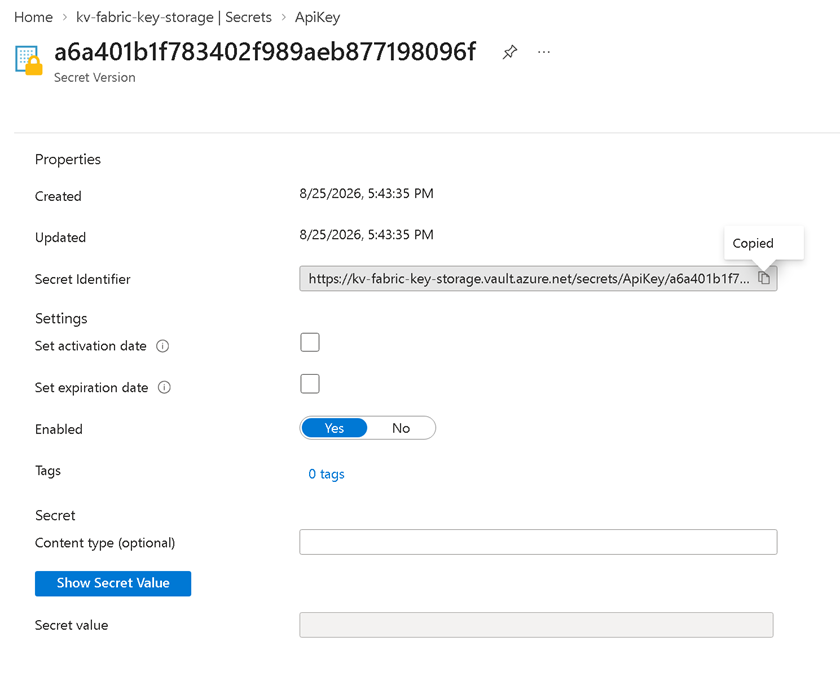
You’ll need the vault and the secret name later, so it’s best to copy them to a temporary text editor file like Notepad.
You should also copy the Vault URI for the newly created Key Vault. This is located in the Overview section when working with Key Vault:

How to grant Microsoft Fabric access to Azure Key Vault (step 2)
First, your pipeline needs permission to read the secret. The cleanest way to do this is to use the workspace managed identity.
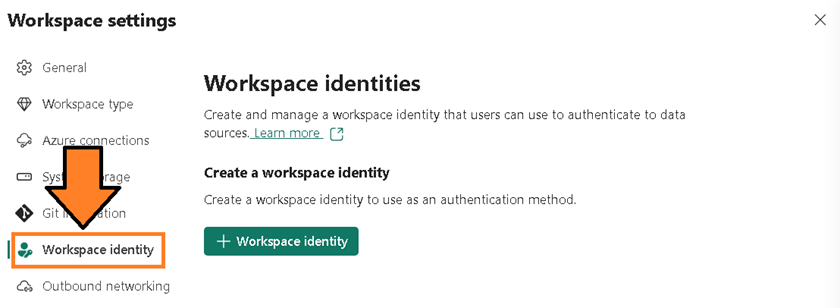
So, let’s create a managed identity for the workspace. To do this, go to the Workspace, select Workspace Settings, and navigate to Workspace Identity:
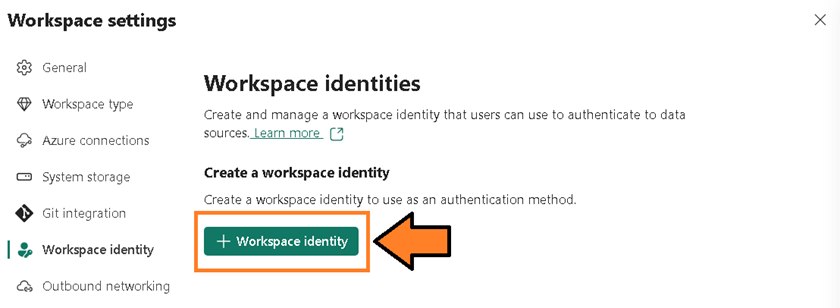
Then, select + Workspace Identity:
It may take a couple of seconds to create (and the Name field may be missing, as is often the case):
Rest assured, the name is the name of your workspace. Simply refresh the browser, go back to Managed Identity, and the name will appear:
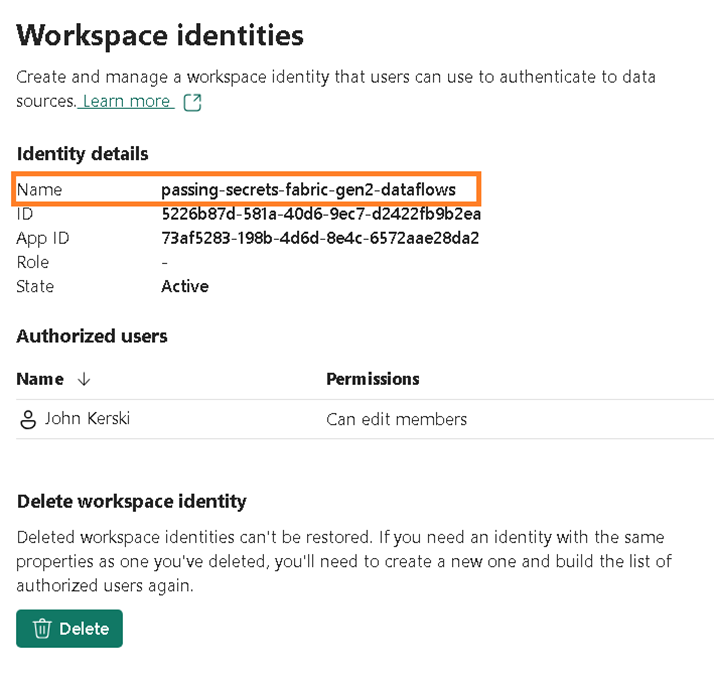
Granting Fabric access to Key Vault
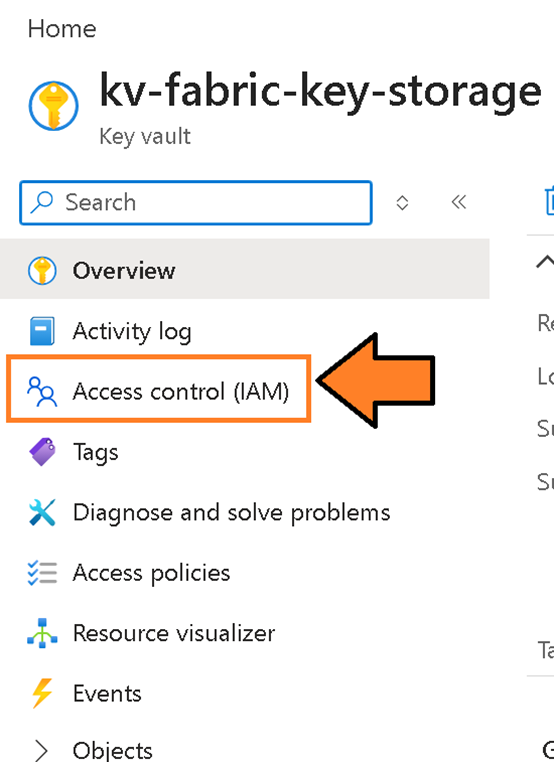
Let’s now navigate to the Key Vault. Open it via the Azure portal and head to Access control (IAM):
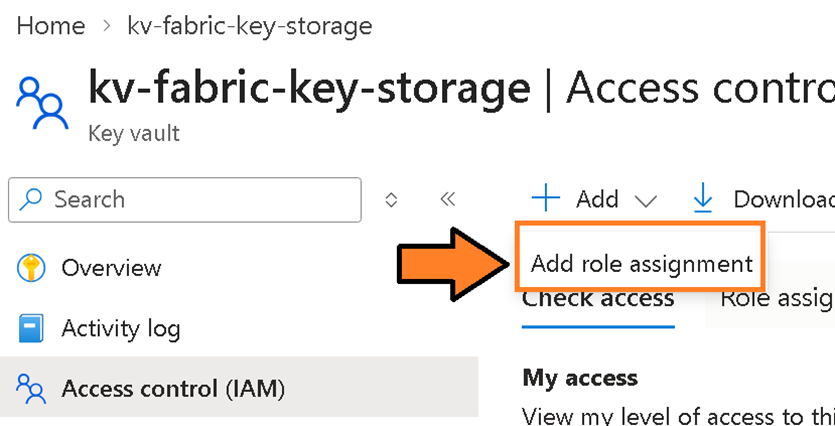
Now click Add, followed by Add Role Assignment:
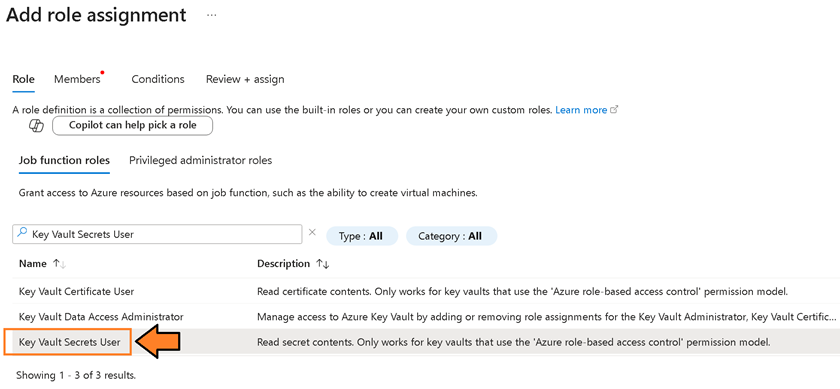
Find and select the Key Vault Secrets Users role in the Role tab:
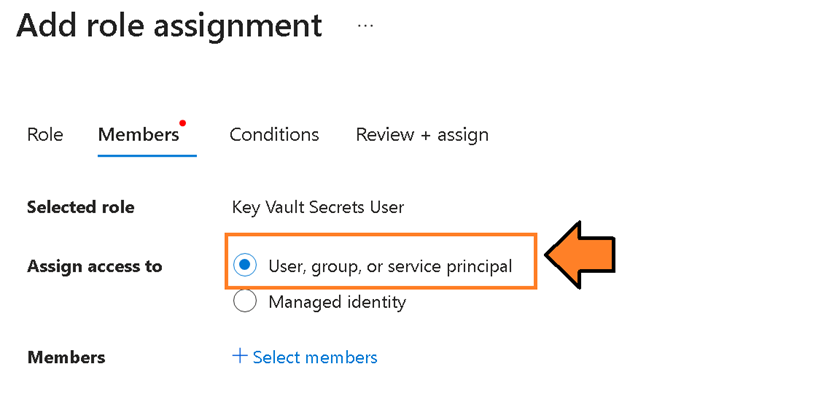
Next, navigate to the Members tab and make sure User, group, or service principal is selected:
Click Select members:
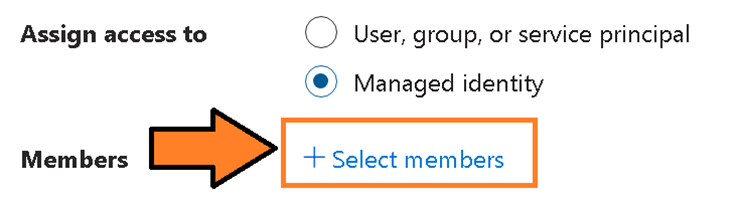
Then, search for the workspace identity (the name of the workspace) and press Select:
This will return you to the Add role assignment screen – from here, select Review + assign:
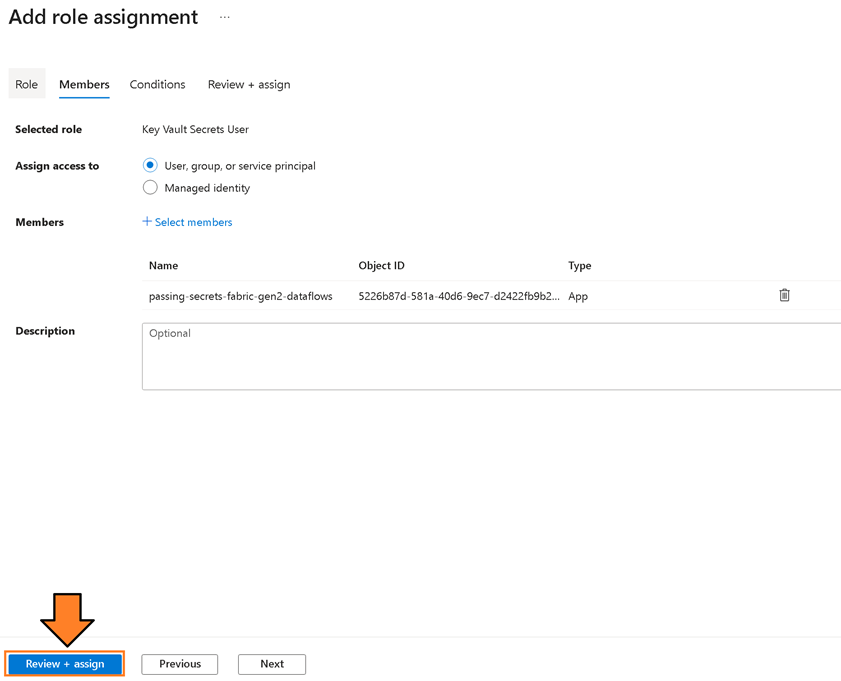
This will assign the identity to the role. You’ll then likely be returned to Azure Portal’s main page.
How to collect the Workspace Identity’s information for later use (step 3)
The Workspace Identity you’ve created will now be available in the App Registrations area of Microsoft Entra. We now need to collect some information for use later in setup.
What is a Workspace Identity?
A Workspace Identity is a service principal in Microsoft Entra. Learn more.
Click here to access Microsoft Entra as a commercial user, if needed.
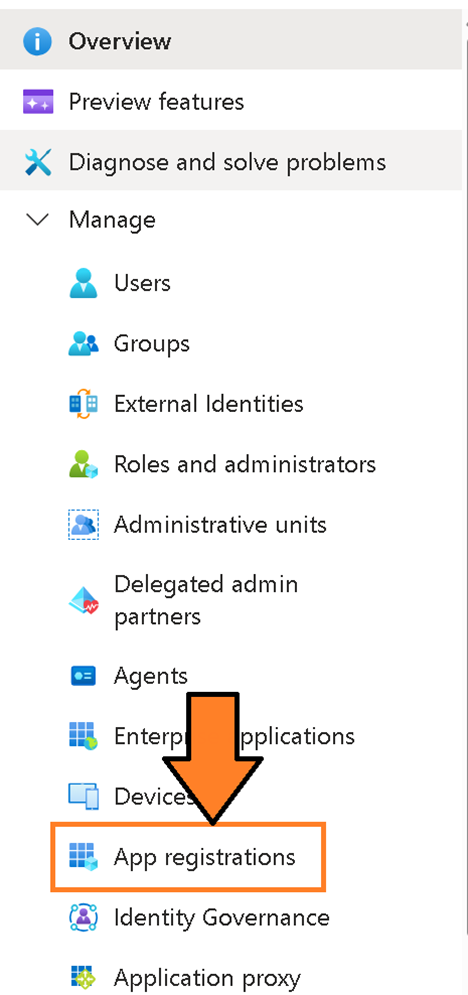
Once you’re in Microsoft Entra, expand the Manage section – located on the left-hand navigation – and select App Registration:
How to find the Client ID and Tenant ID
Select All Applications and search for the name of your workspace. This should match the name of the Workspace Identity you created earlier. Once you’ve found it, select the app link located under the Display Name column:
An overview screen will appear, from which we now need to copy the Client Id and Tenant Id to a text editor (e.g., Notepad) for use later on:
How to create a new client secret
We also need a Client Secret, so head to the Certificates and Secrets tab (you may have to expand the Manage tab to see it):
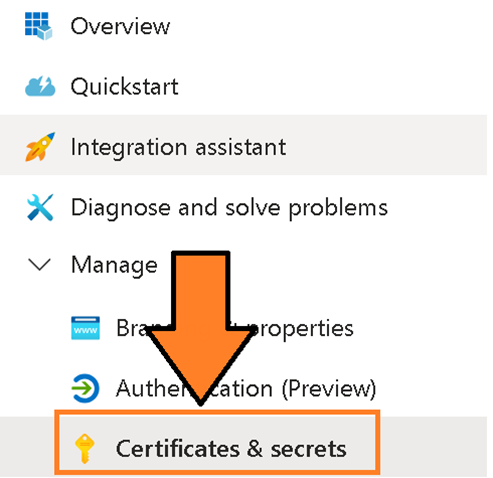
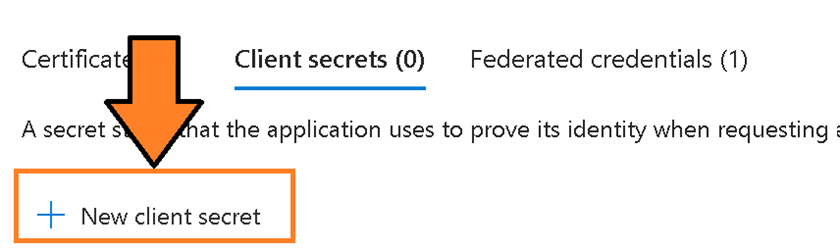
Click onto the Client secrets tab and then + New Client Secret:
This will open a panel where you can now name the secret (e.g., Fabric Pipeline Use) and set the expiration period. When done, select Add button:
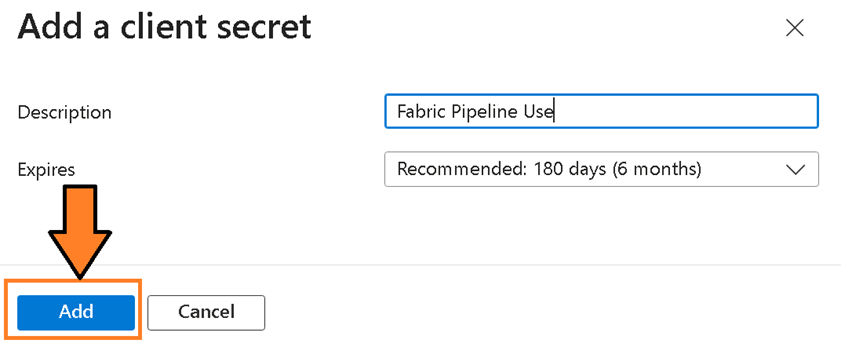
The panel will close and the secret will be created.
Do note that this secret will only be visible while this page is open, so you should copy the value to the text editor where you have the client id and tenant id stored. Once you navigate away, the secret cannot be recovered.

This is a good time to set a Calendar reminder for a week before the expiration of the client secret, so you know to update it! Forgetting to update the client secret could result in the pipeline breaking later on.
At this point, you should have the following stored safely: a copy of the Vault URI and the secret name for the Key Vault setup step, and a copy of the Client ID, Tenant ID, and Client Secret for this section of the setup process.
Subscribe to the Simple Talk newsletter
How to create a Gen2 dataflow with a public parameter
Open your Fabric workspace and create a new Dataflow Gen2. Then, inside the Power Query editor, create a parameter that will hold the API secret at runtime. Here’s exactly how to do that:
How to create the parameter
Go to Home > Manage parameters > New parameter:
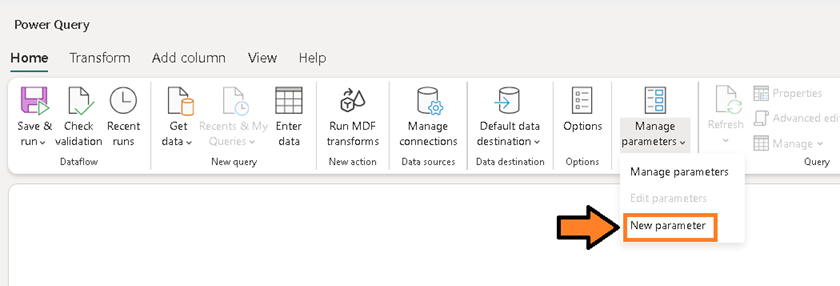
Name it something like API_SECRET. I prefer to capitalize my parameters and not have any spaces, so as to make them distinguishable from tables and functions:
Set the type to Text and then set a default value of a non-sensitive placeholder (such as placeholder.) When finished, select OK:
Parameter type set to Text with a placeholder default value
Note: I left the parameter optional here, but I like to make it required once I finally wire it up with a Fabric pipeline.
How to expose the parameter for external use
Go to Home > Options:
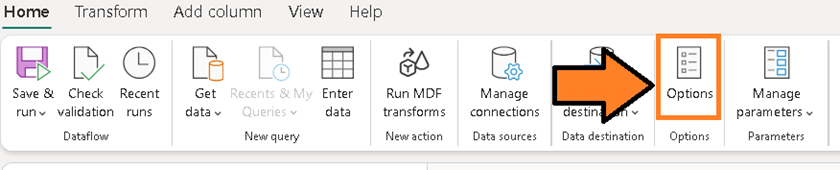
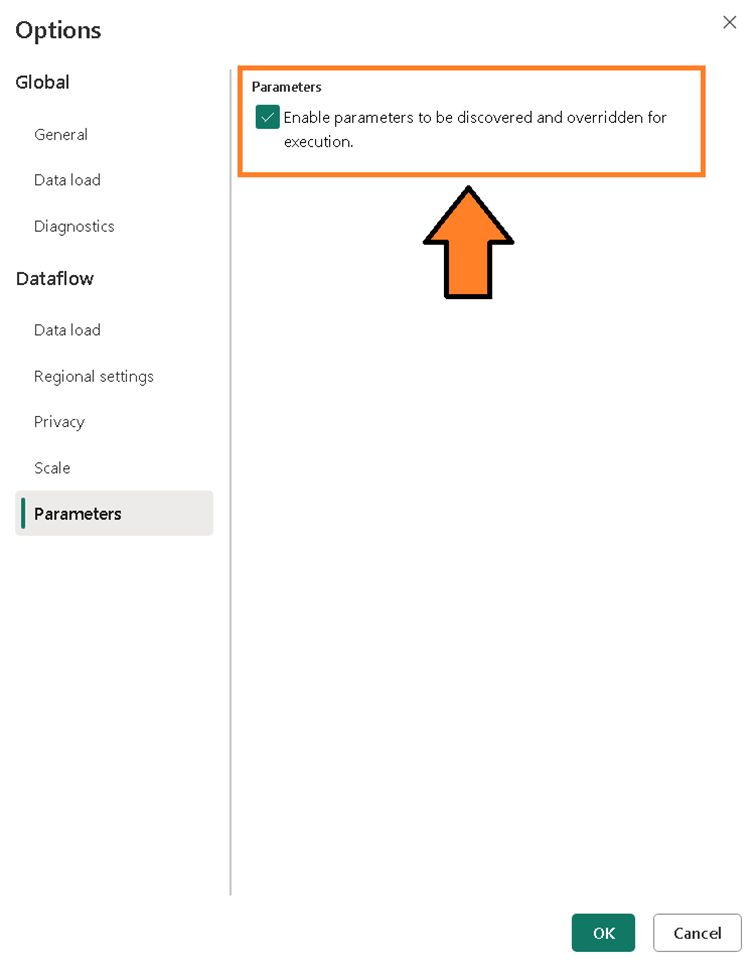
Navigate to Parameters and check Enable parameters to be discovered and override for execution. Then, select OK to save the change:
Now, save the dataflow. I would choose Save instead of other options like Save and Run.
This is the public parameters feature. Without it, a pipeline cannot pass a value into the dataflow at runtime.
How to use the parameter in Power Query (step 5)
Inside your dataflow, use the API_SECRET parameter wherever the API call needs authentication.
For example, if you are calling a REST endpoint that expects an API key in a header, your Power Query might look like this:
|
1 2 3 4 5 6 7 8 9 10 |
let Source = Web.Contents( "https://api.example.com/v1/data", [ Headers = [#"x-api-key" = API_SECRET] ] ), Json = Json.Document(Source) in Json |
Notice that API_SECRET is a parameter reference, not a literal string. The actual value is injected at execution time.
How to build a pipeline that retrieves the secret and passes it in (step 6)
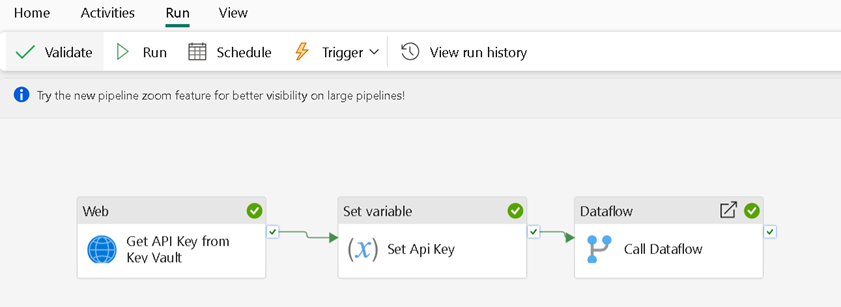
Create a new pipeline in the same workspace using the instructions here. The pipeline has two jobs: fetch the secret from Key Vault, then run the dataflow with that secret supplied as a parameter.
How to add a web activity to read the secret (step 7)
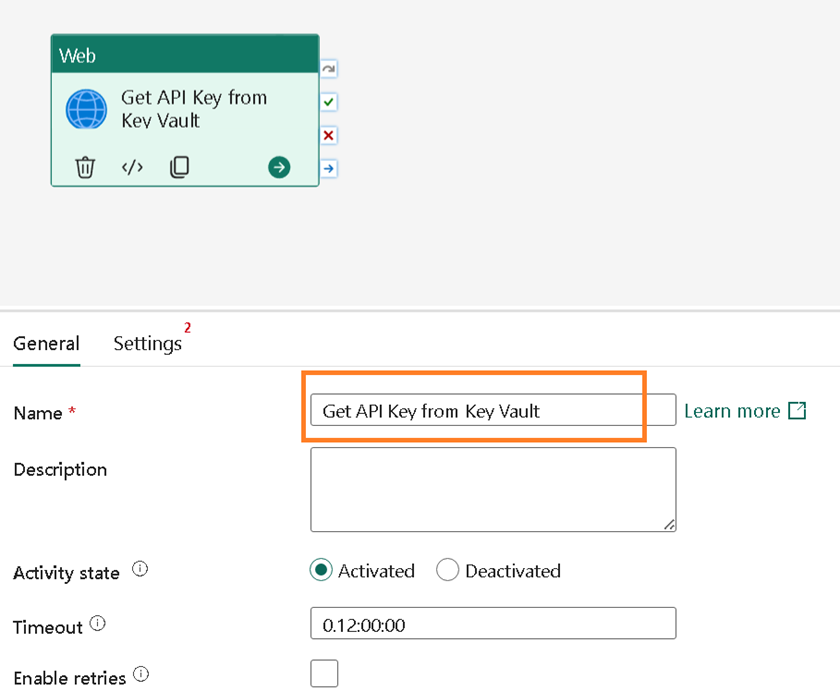
Once you’ve created the pipeline, add a Web Activity to it:

Make sure to give the Web Activity a descriptive name:
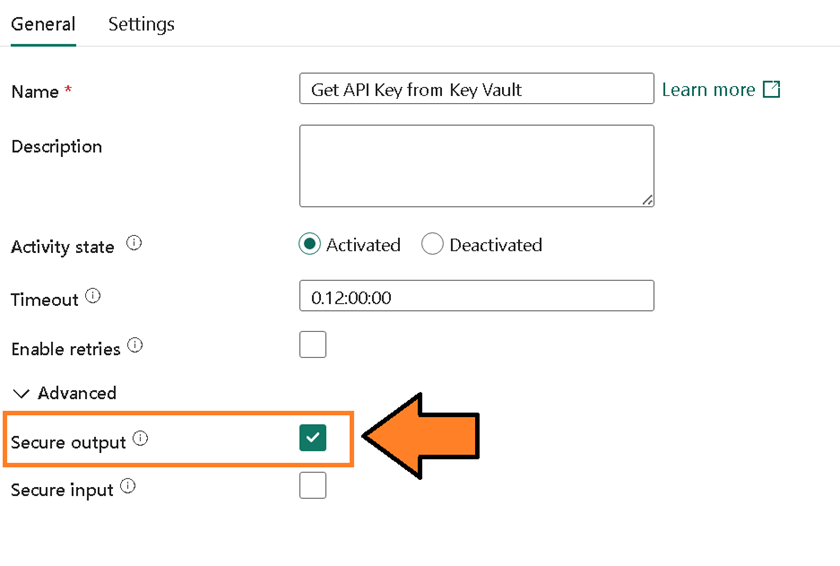
Expand the Advanced section and select the Secure Output checkbox. This will ensure that, when the secret is retrieved, it isn’t saved as plain text in the output (a security problem):
Then, navigate to Settings, click the drop-down for Connection, and select Browse all:

A pop-up will appear – here, pick Web v2 under the New Sources section:
There are several things to fill out from here, and you must copy and paste the values correctly. Here’s a table I put together to map them for you:
| Property | Value |
| Base Url | Copy the Vault URI into this field |
| Token Audience Url | Enter https://vault.azure.net |
| Authentication Kind | Service Principal |
| Tenant ID | Copy the ‘Tenant ID’ value you saved in a prior step |
| Service principal client ID | Copy the ‘Client ID’ you saved in a prior step |
| Service Principal Key | Copy the ‘Client Secret’ you saved in a prior step |
| Privacy Level | Enter Organizational |
When finished, click Connect:
This will return the Settings section for the Web Activity. We then need to set the Relative URL value.
This value will be in the format of /secrets/{Secret Name}?api-version=7.4, with {Secret Name} replaced by the name of the secret you created in the Key Vault.
I called mine ApiKey:
How to add a set variable activity
Create a Set Variable activity:
Then, connect the Web Activity with the Set Variable activity:

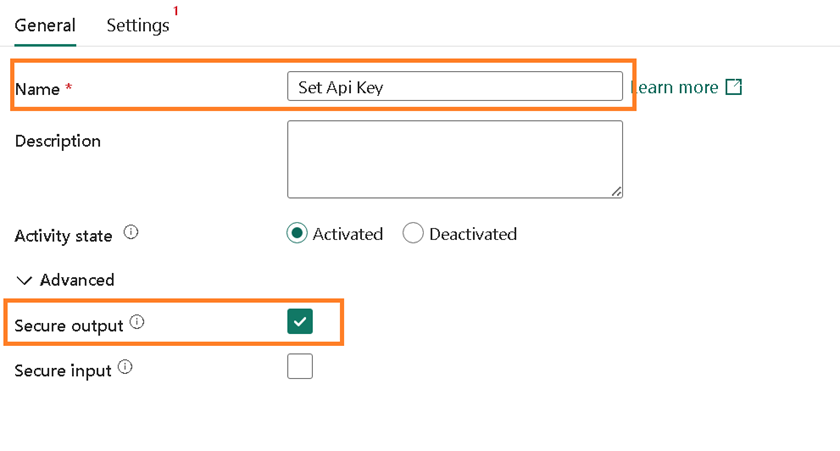
In the General section for the Set Variable activity, set a descriptive name, then check the Secure Output checkbox. This ensures the Key Vault secret continues to be secure:
Navigate to Settings and click + New:
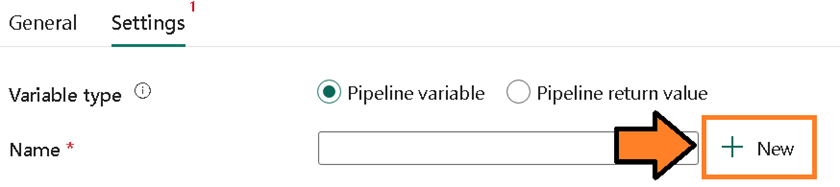
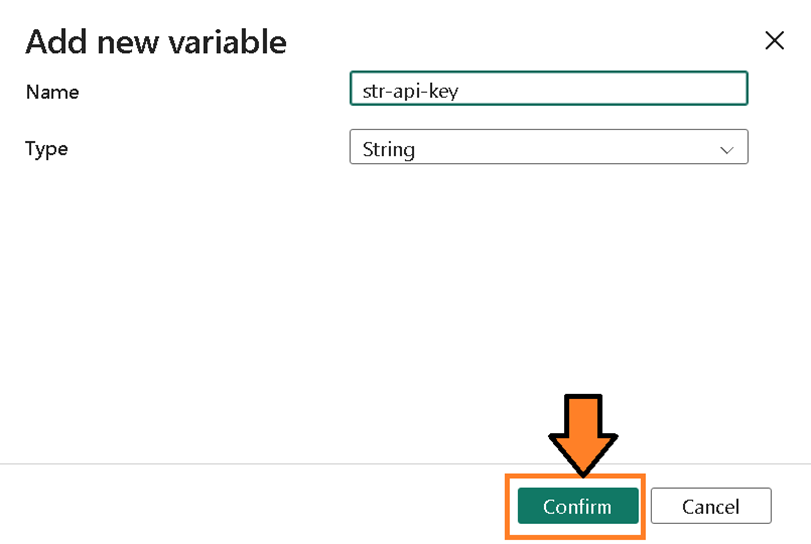
An Add new variable popup will appear. Give the variable a descriptive name (and make sure to keep the type as ‘string’). When finished, select Confirm:
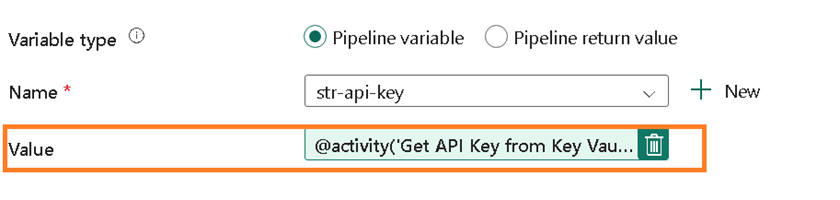
This will return you to Settings, where you should now set the Value field to @activity('WebActivityName').output.value
'WebActivityName' should be the name of the prior Web Activity step. For me, this is@activity('Get API Key from Key Vault').output.value
How to add a dataflow activity and map the parameter
The last activity we need to create is a Dataflow activity. Click Dataflow:
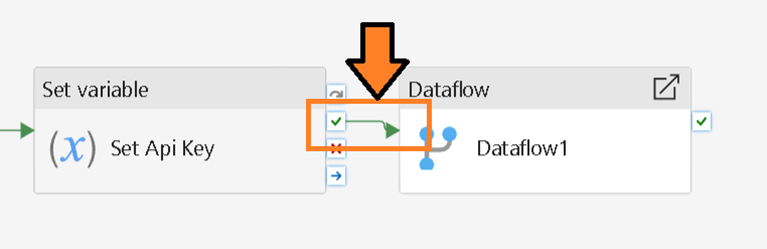
Once it’s created, connect the Set Variable activity with the new Dataflow activity:
In General Settings, give the activity a descriptive name, then click the Secure Input checkbox:
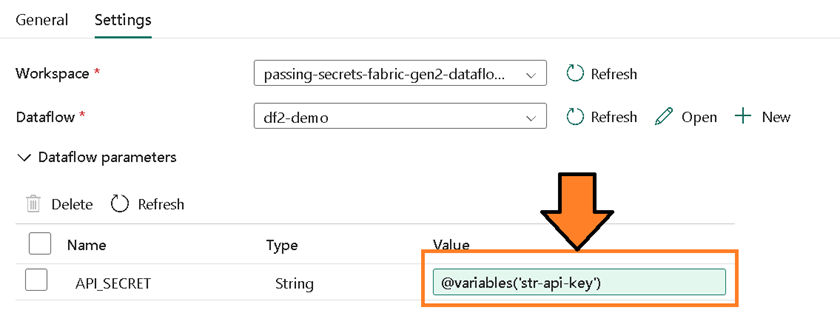
Then, in the Settings section, set Dataflow to the dataflow we set up in the previous step:
You can then expand Dataflow parameters, click on the placeholder value, and paste in the following:@variables('str-api-key')
Here, ‘str-api-key’ was the name of the variable you set in the previous step (not the activity name, but the name of the variable.)
How to test the pipeline (step 7)
Run the pipeline and monitor the output. If everything is configured correctly, the dataflow will authenticate successfully:
However, if it does fail, check that the workspace identity does not have Key Vault permissions, and the parameter is not marked as ‘public’ in the dataflow. Also ensure that the dataflow wasn’t saved after enabling public parameters.
Finally, make sure the Key Vault URL includes ?api-version=7.4, and that the resource is set correctly.
Lessons learned (and notable quirks)
Public parameters in Gen2 dataflows are powerful but come with a few rough edges. Here’s everything I learned (the hard way!) to help you avoid making the same mistakes.
Public parameters must be explicitly enabled
It’s easy to create a parameter, assume it’s public, and then wonder why it’s not showing in the pipeline. You must open Options > Parameters, enable the public parameter toggle, and save the dataflow. These are crucial steps: skip any and the pipeline will not surface the parameter!
Required vs optional parameters really do matter
If you mark a parameter as required, the pipeline must supply a value or the run fails. If it’s optional, the dataflow falls back to its default value. I usually keep API secrets required – this way, the pipeline fails fast if the Key Vault step is misconfigured.
Secure output is helpful but not magic!
Enabling Secure Output and Secure Input on the activities masks the value of the secret in pipeline logs, which is good. However, once the value is inside the dataflow, it’s still a string. Do not write it to a table, or return it in a query result. Treat it as you would any other runtime credential.
Plain text may be a necessary evil during development
Walking through this process, you can imagine that debugging a dataflow by having to run a pipeline each time could be time consuming. I’ve found that putting the secret in the Power Query parameter temporarily allows me to test the dataflow. Just be careful to expire that secret when you’re ready to use the pipeline – and use a different secret for the pipeline than the one used for developing/debugging!
Additionally, I wouldn’t commit the Gen2 dataflow to Git (using Git Integration) until after you’ve put a placeholder value in the Power Query parameter. Otherwise, the secret gets stored in plain text in your repository, which is a security issue.
Conclusion
Gen2 dataflows give us a much better secret-handling story than Gen1. By storing secrets in Azure Key Vault, retrieving them in a Fabric pipeline, and passing them through public parameters, you can keep API keys out of your dataflow code and out of source control.
The pattern takes a few extra steps, but the security and operational benefits are worth it. Watch out for the quirks around enabling public parameters and required fields, and always treat the injected values as runtime credentials that should never be logged or persisted.
Simple Talk is brought to you by Redgate Software
FAQs
1. Can I use Azure Key Vault secrets directly in a Gen1 dataflow?
No. Gen1 dataflows don’t support runtime parameter injection from a pipeline, so any API key referenced in Power Query is stored in plain text within the dataflow itself. This pattern -Key Vault, a Fabric pipeline, and public parameters – requires a Gen2 dataflow, since only Gen2 supports parameters that a pipeline can override at execution time.
2. What permissions does my Fabric workspace need to access Key Vault?
The Fabric workspace needs its own managed identity (created under Workspace Settings > Workspace Identity), and that identity must be assigned the Key Vault Secrets User role in the vault’s Access Control (IAM) settings. Without this role assignment, the pipeline’s Web Activity will fail to retrieve the secret at runtime.
3. Should Gen2 dataflow parameters be required or optional?
For API secrets, mark the parameter as required rather than optional. A required parameter forces the pipeline to supply a value or the run fails immediately, which surfaces misconfiguration (like a broken Key Vault connection) right away. An optional parameter silently falls back to its default, potentially masking authentication errors.
4. Does enabling Secure Output fully protect my API key in Fabric pipelines?
Secure Output and Secure Input hide the secret’s value from pipeline run logs and activity outputs, which is important. However, once inside the dataflow, the secret exists as a plain string in memory – so it can still be exposed if written to a table or returned in a query result.
5. Is it safe to commit a Gen2 dataflow with public parameters to Git?
Yes, as long as the parameter’s default value is a non-sensitive placeholder before committing. If an actual API key is left in the Power Query parameter’s default value when the dataflow syncs through Fabric Git Integration, that secret will be stored in plain text in the repository.
This document contains proprietary information and is protected by copyright law.
Copyright © 2026 Red Gate Software Limited. All rights reserved





Load comments