



Failed logins are one of the clearest early-warning signs of trouble on a SQL Server – whether that’s a misconfigured connection string, an expired password, or an actual unauthorized access attempt. Yet, by default, SQL Server won’t proactively tell you when they happen; you have to go looking.
This guide walks through how to pull login failure data using sys.xp_readerrorlog, filter it by time and error type, parse it into readable columns, aggregate repeat offenders, and automatically email a summary report — turning a passive log file into an active security and troubleshooting tool.
Data security is an ever-present concern in the world of databases, keeping us up late at night far more often than we would like! Of the many types of monitoring and alerting that can be implemented, the simplest and most effective are those around login failures.
If users, apps, or services are trying to access data and are failing the login process, that is immediate evidence of a problem. It may be anything from be a legitimate security threat, to an app bug, a configuration error – or something else entirely.
In this article, I’ll explain the many ways to alert and report on login failures, and how to use that information to improve security and application quality. I’ll also describe real failure scenarios, including what causes them and the implications they may have.
You may also be interested in…
Simple Talk’s full archive of data security, privacy and compliance articles and guides
What is a SQL Server login failure?
When we think of failed logins, a simple vision appears: we’re trying to log in to a server, get an error message, and then the head-scratching begins. Most of us have received messages like this before:
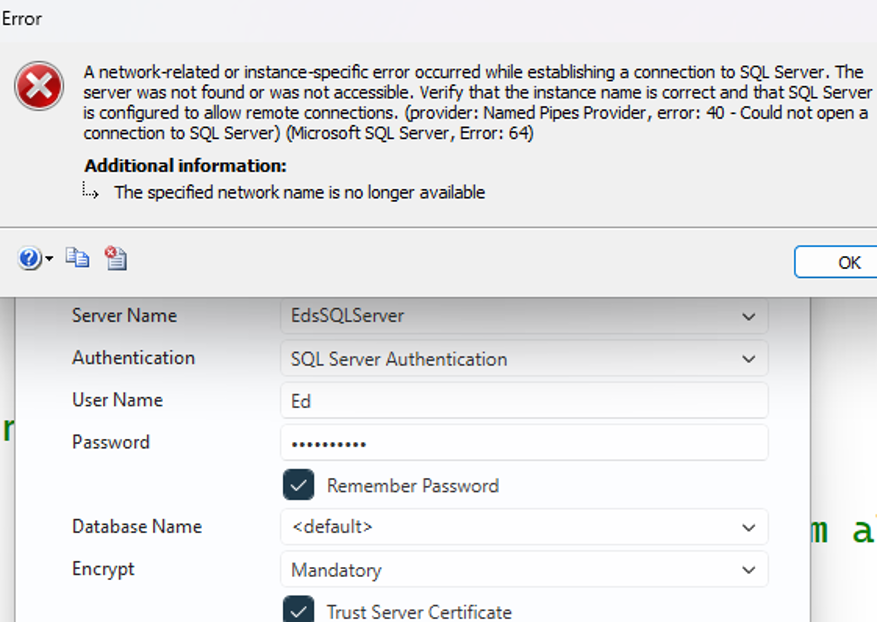
In reality, failed logins can happen any time, for a wide variety of reasons. More importantly, if we’re not looking for these failures, it’s likely that nobody is even seeing them!
In SQL Server, login failures are logged by default to the SQL Server error log – where they can be reviewed, alerted on, and reported on, at any time.
What causes a SQL Server login failure?
A failed SQL Server login typically indicates a problem that is worth checking. These problems can include:
- An application not logging in correctly (or failing).
- Someone trying to gain unauthorized access to a SQL Server.
- A user with unresolved password/login problems.
- Incorrect login setting(s), such as encryption, or using SQL Auth vs. Windows Auth.
- A connection string pointing to a database that no longer exists (or is inaccessible).
- A password was changed, but not all connection strings were updated.
- Domain authentication problems.
Ultimately, there are many more potential login failure reasons – these are just a few of them – but it’s already easy to see how much they vary.
In terms of severity alone, it’s everything from “an application upgrade broke a connection string”, to “oops, I goofed entering my password!”, to “someone is trying to hack an admin account!”…and everything in-between.
By default, SQL Server will not tell you about any of this. So, without creating a process to review the error logs, you’ll be in the dark when it comes to any SQL Server login failures – regardless of their severity.
Having readily accessible information on login failures will therefore not only pre-emptively catch a wide variety of SQL Server login issues, it can also assist in diagnosing application problems to gather the details needed to solve them.
Proactive monitoring is a staple of a solid security foundation, and ensures that computing resources are not being wasted on broken or unneeded processes.
Future-proof database monitoring with Redgate Monitor
How to find SQL Server login failure information
Failed logins to SQL Server are logged in the SQL Server error log. They can be retrieved through either the SQL Server Management Studio (SSMS) user interface (UI), or with a call to the sys.xp_readerrorlog system stored procedure.
The files themselves are stored by default within the SQL Server installation folder in a location similar to this:
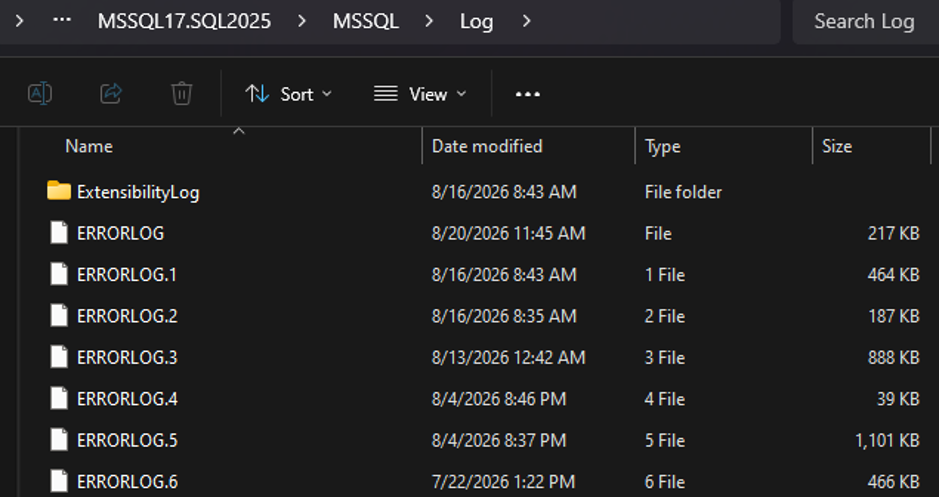
ERRORLOG is the current log being populated by SQL Server as events occur. Each subsequent log is a previous archived error log that is no longer updated, but is still available for review as needed. Older error logs have higher number suffixes.
The SQL Server error log can be cycled using the msdb.dbo.sp_cycle_errorlog system stored procedure. Similarly, the SQL Server Agent log can be cycled with the msdb.dbo.sp_cycle_agent_errorlog stored procedure.
When executed, the current log becomes the first archive log. All other logs then have their numeric suffixes incremented by one.
While viewing this data via the UI is convenient, it’s more useful for a one-off ‘take-a-look’ scenario. However, if there is any reason to store, alert on, or report on this data, T-SQL is the best way to do so.
Therefore, this article will focus on reusable queries to get this data, rather than clicking around in SSMS.
Essential reading for all things SQL Server security on Simple Talk:
Fabiano Amorim’s complete guide to SQL Server security (2026)
SQL Server Security Features: Complete Guide (2023)
Introduction to SQL Server Security (2018-19)
Since the error log can be quite large on a busy (or error-filled) server, filtering is important when using this stored procedure:
|
1 2 3 4 5 |
EXEC sys.xp_readerrorlog 0, /* 0 (Current Log) */ 1, /* 1 (SQL Server) */ N'Login', /* Text search #1 (Login) */ N'fail'; /* Text search #2 (fail) */ |
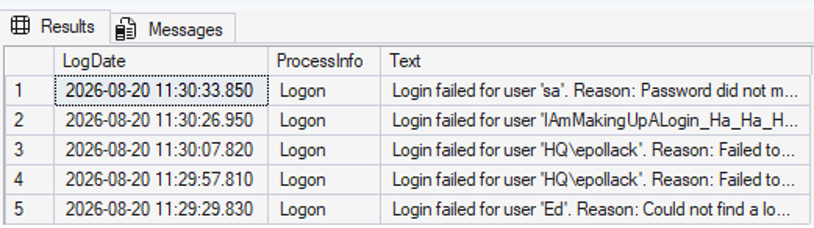
The results are as follows:

This shows 5 failed logins in the current error log, each for a different reason.
Some notes on the parameters used
The first parameter determines which error log to read. Xp_readerrorlog can read the current error log or older/archived ones. For most common uses, entering 0 for this parameter will only check the current log. This is adequate.
Meanwhile, if you often cycle error logs on a server, there may be value in checking additional historical logs. To do that, simply go back in values (starting at 1) and continue to work backwards as needed.
To check what error logs are available and when they were initialized, run the following query:
|
1 |
EXEC sys.sp_enumerrorlogs; |
The results are displayed in a basic list:
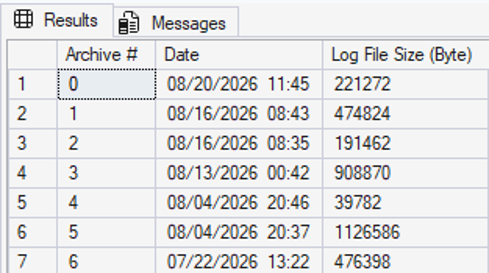
The second parameter specified which error log to view. 1 indicates the SQL Server error log and 2 indicates the SQL Server Agent error log. The third and fourth parameters are text to search for – important for limiting search results to only what we’re interested in.
For this example, “login” and “fail” were searched for – effectively filtering out anything aside from failed logins. Just bear in mind that if you customize error log messages, or regularly insert additional errors into the logs, you may need to adjust the search text to be more restrictive.
How to most efficiently find error log data
Failed logins are quite rare on my test server (outside of fun demos), and the logs are small. A busy production server, on the other hand, may generate a huge amount of log data. To help speed up searching, you can apply a date/time filter using two additional parameters:
|
1 2 3 4 5 6 7 8 9 |
DECLARE @CurrentTime DATETIME2(3) = GETUTCDATE(); DECLARE @TwelveHoursAgo DATETIME2(3) = DATEADD(HOUR, -12, @CurrentTime); EXEC sys.xp_readerrorlog 0, /* 0 (Current Log) */ 1, /* 1 (SQL Server) */ N'Login', /* Text search #1 (Login) */ N'fail', /* Text search #2 (fail) */ @TwelveHoursAgo, /* Start Time */ @CurrentTime; /* End Time */ |
The start and end times allow you to define a set time period to retrieve. In this example, a twelve-hour time period is checked. When frequent automated monitoring occurs on an important server, there’s no need to look back further than the last automated check.
For example, if a server reports on failed logins each hour, then the Start and End times can be adjusted to reflect returning just one hour of data and nothing more. This will provide faster searches and avoid reporting on the same failed login repeatedly.
There’s one final parameter available for xp_readerrorlog: the sort order. This can be set as ASC (ascend) or DESC (descend), and will sort based on the time of the log entry:
|
1 2 3 4 5 6 7 8 9 10 |
DECLARE @CurrentTime DATETIME2(3) = GETUTCDATE(); DECLARE @TwelveHoursAgo DATETIME2(3) = DATEADD(HOUR, -12, @CurrentTime); EXEC sys.xp_readerrorlog 0, /* 0 (Current Log) */ 1, /* 1 (SQL Server) */ N'Login', /* Text search #1 (Login) */ N'fail', /* Text search #2 (fail) */ @TwelveHoursAgo, /* Start Time */ @CurrentTime, /* End Time */ 'DESC'; |
The results are the same as above, but are sorted by error log time descending:
Now that we can retrieve error log data reliably and with a wide variety of filters for customization, a process can be built that parses this data and stages it in a table for further processing, storage, or alerting.
How to report on a SQL Server login failure
The next step is to take the data from above, store it somewhere, parse out some more useful information, and then send a report to wherever you’d like it to go. The following code creates a temporary table and then inserts the results from above into it:
|
1 2 3 4 5 6 7 8 9 10 11 12 13 14 15 16 17 18 19 20 21 22 |
CREATE TABLE #ErrorLogInfo ( ErrorLogTime DATETIME2(3), ProcessInfo NVARCHAR(50), ErrorText NVARCHAR(MAX)); DECLARE @CurrentTime DATETIME2(3) = GETUTCDATE(); DECLARE @TwelveHoursAgo DATETIME2(3) = DATEADD(HOUR, -12, @CurrentTime); INSERT INTO #ErrorLogInfo (ErrorLogTime, ProcessInfo, ErrorText) EXEC sys.xp_readerrorlog 0, /* 0 (Current Log) */ 1, /* 1 (SQL Server) */ N'Login', /* Text search #1 (Login) */ N'fail', /* Text search #2 (fail) */ @TwelveHoursAgo, /* Start Time */ @CurrentTime, /* End Time */ 'DESC'; SELECT * FROM #ErrorLogInfo; |
The logic from earlier is unchanged. The only added step here is to place the data into a temp table so that further processing can take place. Running a SELECT * against the table returns the following results:
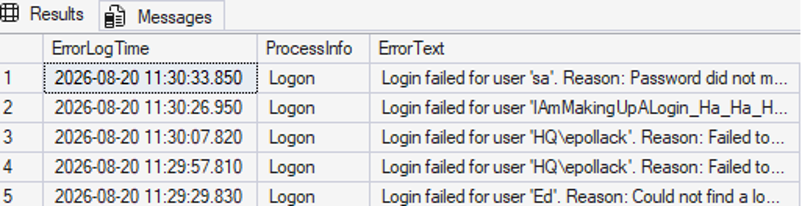
While useful, the ErrorText column is a big blob of error information. What I would prefer is to parse out the login name, IP address, and error summary into their own columns. This would be hugely convenient for any person or agent consuming this data.
The following T-SQL adds those columns to the temp table and populates them with a variety of string manipulation:
|
1 2 3 4 5 6 7 8 9 10 11 12 13 14 15 16 17 18 19 20 21 22 23 24 25 26 27 28 29 30 |
UPDATE ErrorLogInfo SET LoginName = ISNULL(CASE WHEN CHARINDEX('''', ErrorText) IS NOT NULL AND CHARINDEX('''', ErrorText) <> 0 THEN SUBSTRING(ErrorText, CHARINDEX('''', ErrorText) + 1, CHARINDEX('''', ErrorText, CHARINDEX('''', ErrorText) + 1) - CHARINDEX('''', ErrorText) - 1) ELSE NULL END, ''), IPAddress = ISNULL(REPLACE(CASE WHEN PATINDEX('%CLIENT:%', ErrorText) IS NOT NULL AND PATINDEX('%CLIENT: %', ErrorText) <> 0 THEN SUBSTRING(ErrorText, PATINDEX('%CLIENT:%', ErrorText) + 8, LEN(ErrorText) - (PATINDEX('%CLIENT:%', ErrorText) + 8)) ELSE NULL END, ']', ''), ''), ErrorSummary = ISNULL(CASE WHEN ErrorText LIKE '%Failed to open the explicitly specified database%' THEN 'Unable to open the database specified in the connection string' WHEN ErrorText LIKE '%Login lacks Connect SQL permission%' THEN 'This login does not have connection permissions to this SQL Server' WHEN ErrorText LIKE '%The account is disabled%' THEN 'This login is disabled' WHEN ErrorText LIKE '%Could not find a login matching the name provided%' THEN 'The login provided does not exist on this SQL Server' WHEN ErrorText LIKE '%The login is from an untrusted domain and cannot be used with Integrated authentication%' THEN 'Windows authentication was used on a SQL Server that is not configured for use by that domain' WHEN ErrorText LIKE '%Password did not match that for the login provided%' THEN 'Incorrect password entered for this login' ELSE NULL END, '') FROM #ErrorLogInfo ErrorLogInfo; |
While this code doesn’t account for every possible login failure message, the most common ones are there, and it’s easy to add more – simply add more WHEN clauses to the CASE statement.
Selecting * from the temp table now shows some nicely normalized columns that we can use:

As an aside: yes, you can easily spam the error logs by logging in with SQL authentication using a made-up login name. I have been known to periodically prank database administrators with funny login names to see how long before they notice and exact their revenge against me 😊
Separating out those columns allows for easier filtering, if needed, as well as cleaner reporting. More importantly, if login failures are common, this data can be aggregated so that subsequent communications are not overly large.
Move fast. Govern at scale.
How to find more detailed error information
If the detailed error information is what you want, then reporting can continue using the collected data above. However, if you’re on a server with a very active error log, the table above might be quite populous; if so, aggregating the data is a good next step to reduce its size while retaining the most important information.
The following query takes the detail data and places the aggregated information into a new temporary table:
|
1 2 3 4 5 6 7 8 9 10 11 12 13 14 15 |
DECLARE @MinimumFailureCountToAlertOn INT = 2; SELECT COUNT(*) AS NumberOfAttempts, ErrorText AS ErrorText, LoginName, IPAddress, ErrorSummary, MIN(ErrorLogTime) AS MinLogDate, MAX(ErrorLogTime) AS MaxLogDate INTO #SummarizedErrorInfo FROM #ErrorLogInfo WHERE ProcessInfo = 'Logon' GROUP BY ErrorText, LoginName, IPAddress, ErrorSummary HAVING COUNT(*) >= @MinimumFailureCountToAlertOn ORDER BY NumberOfAttempts DESC; |
The variable @MinimumFailureCountToAlertOn is a way to tune if one-off login failures should be reported on or not. For this example, setting it to 2 filters out failures that occur only once. These are often manual login failures or one-offs that may not be of interest to you, but if you do want all detail – regardless of failed login count – set the variable equal to 1, or remove it altogether.
After failing some more logins for fun (my idea of “fun” may not be the same as yours!), the updated results look like this:

The results provide a clear idea of what’s happening most often and puts them top of the list. The aggregated details let us know the first and last failed login time, as well as the other details from earlier.
The error summary, meanwhile, allows for a speedy review of the error types that occur most often. For example, if an application is trying to connect to 100 databases that were recently migrated to another server, it would be very useful to see 100 of the same error type on the same server!
How to create a report (or generate data) for further error analysis
With this information in hand, the last step is to generate some sort of report, alert, or data. This can then be analyzed or sent to the appropriate operations personnel for further action.
To do this, there are many options available, including:
- Send a summary email to operators interested in failed logins.
- Store the data in a permanent table for future analysis/reporting.
- Push the data to an application for further processing (PowerBI, Microsoft Teams, etc…)
- If you maintain multiple SQL Servers, centralize the data to a single reporting/operations server before analyzing it further.
The key is to do something. Collecting failures like this and never doing anything with them is a waste of resources. It also leaves you vulnerable to the impact of these problems.
How to use Database Mail in SQL Server to send the summary information to specific people
If Database Mail is enabled, the simplest way to proceed is to email the summary information to a target email address. Many applications – including Teams and a variety of on-call tools – accept emails as triggers for the creation of messages/tickets/alerts, so this is a solid place to start.
No Database Mail? Use whatever your most common communication method is instead. The main priority is to push the information to the most useful target possible.
The following script takes the contents of the summarized table generated above, composes a simple email with them, and sends it out:
|
1 2 3 4 5 6 7 8 9 10 11 12 13 14 15 16 17 18 19 20 21 22 23 24 25 26 27 |
DECLARE @ServerName VARCHAR(100) = CAST(SERVERPROPERTY('ComputerNamePhysicalNetBIOS') AS VARCHAR(100)); DECLARE @InstanceName VARCHAR(100) = @@SERVERNAME; DECLARE @ProfileName VARCHAR(MAX) = 'Default'; DECLARE @EmailAddressList VARCHAR(MAX) = 'TestEmail@MyDomain.com'; DECLARE @EmailSubject VARCHAR(MAX) = 'Multiple failed logins reported on ' + ISNULL(@ServerName, @InstanceName); DECLARE @EmailBody VARCHAR(MAX) = '<html><body>The following failed logins were identified:<BR> Database Server: ' + ISNULL(@InstanceName, @ServerName) + '<P>'; SELECT @EmailBody = @EmailBody + ' Error Text: ' + ErrorText + '<BR> First Failed Login Time : ' + CAST(MinLogDate AS VARCHAR(MAX)) + '<BR> Most Recent Failed Login Time: ' + CAST(MaxLogDate AS VARCHAR(MAX)) + '<BR> Failed Login Attempt Count: ' + CAST(NumberOfAttempts AS VARCHAR(MAX)) + '<BR> Login Name: ' + LoginName + '<BR> IP Address: ' + IPAddress + '<BR> Error Summary: ' + ErrorSummary + '<P>' FROM #SummarizedErrorInfo SummarizedErrorInfo ORDER BY SummarizedErrorInfo.MinLogDate ASC; SELECT @EmailBody = @EmailBody + '</body></html>'; EXEC msdb.dbo.sp_send_dbmail @profile_name = @ProfileName, @recipients = @EmailAddressList, @subject = @EmailSubject, @body_format = 'html', @body = @EmailBody; |
And here’s the resulting email. It’s a starting point, albeit quite a basic one:
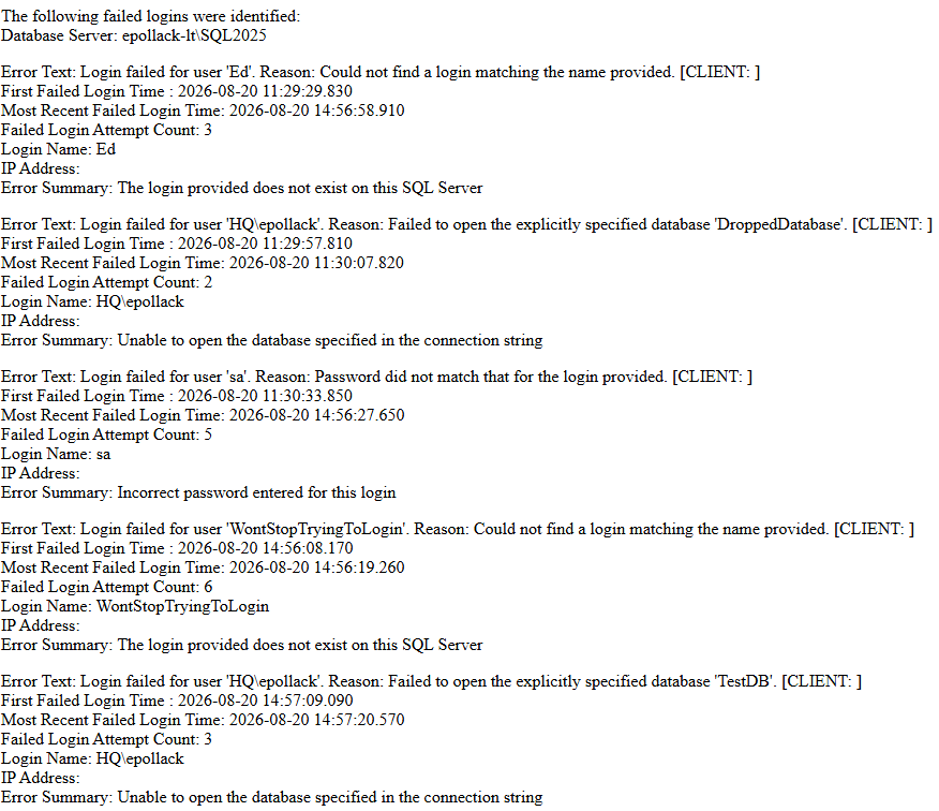
You can easily adjust the email contents to display more or less details. You can also ‘fancy-up’ the HTML to make the email a bit easier to read.
And if tens or hundreds of errors are sent out at once, you’ll likely want to aggregate further, or send multiple reports out. One with the aggregated high-level overview, perhaps, and another with more detail. Often times though, you don’t need hundreds of examples to locate and resolve the root cause of a systemic problem.
How to make the summary data presentable (easy to read)
Every database environment is different. Some may see a single failed login every month. Others may get hundreds a day. Ultimately, the goal is the same: minimize these occurrences as much as possible.
Your database infrastructure and frequency of login failures will determine how to proceed with this data, and how large a summary is needed. As always, though, any information that is sent for alerting or reporting purposes must be actionable and useful. If the data is too large or verbose, it’ll get partially or entirely ignored.
Before the information is sent, then, it’s important to:
- Remove unneeded columns.
- Summarize/aggregate sufficiently so that data is easy to understand and act on.
- Adjust the format of the data/email/report to be more visually useful to you.
- If the data is large, an agent can analyze it for you, providing actionable results.
How to prevent failed SQL Server logins
Also worth considering are strategies to address failed logins before they happen. Frequent errors, or repeats of the same error, cannot simply be resolved one-at-a-time. They’ll just keep happening if you don’t address the root cause.
So, consider bigger solutions such as:
- Network rules to restrict unauthorized traffic to database servers.
- Set up automatic alerts to internal employees to let them know they have a login problem.
- Automatically block IP addresses once a systemic problem is identified.
- Disallow SQL authentication on database servers that do not use it.
- Audit server logins to assist in correlating failed logins to successful logins.
- Automatically disable a login if there are too many failed logins for it.
- Ensure strong passwords are enforced for all SQL Auth logins. This ensures that brute-force attacks are unlikely to succeed.
- Set up automatic notifications for the developers, operators, or administrators who regularly solve issues like these. Hitting someone with logged alerts when things break will nudge them to permanently solve an issue – reducing both interruption and embarrassment!
Depending on your SQL Server(s), there could be a wide variety of other appropriate responses as well.
In summary: see the big picture to prevent future issues
Failed SQL Server logins represent a wide variety of bad scenarios. Some may be innocent and benign, whereas others could represent critical infrastructure flaws. Having a simple process to effectively communicate these failures is key to resolving them in a timely manner.
Seeing the big picture and solving these issues efficiently will improve your application development, software release processes, user data access, and your SQL Server’s security as a whole.
How do you manage failed logins? If you have other processes, challenges, or solutions, feel free to share down in the comments below!
Simple Talk is brought to you by Redgate Software
FAQs
1. What causes a SQL Server login failure?
Login failures can stem from application bugs, incorrect passwords, disabled accounts, outdated connection strings, mismatched authentication modes (SQL vs. Windows), domain authentication issues, or unauthorized access attempts.
2. Where does SQL Server store login failure information?
Login failures are recorded in the SQL Server error log by default. They can be viewed in SQL Server Management Studio (SSMS) or retrieved programmatically with the sys.xp_readerrorlog system stored procedure.
3. How can I filter login failures by date and time?
xp_readerrorlog accepts optional start and end time parameters, letting you retrieve only the failures within a specific window — useful for scheduled monitoring jobs that check, for example, the last hour of activity.
4. How do I get alerted automatically about failed logins?
You can insert the results of xp_readerrorlog into a table, aggregate them by login name, IP address, and error type, then use msdb.dbo.sp_send_dbmail to email a summary report to your operations team or on-call tool.
5. Should every failed login be reported?
Not necessarily. Using a minimum failure count threshold (e.g., only reporting logins that failed 2+ times) helps filter out one-off mistakes and keeps alerts focused on recurring or systemic issues worth investigating.
This document contains proprietary information and is protected by copyright law.
Copyright © 2026 Red Gate Software Limited. All rights reserved






Load comments