


When SQL Server 2025 was announced, Bob Ward mentioned that there would be some new commands for managing AI models and their definitions, as well as T-SQL functions to generate embeddings, etc. I even made a guess that the command might be CREATE AI MODEL…
Now that SQL Server 2025 has finally been released to the public, I was finally able to test and learn a lot about this command (named CREATE EXTERNAL MODEL), and I want to share my knowledge with you here. If you’re new to the world of AI, don’t worry, we’ll start with the basics and evolve to where this command fits in!
What’s an AI Model?
Just as the term “database” in SQL Server can mean the “database itself”, a “SQL instance”, or a general definition, the term “model” has come to be used in many ways. If you talk to someone who lives only in the world of Machine Learning, they will have one definition. A mathematician will have another definition, as will a developer introducing AI to their product. To help you understand what SQL Server’s definition is for the CREATE EXTERNAL MODEL command, let’s dig deeper.
An AI model is software that produces a result using AI algorithms and/or libraries. You can access this software through an API, whether in a cloud service, a virtual machine, a container, etc. This API can range from a simple HTTP call, to loading a DLL and calling its functions. These AI models are created by companies, open-source teams, developers, and others around the world. For example, one of the most famous companies is OpenAI, which became popular with ChatGPT. However, there are lots of them: Google, Cohere, Hugging Face, Meta, Nomic, Microsoft, and many others.
There are AI models for various tasks, such as generating text, images, or audio – and these are likely the ones you have interacted with the most lately. However there are many others that, while they don’t necessarily produce a final interactive result, you can use for processing data. For example, there are models that can calculate trends from history (like a line on a graph).
The Embeddings Model
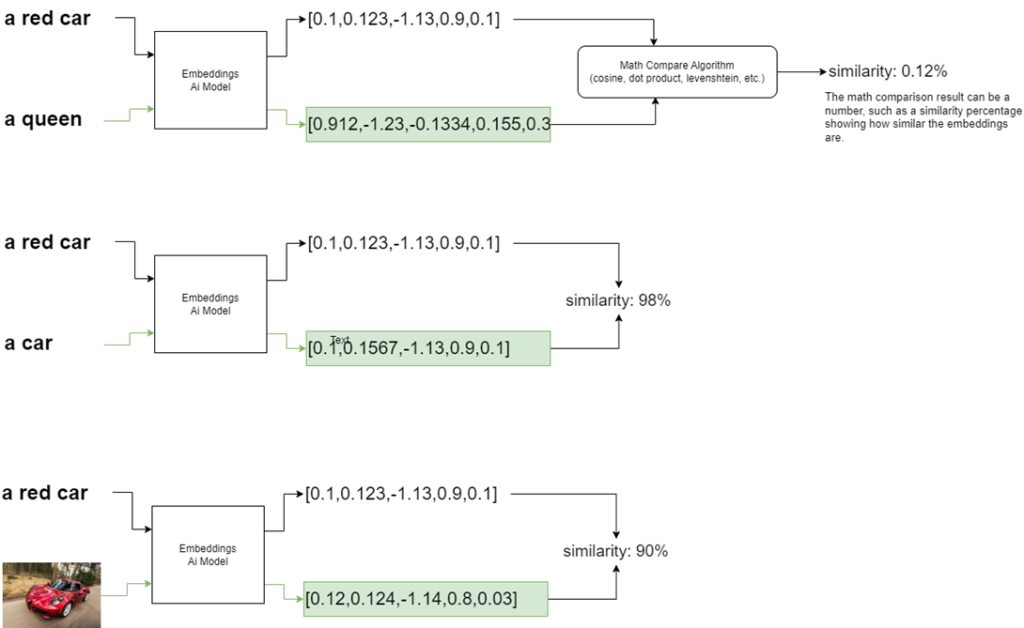
One of these model types is very important in the world of text processing: embedding models. Embeddings are a sequence of numbers that can represent the meaning of a word, phrase, or entire text. They are generated by AI models, and you can use this to search for similar texts or group them. It’s an extremely powerful resource for those who need to compare texts.
However, embeddings are not just limited to text: you can have embeddings that represent an image, audio, a binary document, etc. Likewise, they will represent the meaning of that content, and if you want to compare it with others, you just need to generate the embeddings again for the content you want to compare. Because they are a numerical sequence, there are some mathematical algorithms you can use to compare them, and see how similar they are.
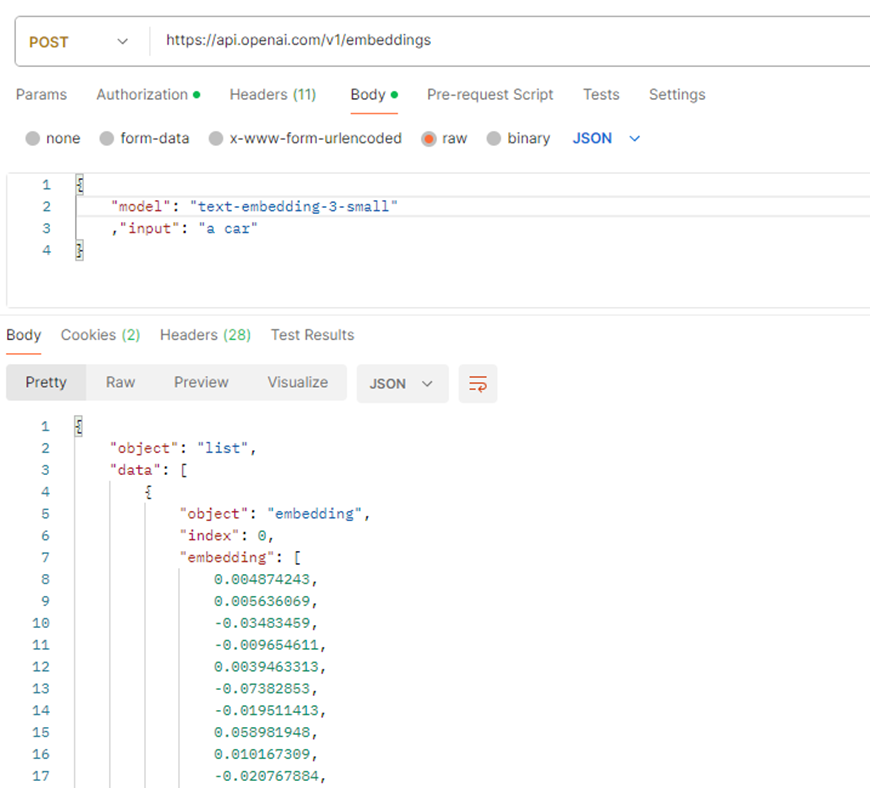
For example, OpenAI has an embedding model called text-embedding-3-small. To access and use it, I need to invoke it via API by passing the text I want, and it returns the embeddings to me:
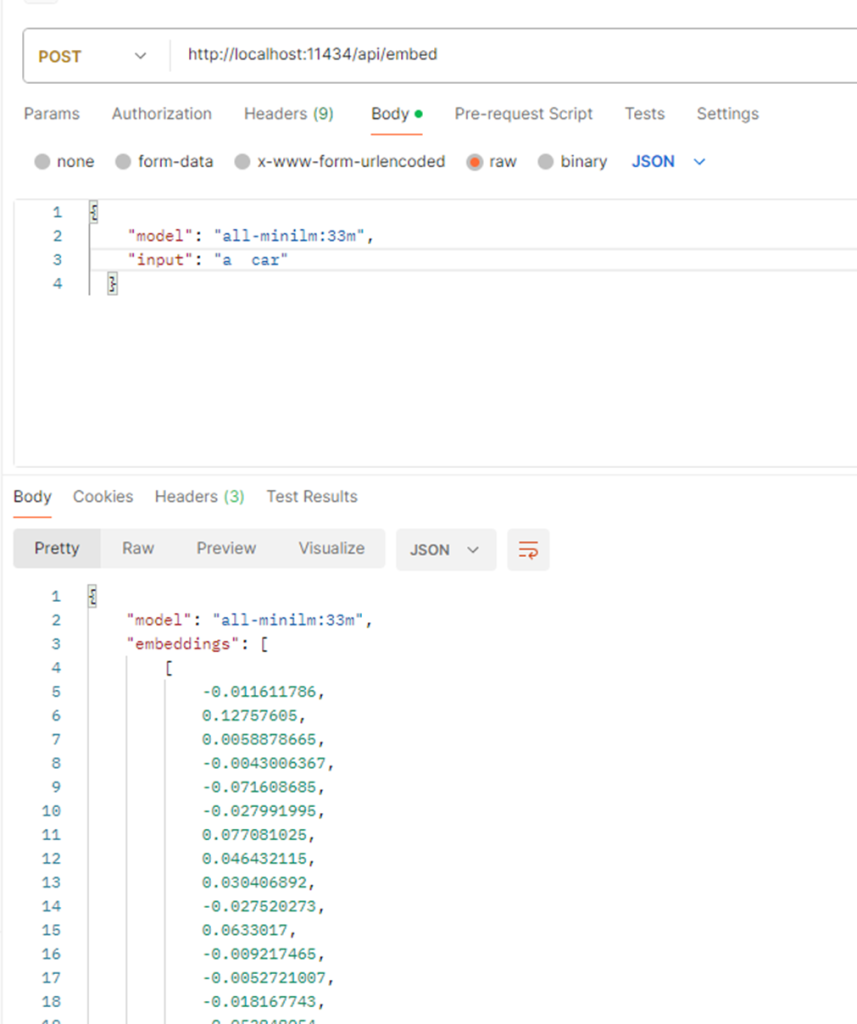
If you want to do this locally, you can use Ollama, download lots of open-source models, and run them in your own GPU. Similarly, you access it via API:
I can also load a model directly using Python code to generate these embeddings:
|
1 2 3 4 5 6 7 8 9 10 11 12 13 14 15 16 17 18 19 20 21 22 23 24 25 26 27 |
import torch import torch.nn.functional as F from transformers import AutoTokenizer, AutoModel, AutoImageProcessor import torch #prepare the model tokenizer = AutoTokenizer.from_pretrained('nomic-ai/nomic-embed-text-v1.5') text_model = AutoModel.from_pretrained('nomic-ai/nomic-embed-text-v1.5', trust_remote_code=True) text_model.eval() def mean_pooling(model_output, attention_mask): token_embeddings = model_output[0] input_mask_expanded = attention_mask.unsqueeze(-1).expand(token_embeddings.size()).float() return torch.sum(token_embeddings * input_mask_expanded, 1) / torch.clamp(input_mask_expanded.sum(1), min=1e-9) text = "a car" sentences = [text] encoded_input = tokenizer(sentences, padding=True, truncation=True, return_tensors='pt') with torch.no_grad(): model_output = text_model(**encoded_input) # invoke the ai model! text_embeddings = mean_pooling(model_output, encoded_input['attention_mask']) text_embeddings = F.layer_norm(text_embeddings, normalized_shape=(text_embeddings.shape[1],)) text_embeddings = F.normalize(text_embeddings, p=2, dim=1) print (text_embeddings.tolist())[0] |
In this post I provide a much more detailed explanation of what embeddings are and how to use them within SQL Server. From this point forward, I assume that you already understand what embeddings are and the vector data type, which are essential for use with SQL Server.
How to Access AI Models in SQL Server 2025
Now that you are familiar with the concept of AI models and what embeddings are, let’s use SQL Server to access them. As you noticed, we can access models using an HTTP API or directly in code by loading libraries. SQL Server allows both methods.
Let’s start with an HTTP API first, which is the easiest way. Before using the CREATE EXTERNAL MODEL command, let’s use the new procedure sp_invoke_external_rest_endpoint. With this new procedure in SQL Server 2025, you can invoke APIs via HTTP, which is how most AI models are available.
Before SQL Server 2025, it was possible to invoke HTTP using OLE Automation, CLR, or extended procedures. However, all these methods enable more than just simple HTTP access, which might make DBAs hesitant to use them. With SQL Server 2025 you can now enable only the functionality to invoke HTTP APIs, which significantly reduces the amount of extra code enabled to run within your SQL instance.
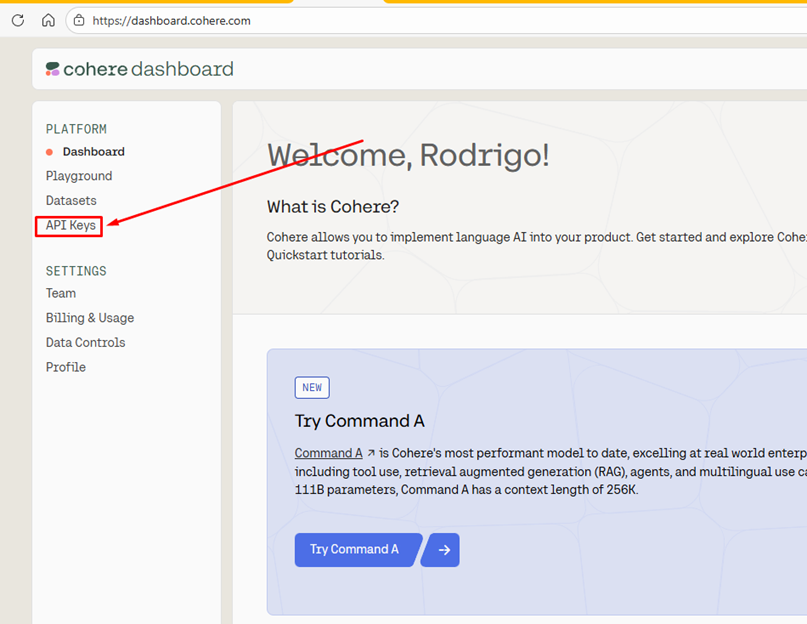
For these tests, we will use the API from the Cohere, which allows you to create a free account. Cohere is one of the major developers of AI models. To create your account and generate an API KEY, Click here and follow the steps to create a new account. Once your account is created, you will be redirected to your dashboard. Go to “Api Keys”:
Your key will be available in the “Trial Keys” section. Trial keys are limited (1000 calls per month), but this is more than enough for you to be able to perform the tests on this page. If you ever want Cohere in production, you can obtain a “production key”, which is unlimited, but you need to pay for its usage.
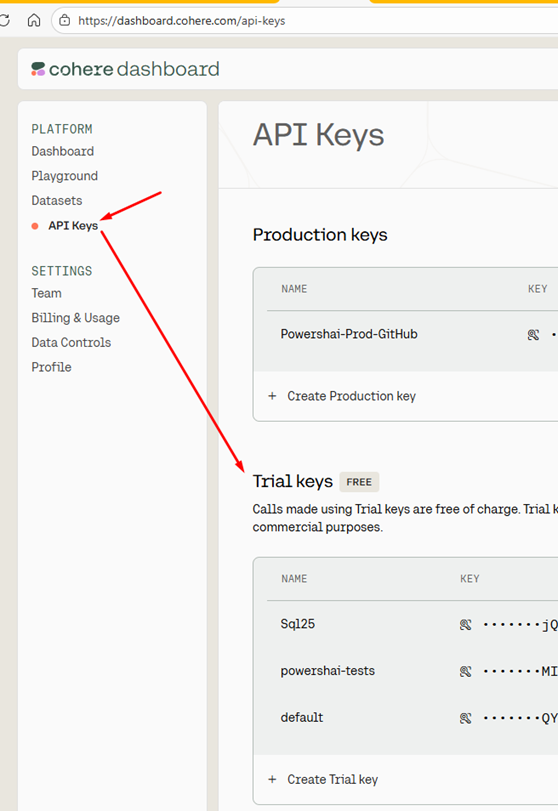
To copy the trial key, click the eye icon in the “Key” column. Soon, you will need to copy this key.
Next, we’re going to invoke the Cohere API to obtain the embeddings of a test text. Let’s create a new database where we will centralize all these tests:
|
1 |
CREATE DATABASE AiTests; |
Let’s enable the sp_invoke_external_rest_endpoint procedure:
|
1 2 3 |
EXEC sp_configure 'external rest endpoint enabled',1 RECONFIGURE GO |
According to the Cohere documentation, we can invoke the generation of embeddings by sending an HTTP POST request to the address https://api.cohere.ai/compatibility/v1/embeddings. At this address, we can pass the same format accepted by OpenAI (which is one of the formats acceptable by SQL Server). Translating this into the external rest endpoint call, this would be the code:
|
1 2 3 4 5 6 7 8 9 10 11 12 13 14 |
USE AiTests declare @result nvarchar(max) exec sp_invoke_external_rest_endpoint 'https://api.cohere.ai/compatibility/v1/embeddings' ,@payload = '{"model":"embed-v4.0", "input":"Test direct from SQL Server"}' ,@response = @result output select HttpStatus = json_value(@result,'$.response.status.http.code') ,errors = json_value(@result,'$.result.message') ,GeneratedEmbeddings = json_query(@result,'$.result.data[0].embedding') ,FullResult = @result |

However, when running the code above, the returned response is an http 401 error. To rectify this, you need to use the @credential parameter of this procedure and specify the credential with the Authentication data, which you can do using the CREATE SCOPED DATABASE CREDENTIAL command:
|
1 2 3 4 5 6 |
USE AiTests GO CREATE DATABASE SCOPED CREDENTIAL [https://api.cohere.ai] WITH IDENTITY = 'HTTPEndpointHeaders', secret = '{"Authorization":"bearer APIKEY"}'; GO |
Enter your account’s ApiKey where it says “APIKEY” – note that the name of the credential must be the base URL you’ll use. When trying to run the command above, you may receive this error:
Msg 15581, Level 16, State 6, Line 37
Please create a master key in the database or open the master key in the session before performing this operation.
Since you’ll be storing sensitive data in your database, SQL requires it to be encrypted. In the case of scoped credentials, you need to create a master key in your database (the key used to encrypt this type of object.) So, re-run the command above, now with the master key created:
|
1 2 3 4 5 6 7 8 9 |
USE AiTests GO -- Remember to save the master key password, in case you need to restore the database on another server, etc CREATE MASTER KEY ENCRYPTION BY PASSWORD = 'Colocar Uma senha Forte aqui Guardar no Cofre!' ; -- Now you can create the scoped credential. Remember to replace APIKEY with your trial key from your Cohere account CREATE DATABASE SCOPED CREDENTIAL [https://api.cohere.ai] WITH IDENTITY = 'HTTPEndpointHeaders', secret = '{"Authorization":"bearer APIKEY"}'; |
Now we can repeat the command that invokes the Cohere API, using the @credential parameter:
|
1 2 3 4 5 6 7 8 9 10 11 12 13 14 |
USE AiTests DECLARE @result nvarchar(max) exec sp_invoke_external_rest_endpoint 'https://api.cohere.ai/compatibility/v1/embeddings' ,@payload = '{"model":"embed-v4.0", "input":"Test direct from SQL Server"}' ,@response = @result output ,@credential = 'https://api.cohere.ai' -- > We just added that! select HttpStatus = json_value(@result,'$.response.status.http.code') ,errors = json_value(@result,'$.result.message') ,GeneratedEmbeddings = json_query(@result,'$.result.data[0].embedding') ,FullResult = @result |

Congratulations! You have finally generated your first embeddings using an AI model!
For a simple test, this execution is okay. But what if you need to generate embeddings for texts stored in a table column?
Write accurate SQL faster in SSMS with SQL Prompt AI
The New CREATE EXTERNAL MODEL Command in SQL Server 2025
Now you know how to manually invoke the API of an AI provider, but SQL Server 2025 has introduced even more features that don’t require the use of a procedure directly.
The first of these is the CREATE EXTERNAL MODEL command, where you can create the definition of an AI model within your SQL database. Note that I am referring to “the definition,” not the model itself. You don’t load the actual model into your SQL database, only the metadata that SQL requires to invoke the model’s API.
Let’s create a model for the Cohere API using this command:
|
1 2 3 4 5 6 7 8 9 10 11 |
USE AiTests GO CREATE EXTERNAL MODEL CohereTest WITH ( API_FORMAT = 'OpenAI', LOCATION = 'https://api.cohere.ai/compatibility/v1/embeddings', MODEL_TYPE = EMBEDDINGS, MODEL = 'embed-v4.0', CREDENTIAL = [https://api.cohere.ai] ); |
In CREATE EXTERNAL MODEL CohereTest, the segment CohereTest is an identifier, just like when you create a procedure or a table. You can name it whatever you want, and it follows the same identifier rules.
Immediately following, we have the list of parameters defined within the WITH (… ) (just like other commands have).
The API_FORMAT parameter specifies which API format SQL should use when this model is invoked. I could list the acceptable formats here, but this might change over time. What you need to know is that this defines how SQL will send the data to the URL you provide; therefore, the format you choose must be compatible with what the service you are using accepts. The official documentation is your primary source for this. In our case, we are using the OpenAI format which is accepted by most AI tools and services, such as Cohere.
The LOCATION parameter will depend on the API_FORMAT. In the case of OpenAI, it is the service URL. But in other formats, such as ONNX, it is a directory where the files are located. Therefore, in these cases, it is always best to consult the documentation (and preferably keep an eye on the section on remarks).
MODEL_TYPE is the model type (of course). Remember our model definition? There are several types. For now, SQL Server only accepts EMBEDDINGS – however, it’s very likely that other models will be supported in future SQL updates or versions.
MODEL is the name of the model. Each AI provider may have several models, with various versions, costs, and quality. This parameter allows you to define which model name to use. In our case, we will use embed-v4.0, which is the most recent version from Cohere at the time this article was written. How do I know this? Cohere documentation: Cohere’s Embed Models (Details and Application) | Cohere
And finally we have the CREDENTIAL parameter which, just like you specified when directly invoking the API with sp_invoke_external_rest_endpoint, you need to specify here.
Now that you have created the model, to use it you need the new function AI_GENERATE_EMBEDDINGS, where you specify the text and the model created with CREATE EXTERNAL MODEL:
|
1 2 |
SELECT AI_GENERATE_EMBEDDINGS('Test direct from SQL Server' use model CohereTest) |
Note that the name I passed there, CohereTest, is the same name I used when creating the external model via CREATE EXTERNAL MODEL. We can store this data in the new vector type:
|
1 2 3 4 5 6 |
DECLARE @embeddings vector(1536) set @embeddings = AI_GENERATE_EMBEDDINGS('Test direct from SQL Server' use model CohereTest) select @embeddings |
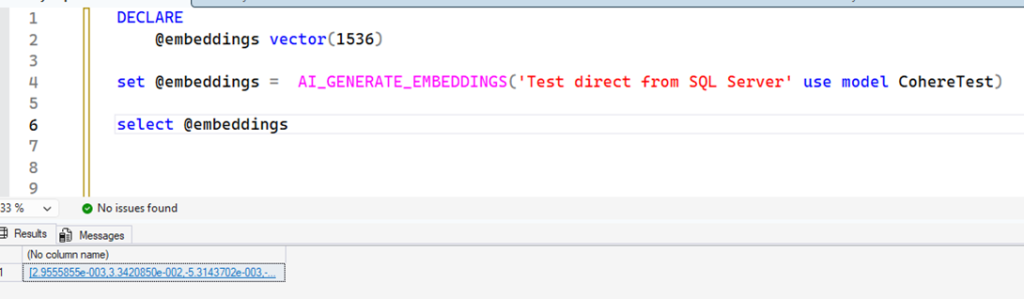
Why did I use the value 1536? By default, the Cohere API generates embeddings with 1536 dimensions (read the article I pointed to about embeddings to understand what these dimensions are). We can control this quantity in several ways. You can change the default value of the EXTERNAL MODEL:
|
1 |
ALTER EXTERNAL MODEL CohereTest SET ( PARAMETERS = '{"dimensions": 256}' ) |
The PARAMETERS option allows you to specify a JSON containing parameters that will be sent to the API. The supported value depends on each API, and thanks to the Cohere documentation, I know this. Now that I have changed the default parameter, if I repeat the same code above, this happens:
Msg 42204, Level 16, State 2, Line 69
The vector dimensions 1536 and 256 do not match.
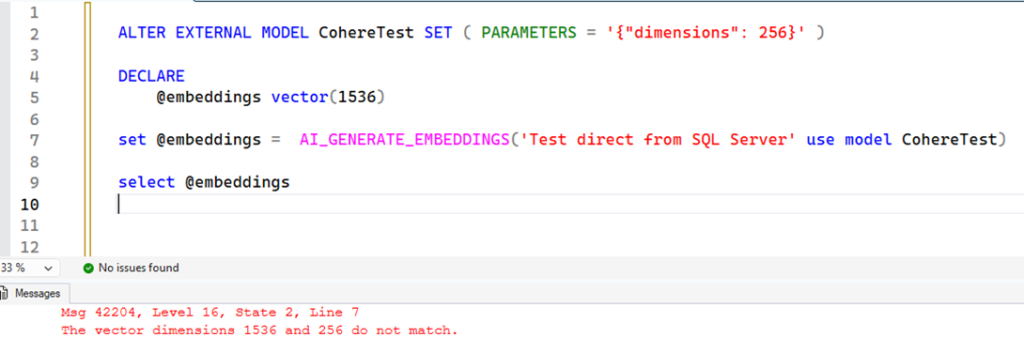
Now that we have altered the API, we need to adjust the value in the variable as well:
|
1 2 3 4 |
DECLARE @embeddings vector(256) -- changed (1536) to (256) set @embeddings = AI_GENERATE_EMBEDDINGS('Test direct from SQL Server' use model CohereTest) |
And you can also adjust the parameter directly in the call to AI_GENERATE_EMBEDDINGS:
|
1 2 3 4 |
DECLARE @embeddings vector(1024) -- vamos gerar agora embeddings de 1024 dimensoes set @embeddings = AI_GENERATE_EMBEDDINGS('Test direct from SQL Server' use model CohereTest parameters convert(json,'{"dimensions": 1024}') ) |
Note that I have now added the PARAMETERS option to AI_GENERATE_EMBEDDINGS. You need to pass a JSON type (hence the reason for converting it to the new JSON type, also added in SQL 2025).
Multiple Rows
For a more practical example, let’s create a script that generates the embeddings for 50 SQL Server error messages and stores them in a table (if you wish, you can adapt the script for another table of your preference, but remember that you are using a trial key and it has request limits):
|
1 2 3 4 5 6 7 8 9 10 11 12 13 14 |
USE AiTests GO drop table if exists #embeddings; select top(50) text ,embeddings = convert(vector(256),AI_GENERATE_EMBEDDINGS(text use model CohereTest)) into #embeddings from sys.messages select * from #embeddings; |
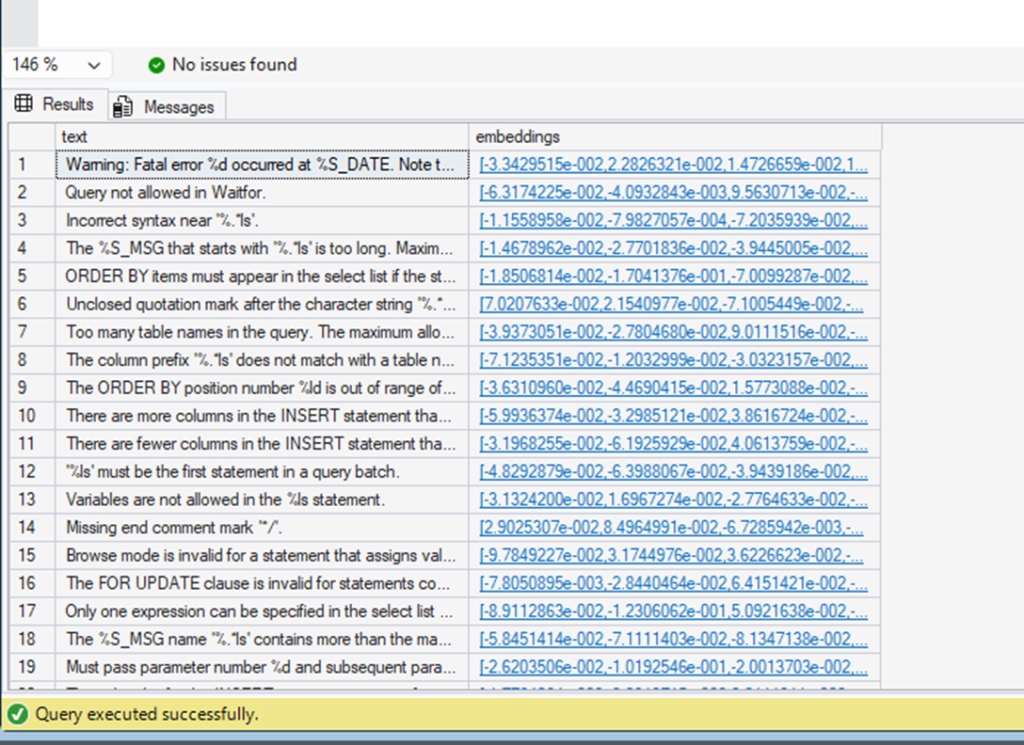
Note how you can use AI_GENERATE_EMBEDDINGS in places where any function is accepted. This makes the process much more flexible compared to using a procedure.
Handling Errors and Performance
Up until now, we have only worked with ideal and perfect cases. However, in the real world, the response won’t always be correct or fast like these examples. Therefore, I thought it prudent to present some scenarios so that you are prepared and know how to investigate.
The first thing that can happen is errors. The API you choose to use can generate errors for various reasons: something wrong you passed, invalid or expired credentials, errors on the other side, the returned format not being what SQL Server expects, etc.
For example, here’s the result returned with the HTTP 401 error, indicating authentication problems (which could be an incorrect or expired API key):
Msg 31742, Level 16, State 3, Line 77
Unrecoverable HTTP error 401 occurred.
Here is an error returned when a parameter specified in PARAMETERS is not accepted by the API:
Msg 31742, Level 16, State 3, Line 87
Unrecoverable HTTP error 422 occurred.
Note that the message will include the returned HTTP code. However, the API might return generic codes, such as 500. It is always best practice to consult the API documentation to understand what the returned code means. An important point is that the error codes above were returned by the Cohere API. Other providers may return different error codes, so it is always best to check the provider’s API documentation to understand the codes it outputs and their meanings.
SQL Server assumes that the API will return results in the same format it accepts according to the API_FORMAT parameter. For example, this is the error it generates when the result is not a valid JSON expected by the OpenAI format:
Msg 31744, Level 16, State 1, Line 87
The JSON path for embeddings could not be found in the response.
Another common scenario you will face is dealing with query performance. Invoking external services completely takes control away from SQL execution, and the only thing it has to do is wait. Therefore, in a scenario where you invoke it for every row in a table, you must be very careful. For one row, it’s fast, but for 10 rows, the time can change considerably.
You can use the DMV sys.dm_exec_sessions_wait_stats and monitor the consumption of AI_GENERATE_EMBEDDINGS. For example, in the previous example we did with error messages, these were the session waits, ordered by what took the longest in total:
|
1 2 3 4 5 6 7 8 |
select * from sys.dm_exec_session_wait_stats where session_id = 58 order by wait_time_ms desc |
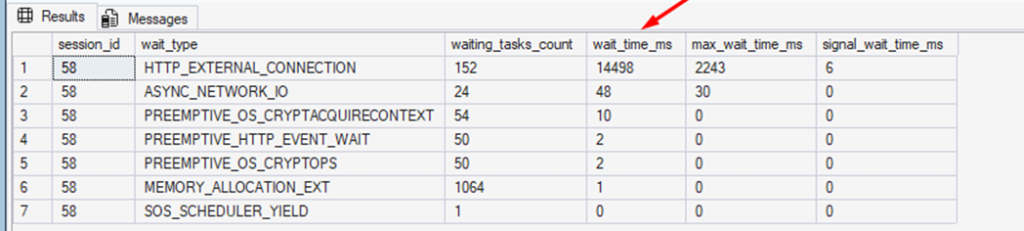
What you primarily need to keep in mind is that using this within a transaction, for example, can cause many locks, especially if you are updating embeddings in a frequently altered table. You can use temporary tables to minimize the impact on concurrency. For example, suppose you want to update the embeddings of a products table. Instead of performing the update directly on the products table, you can use an auxiliary temporary table:
|
1 2 3 4 5 6 7 8 9 10 11 12 13 14 15 16 17 18 19 20 21 22 23 24 25 26 27 28 |
drop table if exists #ProductsEmbeddings; -- get next set of rows to update! select top 10 ProductId ,ProductDescription ,embeddings into #ProductsEmbeddings from products_embeddings where embeddings is null -- generate the embeddings (locking just temporary rows)! update #ProductsEmbeddings set embeddingsembeddings = AI_GENERATE_EMBEDDINGS(ProductDescription use model CohereTest) -- Update back update p set embeddings = tp.embeddings from #ProductsEmbeddings tp join products_embeddings p on tp.ProductId = p.ProductId |
A final, extremely valuable performance tip that can make a huge difference is sending a batch of embeddings. Many AI providers allow you to generate embeddings for multiple texts simultaneously, avoiding sending 1 HTTP request per row, which is the main bottleneck when using AI_GENERATE_EMBEDDINGS.
The disadvantage is that your code might become more complex, but it can be very worthwhile if performance is crucial for you. For example, the code below shows a time comparison when generating embeddings for 50 error messages using row-by-row versus batch:
|
1 2 3 4 5 6 7 8 9 10 11 12 13 14 15 16 17 18 19 20 21 22 23 24 25 26 27 28 29 30 31 32 33 34 35 36 37 38 39 40 41 42 43 44 45 46 47 48 49 50 51 52 53 54 55 56 57 58 59 60 61 62 63 64 65 66 67 68 69 70 71 72 73 |
USE AiTests GO drop table if exists #messages; select top(50) id = row_number() over(order by (select null)) ,text = convert(nvarchar(max),text) ,VectorSingle = convert(vector(1024),null) ,VectorBatch = convert(vector(1024),null) into #messages from sys.messages s select * From #messages -- updating using row by row declare @Start datetime set @Start = getdate(); update #Messages set VectorSingle = AI_GENERATE_EMBEDDINGS(text use model CohereTest parameters converT(json,'{"dimensions": 1024}') ) select ElapsedAiGenerated = datediff(ms,@Start,getdate()) GO -- updating using batch declare @body nvarchar(max),@result nvarchar(max),@Start datetime select @body = ( select input = JSON_QUERY(JSON_ARRAYAGG(text order by id)) ,model = 'embed-v4.0' ,dimensions = 1024 for json path,without_array_wrapper ) from #messages set @Start = getdate(); exec sp_invoke_external_rest_endpoint 'https://api.cohere.ai/compatibility/v1/embeddings' ,@payload = @body ,@response = @result output ,@credential = 'https://api.cohere.ai' drop table if exists #embresult select r.[key],embeddings =JSON_QUERY(r.value,'$.embedding') into #embresult from openjson(@result,'$.result.data') r update m set VectorBatch = embeddings from #embresult o join #Messages m on m.id = o.[key] + 1 select ElapsedBatched = datediff(ms,@Start,getdate()) select * ,convert(decimal(30,29),VECTOR_DISTANCE('cosine',VectorSingle,VectorBatch)) From #Messages |
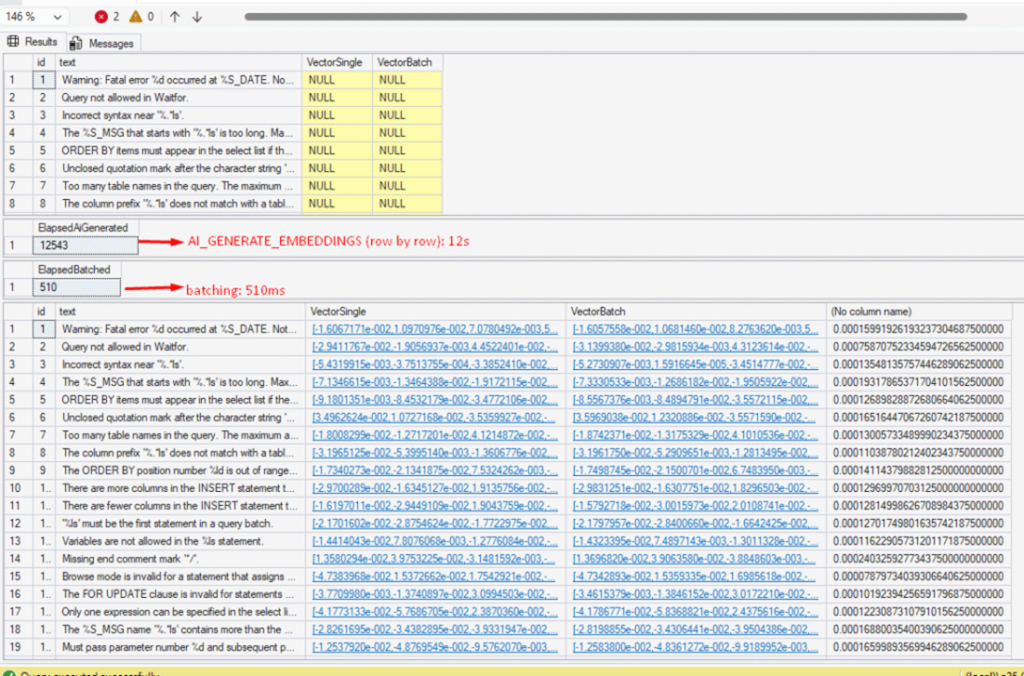
An absurd difference – from 12 seconds to 510 milliseconds using batch. However, as you can see, this method makes the code more complex. Hopefully, in future versions of SQL 2025 (or through updates), there will be an easier way to use batch mode.
sp_AddEmbeddings
Until then, if you want an easier way, consider using this procedure I created: sp_AddEmbeddings. By passing the table name and the model, it uses batching to generate the embeddings:
|
1 2 3 4 5 6 7 8 9 10 11 12 13 14 15 16 17 18 19 20 21 22 23 24 25 26 |
USE AiTests GO drop table if exists #messages; select top(50) id = row_number() over(order by (select null)) ,text = convert(nvarchar(max),text) ,VectorBatch = convert(vector(1024),null) into #messages from sys.messages s declare @Start datetime = getdate() exec sp_AddEmbeddings '#messages','text' ,'openai' ,@IdCol = 'id' ,@model = 'CohereTest' ,@IsExternal = 1 select ElapsedBatched = datediff(ms,@Start,getdate()) select * from #messages |
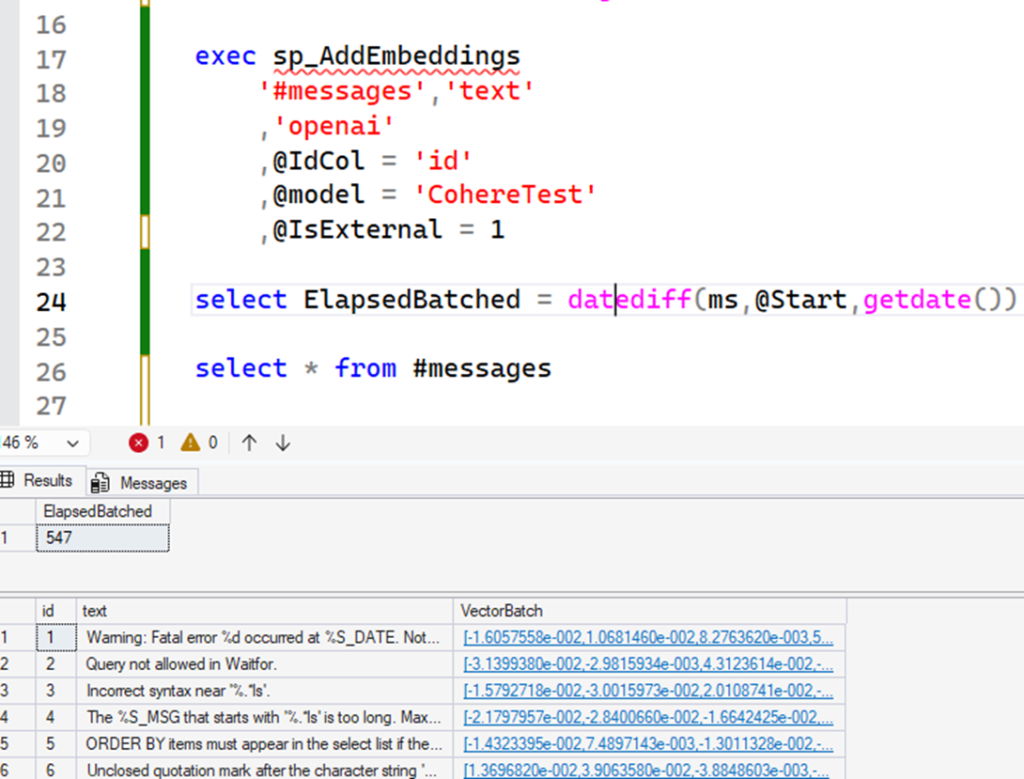
sp_AddEmbeddings allows you to generate embeddings into a vector column, using a model you specify in the parameter and AI providers. You need to create both sp_AddEmbeddings and the respective provider procedure, for which I left three examples of here (scripts spAddemb.*.sql).
Metadata
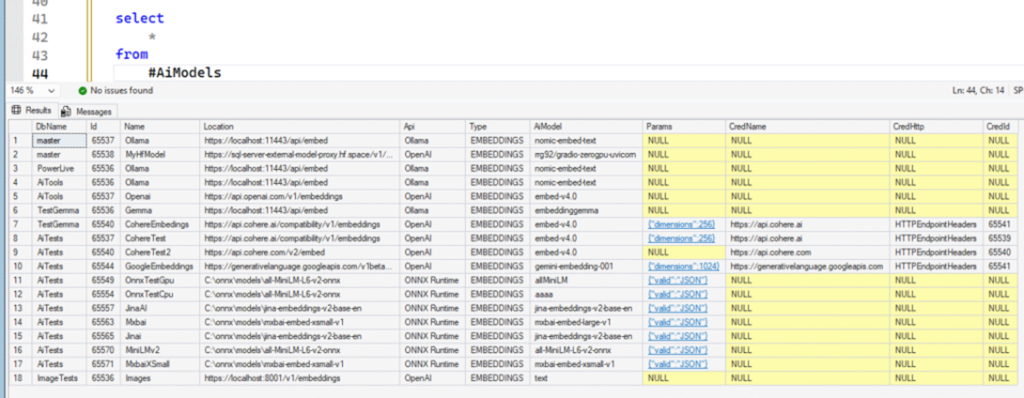
Just like other objects you create, the sys.external_models view returns all models created with CREATE EXTERNAL MODEL. This way, you can query the current models and options.
For example, this script that I made available for free in my Git repository uses sys.external_models to list the models created in all databases. This can be useful if you need to view something quickly:
ONNX
Now that you know how to connect your SQL to an AI model via an HTTP API, I will show you another way, which is not via HTTP but via a DLL, and the model will run directly on the same SQL Server machine. This is a useful scenario for environments that have strict data processing policies, cannot use external services like the ones we used, and need to process locally. This method uses ONNX.
What is ONNX?
AI models are like an audio file, for example an .mp3. There are several programs that can play an MP3, which is an open format that anyone can read and reproduce. With AI models, we have the same scenario. The basis is neural networks that have a standard and format, and the values of the hundreds of thousands of parameters found during training.
The ONNX(Open Neural Network EXchange), which is open source and was created by Microsoft, Facebook, and AWS, defines exactly how the binary of these networks should be saved and can be read for processing. To note, there are other formats as well – such as GGUF, SafeTensors, etc. See this post on Hugging Face for more.
As I mentioned, ONNX defines the format, which means you need software capable of ‘opening’ and executing that format. ONNX models have the onnx extension. To “open and execute” these files, you need ONNX Runtime – software (or a library) with all the ONNX logic implemented. This runtime is available for various languages but for SQL Server, we’ll use the runtime created for Windows, which is made available as a DLL, on its GitHub: Releases · microsoft/onnxruntime
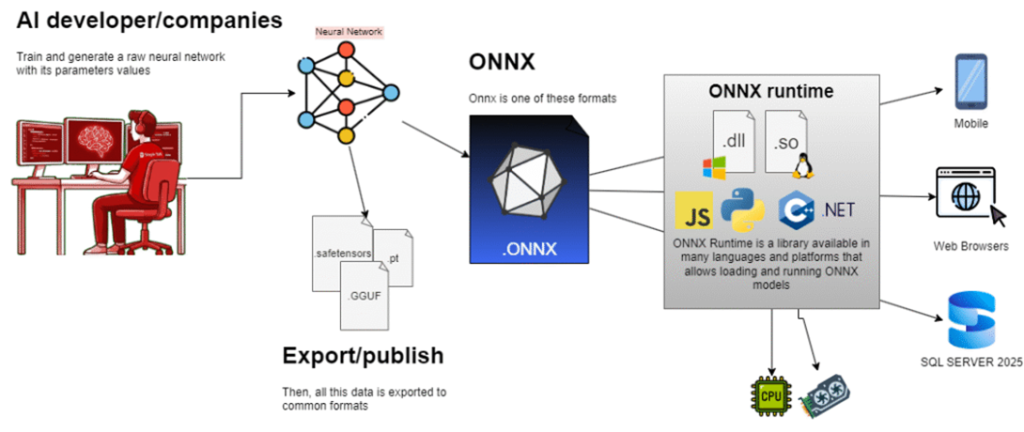
In the case of SQL Server, Microsoft followed the same security standard as other services, such as Full Text Search or the execution of external scripts: the ONNX Runtime DLL is not loaded into sqlservr.exe, but rather into Launchpad.exe, which is started by the LaunchPad service (formerly Machine Learning Services, used to run Python and R code.) The reason is simple: if there are any issues with the runtime, it does not stop the entire SQL database – only the runtime process suffers the consequences.
Enjoying this article? Subscribe to the Simple Talk newsletter
Using the ONNX Runtime
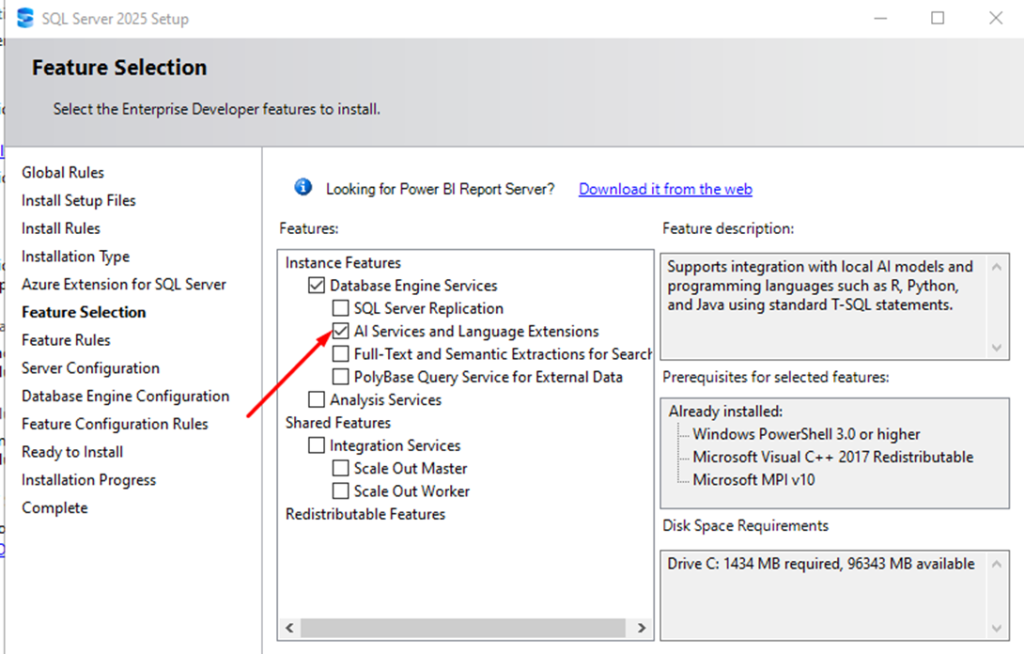
Now that you have the background on what ONNX is and an idea of how it works, we can see this in practice. To use ONNX in SQL Server, firstly install Launchpad (if you haven’t already), by opening the same SQL installer, choosing add features to existing, and checking the option Ai Services and Language Extensions:
Once installed, make sure it’s been started in SQL Configuration Manager:

Note the account name under “Log On As” – we will need it later.
Now, let’s install the runtime:
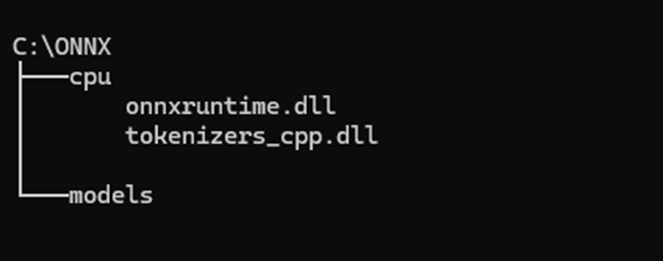
- First, choose a directory of your preference on the machine where your SQL Server is located. For this post, I will use C:\onnx as an example. It probably doesn’t exist, so create it.
- Create the following subdirectories:
- C:\onnx\cpu
Here we will place the DLLs that will be loaded - C:\onnx\models
Here we will place the binaries of the AI models that will generate the embeddings
- C:\onnx\cpu
- Download this zip, extract and copy only the file in lib/onnxrutime.dll to C:\onnx\cpu. If the direct link to the zip does not work, see the latest version here: Releases · microsoft/onnxruntime. The important thing is to get the DLL mentioned above and place it in the C:\onnx\cpu directory.
- Now, Download the tokenizer-cpp.dll and also place it in C:\onnx\cpu
This library is not part of ONNX, but it is important for use with models that involve text processing, which is the case for the embedding models we will use here. It helps convert text into tokens, and vice versa. Embedding models receive tokens and generate tokens, and tokenizers are the ones that help convert these tokens back into text, or the text into tokens.
You’ll end up with a structure like this:
Now, to ensure the Launchpad service can access the directory, adjust the service account permissions on the C:\onnx directory. Grant permissions to the Launchpad service user, as you observed earlier. In my case, it looked like this (it only worked with Full Control):
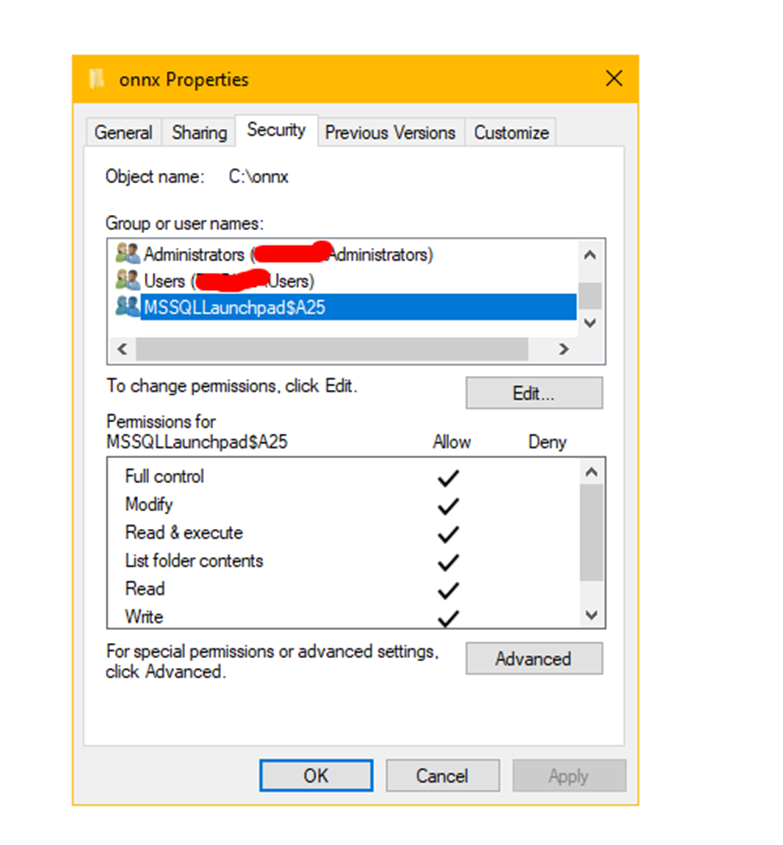
Note that I only needed to grant permission on root C:\onnx and, thanks to the NTFS inheritance feature, the subdirectories and files received the same permission.
At this point, your ONNX runtime is ready. Now, we need an ONNX model. I will show you using two examples: the all-MiniLM-L6-v2-onnx (the same one used in the official post) and one from MixedBread AI, the mixedbread-ai/mxbai-embed-xsmall-v1 · Hugging Face, which is not officially mentioned but I tested and it works.
There’s a small difference in the second example, and it’ll be useful to learn a bit more about this – but first, before we continue, install git if you haven’t already, to download the models from Hugging Face. Once installed, make sure it’s working correctly by opening a new command prompt or PowerShell session and typing “git”. A ‘help’ message should display – if not, review the installation.
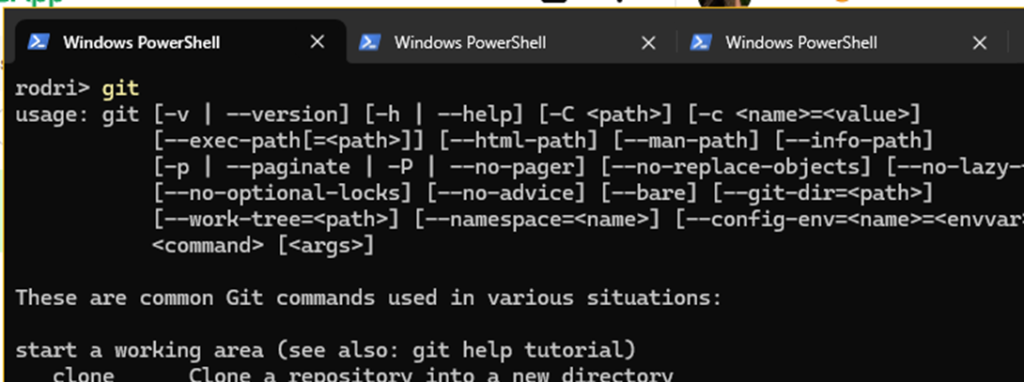
Using the all-MiniLM-L6-v2-onnx model
To download the model, open a command prompt or PowerShell and run these commands:
|
1 2 |
cd C:\onnx\models git clone https://huggingface.co/nsense/all-MiniLM-L6-v2-onnx |
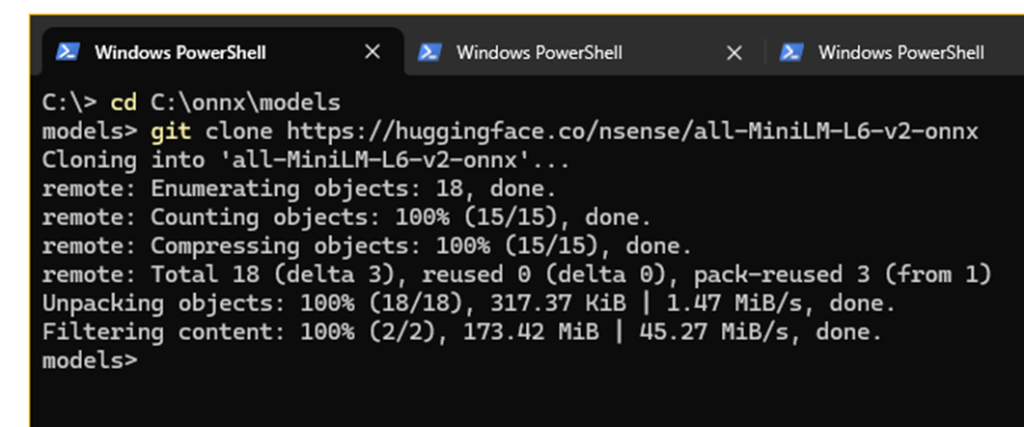
This may take a few seconds or minutes. Upon completion, you will have this structure in C:\onnx\models:
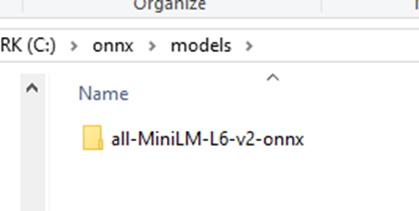
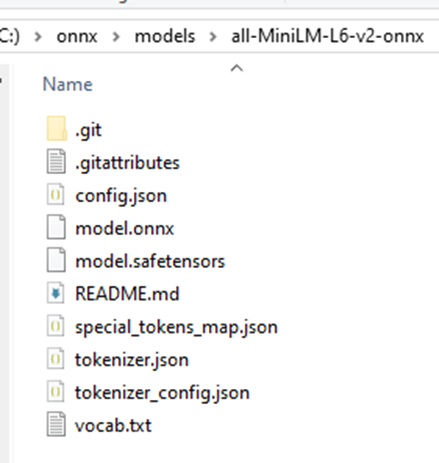
In this directory, there are various files containing the model’s “source code” in several formats, such as safetensors and onnx. Additionally, there are other metadata and configuration files, such as tokenizers.json. All we need to do now is point this out in SQL Server. First, let’s enable two features:
|
1 2 3 4 5 6 7 8 9 10 11 12 13 14 15 16 17 18 |
USE AiTests GO if exists(select * from sys.external_models where name = 'MiniLMv2') drop external model [MiniLMv2]; CREATE EXTERNAL MODEL [MiniLMv2] WITH ( LOCATION = 'C:\onnx\models\all-MiniLM-L6-v2-onnx', API_FORMAT = 'ONNX Runtime', MODEL_TYPE = EMBEDDINGS, MODEL = 'all-MiniLM-L6-v2-onnx', PARAMETERS = '{"valid":"JSON"}', LOCAL_RUNTIME_PATH = 'C:\onnx\cpu' ); select AI_GENERATE_EMBEDDINGS('test' use model [MiniLMv2]) |
Note that in LOCATION, you point to the model directory. For API_FORMAT, use ONNX Runtime. For MODEL, you can repeat the same name as the model, which is the same name as the directory. In parameters, include the JSON {“valid”:”JSON”} and a new parameter we haven’t used yet: LOCAL_RUNTIME_PATH, where you specify where the ONNX runtime DLLs are located (in our case, they are in C:\onnx\cpu).
Now, use AI_GENERATE_EMBEDDINGS as you have seen previously:
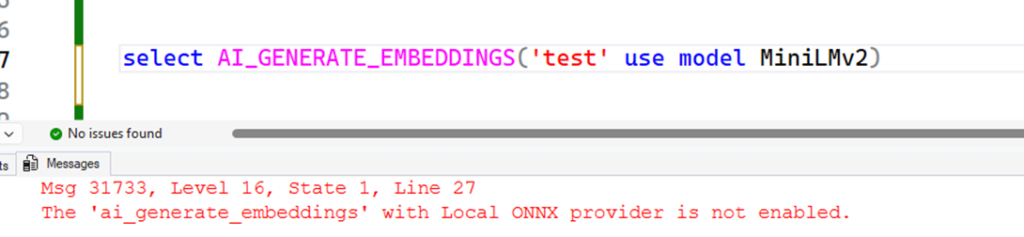
However, the following error will be returned if you don’t enable some particular options:
Msg 31733, Level 16, State 1, Line 27
The ‘ai_generate_embeddings’ with Local ONNX provider is not enabled.
The options you need to enable are:
|
1 2 3 4 5 6 7 8 9 |
USE AiTests GO -- need enable server level (sysadmin) EXEC sp_configure 'external AI runtimes enabled', 1; RECONFIGURE WITH OVERRIDE; -- need enable preview features (db_owner) ALTER DATABASE SCOPED CONFIGURATION SET PREVIEW_FEATURES = ON; |
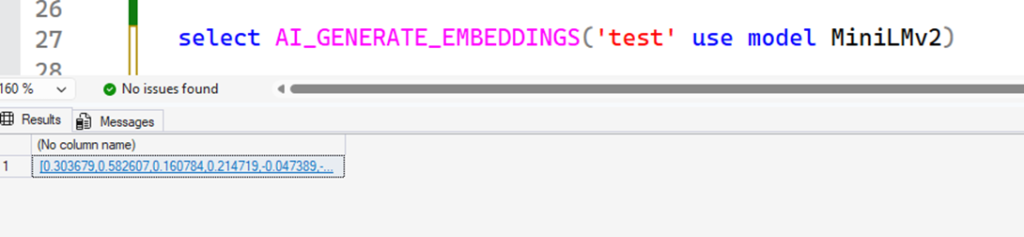
When you use AI_GENERATE_EMBEDDINGS referencing this model, SQL will now communicate with the launchpad, which will load the runtime, and the model, and execute the process – returning the embeddings. All this runs on the same server as your SQL (but in separate processes).
To demonstrate this, using SQLQueryStress I monitored the CPU consumption of both processes: Launchpad (blue) and the SQL instance (red). During the stress test, the blue line (Launchpad) is the one that spikes:
Using the mxbai-embed-xsmall-v1 model
Now let’s test another model, different from the one mentioned in the official post: mxbai-embed-xsmall-v1, a model I’ve never seen mentioned anywhere as an example for use with SQL Server – so we’ll probably be the first ones here.
We’ll basically repeat the same steps – first, open a command prompt and run it (it might take a few minutes):
|
1 2 |
cd C:\onnx\models git clone https://huggingface.co/mixedbread-ai/mxbai-embed-xsmall-v1 |
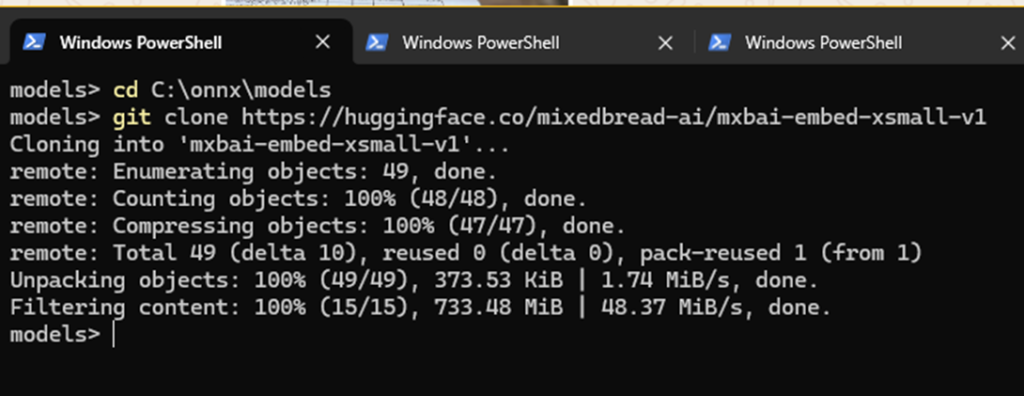
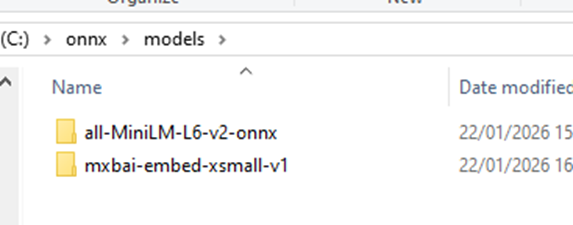
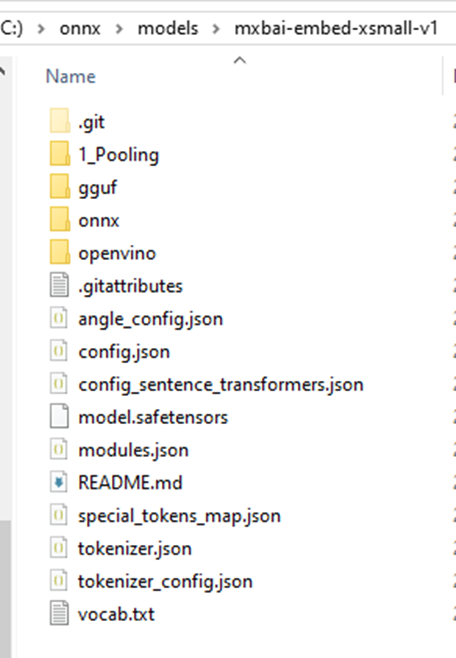
You’ll now have this in C:\onnx\models:
Now, let’s try creating it in SQL:
|
1 2 3 4 5 6 7 8 9 10 11 12 13 14 15 |
if exists(select * from sys.external_models where name = 'MxbaiXSmall') drop external model [MxbaiXSmall]; CREATE EXTERNAL MODEL MxbaiXSmall WITH ( LOCATION = 'C:\onnx\models\mxbai-embed-xsmall-v1', API_FORMAT = 'ONNX Runtime', MODEL_TYPE = EMBEDDINGS, MODEL = 'mxbai-embed-xsmall-v1', PARAMETERS = '{"valid":"JSON"}', LOCAL_RUNTIME_PATH = 'C:\onnx\cpu' ); select AI_GENERATE_EMBEDDINGS('test' use model MxbaiXSmall) |
When trying to run the SELECT statement, you will receive this error:

Msg 31739, Level 17, State 1, Line 45
Generating embeddings from ‘AIRuntimeHost’ process with session ID ‘B9806BB6-14C4-468F-AC15-AF73284AC936’ failed with HRESULT 0x80004004.
It is a generic error, as the Launchpad failed somehow and SQL only reports the failure without further details. However, in this case, I know that something more is missing for this model:
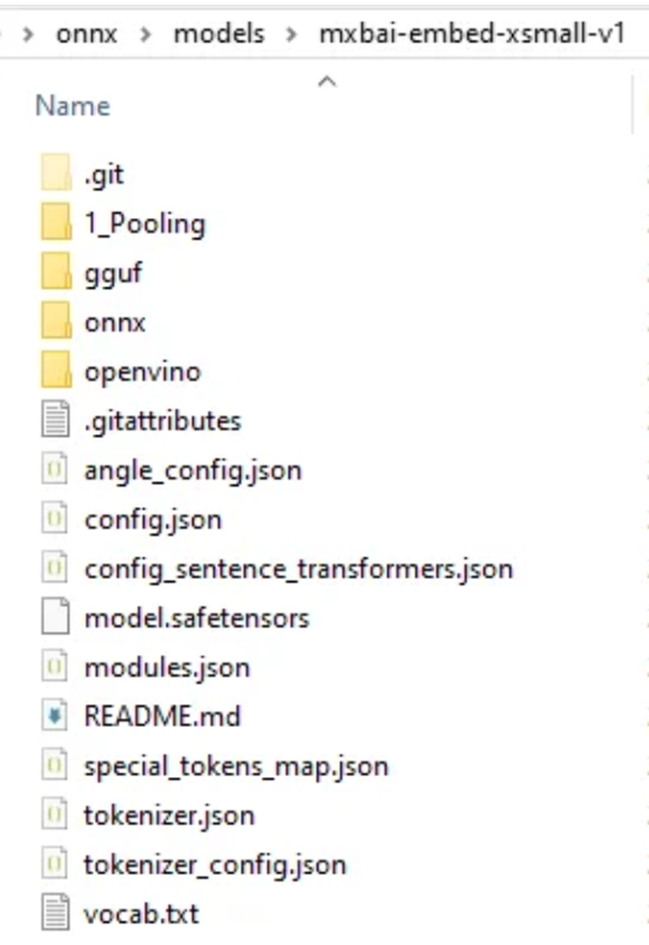
Note that there is no model.onnx file in the directory, unlike the previous one. It is in the “onnx” directory. Copy it to the root, as follows:
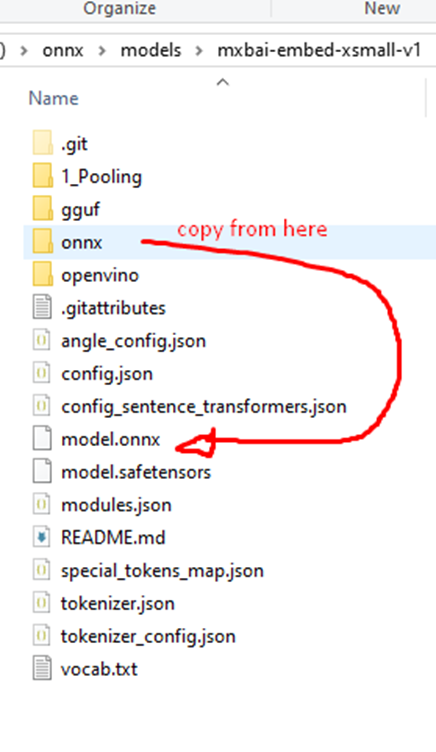
Now, try again – and that’s it! With this, we can confirm that using ONNX Runtime expects a model.onnx file to be present in the directory so the launchpad can load it correctly.
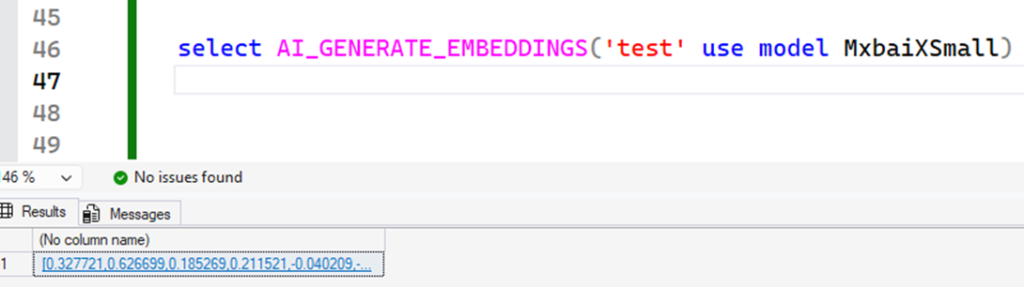
And there you have it! Another model loaded directly into the server’s memory, generating embeddings!
Here is a filter I usually use to find ONNX models on Hugging Face, but not all ONNX models will work with SQL. At the time of writing, there’s nothing officially documented by Microsoft about exactly which ONNX models from Hugging Face work with SQL. In some tests, I noticed that the model structure (inputs and outputs) must be specific, but, as I said, this is based on my observations and is not official. While we don’t have official documentation, you can use this space I created to check what I have already tested and for some updates: SQL ONNX Info – a Hugging Face Space by sql-server
Suggestion for the MS and Hugging Face teams: create a “sql-server” or “mssql” tag so we can filter models compatible with SQL Server directly from Hugging Face Hub UI. That would make things much easier, wouldn’t it?
Conclusion & Next Steps
Before wrapping up, the question you might have is: when should I use ONNX and when should I use an external API? Will using ONNX compromise and compete with the machine’s memory and CPU resources, potentially disrupting SQL?
And the simplest answer is (as with everything): it depends. ONNX is especially useful if your company’s data processing policy is so strict that you cannot even take the data out of the SQL server, so it becomes an option for you to use AI while keeping the data inside the server. Using external APIs is more flexible, from my point of view, but it might run into those kinds of security issues. There is also the option of using Ollama, but you would probably have to move the data to another server as well, and you might run into those security issues. Ultimately, I would summarize it like this:
- If you are starting out and testing, and security policies permit it, start with external APIs. Test them, see how they work with your data and which best options yield a good result.
- Consider moving to more complex options, such as Ollama or ONNX, if your company’s security policies demand a higher level of data protection. You will need to engage with your security team to discuss this and verify if reaching this level of complexity is necessary (and if it satisfies the requirements).
The fact is that SQL 2025 introduced a new command with various options, allowing you to finally invoke AI models to generate embeddings and assist in routines involving text search and comparison, all from within your SQL Server using simple T-SQL. This can be a huge leap for your applications and business.
Thank you very much for reading, and if you have any questions, just leave a comment. I will continue studying and applying the new AI features in SQL, introducing you to them on Simple Talk along the way!
Frequently Asked Questions
1. What is CREATE EXTERNAL MODEL in SQL Server 2025?
CREATE EXTERNAL MODEL is a new SQL Server 2025 command that registers an external AI model for use inside SQL Server. Instead of hosting the model itself, SQL Server stores connection metadata such as the model endpoint, API format, authentication credentials, and model name. This allows SQL Server to securely call external AI services for tasks like generating vector embeddings.
2. What does “external AI model” mean in SQL Server?
An external AI model is any AI model that runs outside SQL Server but can be accessed through an API. This includes cloud-hosted models, on-premises services, containerized models, or local runtimes. SQL Server uses the model’s API to send input data and receive AI-generated results, such as embeddings.
3. Which AI model types are supported in SQL Server 2025?
SQL Server 2025 currently supports EMBEDDINGS models. These models convert text into numerical vectors that represent semantic meaning. Vector embeddings are the foundation for AI use cases such as semantic search, similarity matching, and retrieval-augmented generation (RAG).
4. What is the AI_GENERATE_EMBEDDINGS function used for?
AI_GENERATE_EMBEDDINGS is a T-SQL function that calls a registered external AI model to generate vector embeddings from input text. The function returns a vector representation of the text, which can be stored in a VECTOR column and later used for similarity comparisons or semantic search in SQL Server.
5. How do I configure an external AI model in SQL Server?
When creating an external model, you define:
-
The model endpoint location
-
The API format used by the model
-
The model name or version
-
Credentials for authentication
This configuration enables SQL Server to securely communicate with the AI model whenever AI_GENERATE_EMBEDDINGS is executed.
6. Does SQL Server generate embeddings internally?
No. SQL Server does not generate embeddings itself. Instead, it sends requests to an external AI model and processes the returned embeddings. This approach allows SQL Server to integrate with a wide range of AI platforms while keeping AI workloads decoupled from the database engine.
7. How are embeddings stored in SQL Server 2025?
Embeddings are stored using the VECTOR data type introduced in SQL Server 2025. Vector columns are designed to hold high-dimensional numeric data and can be queried using vector distance functions to support similarity search and AI-driven querying.
8. What can I do with vector embeddings in SQL Server?
Once stored, embeddings can be used to:
-
Perform semantic search over text data
-
Find similar records using vector distance calculations
-
Rank results by meaning rather than exact keyword matches
-
Support AI patterns such as recommendation systems and RAG pipelines
These capabilities bring modern AI search directly into T-SQL.
9. Where can the external AI models be hosted?
External AI models can be hosted in multiple environments, including:
-
Cloud AI platforms
-
On-premises servers
-
Containers
-
Local AI runtimes
As long as SQL Server can reach the model through a supported API, it can be used for embedding generation.
10. Do I need API or REST knowledge to use these features?
Basic knowledge of REST APIs and authentication is helpful. Since SQL Server communicates with AI models via APIs, understanding endpoints, credentials, and request formats makes it easier to configure and troubleshoot external models.
This document contains proprietary information and is protected by copyright law.
Copyright © 2026 Red Gate Software Limited. All rights reserved







Load comments