


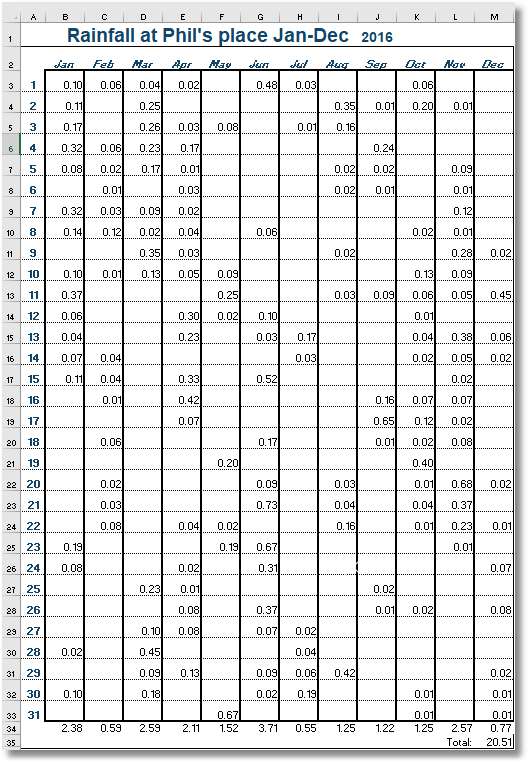
 I’ve taken an existing format and added very few tweaks. The year in the top title is actually an integer value that is in a separate call to the merged-right-aligned cell containing the rest of the title. This makes it easy for us to detect what year the data applies to.
We then add a cell underneath the form. This is going to grow to the same number of cells in the same shape as the cells with the data in it.
In the cell formula, we add an expression
|
1 |
=IF(LEN(TRIM(E3))>0,CONCAT("{""date"":""",TEXT(DATE($J$1,COLUMN()-1,$A3),"yyyy-mm-dd"),""",""rainfall"":",E3,"},"),"") |
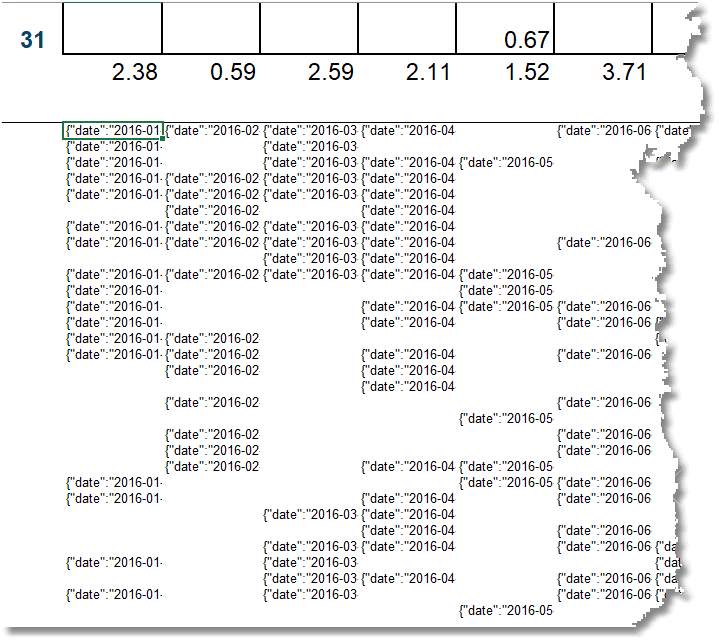 You can’t see the full JSON equivalent of each cell as the display is truncated. You can see that it is a sparse matrix because if there is no rainfall then there is nothing to record (this is a philosophical argument I’ll grant you)
We have one last duty to perform. We need to concatenate all these together and lop off the final comma before wrapping it up into the array square-brackets.
In the cell below the block we’ve just created, we add this expression as a formula
|
1 |
=CONCAT("[",LEFT(CONCAT(B36:M66),LEN(CONCAT(B36:M66))-1),"]") |
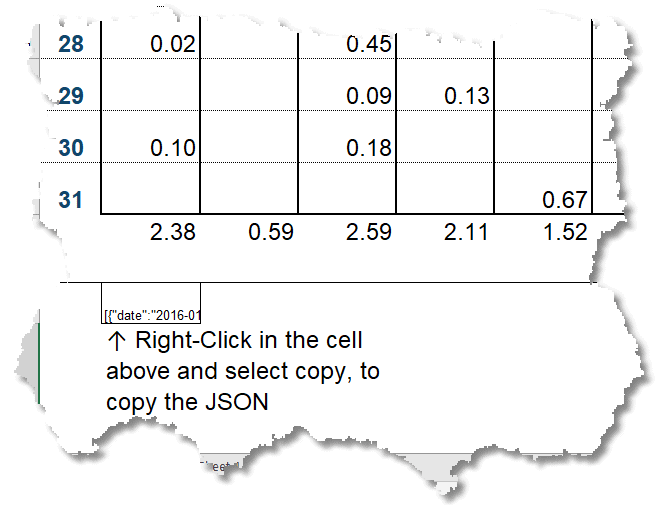 So we do that, and save it to file or whatever we need to do. We paste it into SSMS and check that it has faithfully recorded the data. With a relief, we find that our totals have tallied and we can go on to add the data to our database.
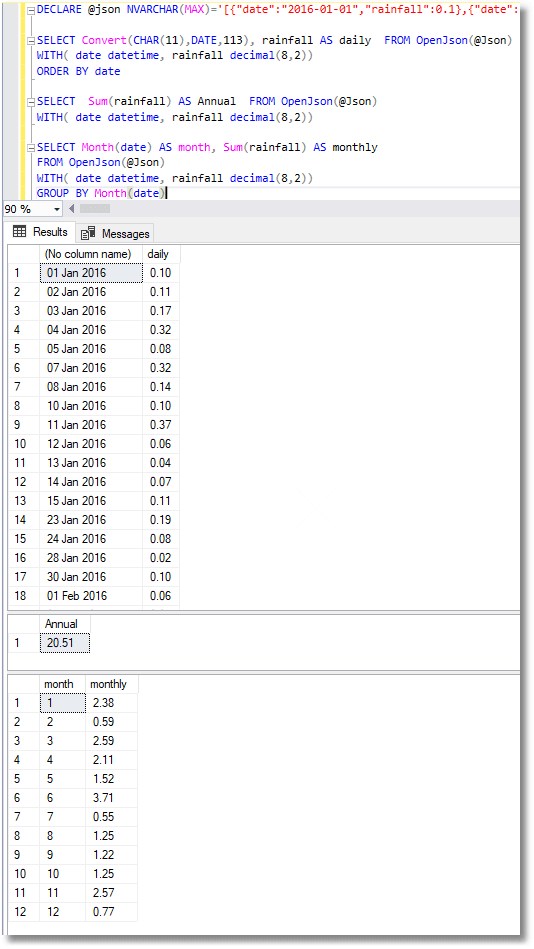 Now that we have a template that allows easy entry and checking of the data, we also have no fear of getting the data into a database.
What if the data is a wee bit more complex?
A while back, I was writing a blog here and needed a sample of JSON that wasn’t distracting and had no compromising information. I knocked together a database in Excel, using tables from the Wikipedia. I used Excel. I quite often gather information like this because of Excel’s easy way with HTML tables.
I have to confess that I got rather interested in the information I gathered, which was the dialect words for counting in twenties, which was once used throughout Britain for simple counting tasks. It is interesting because it is a survival of the old Brythonic language used before Roman imperialism. There was a craze amongst folklorists in the 1850s for collecting instances of it being used. It was lucky for modern linguists that they did as it was, even then, dying out.
Please imagine that it is your valuable business data and that what we have is the output of all our manufacturing plants month by month: something like that.
Here is a section of the spreadsheet
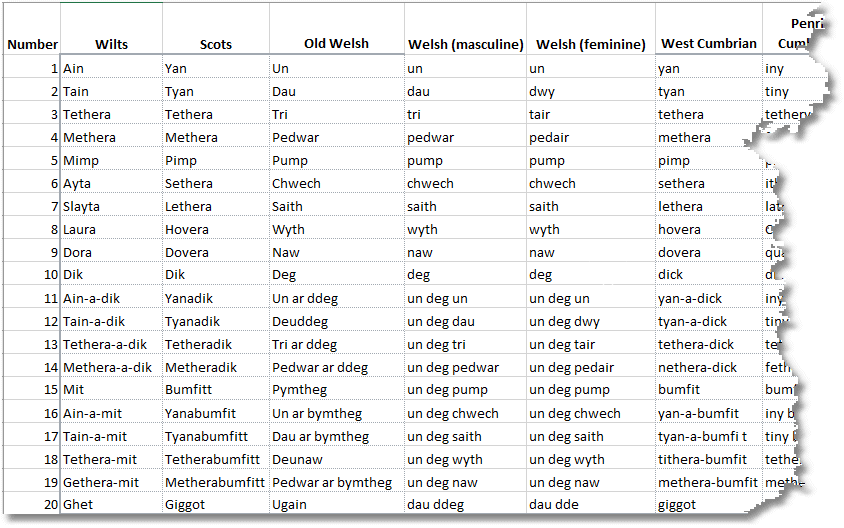 I added the cells in a similar way to that I’ve just described for the yearly calendar data. As I kept finding more and more strings, going back into books published in the 1860s, I had to keep adding columns for each new region was found. It had to be extensible.
This is an array of ‘region’ objects, each of which has an array of word objects.To illustrate the fact that this data was rather more complex, I’ve just reduced it to two numbers in the sequence array rather than the original twenty. Each JSON document in our collection has an embedded array.
|
1 2 3 4 5 6 7 8 9 10 11 12 13 14 15 16 17 18 19 |
[{ "region": "Wilts", "sequence": [{ "number": 1, "word": "Ain" }, { "number": 2, "word": "Tain" }] }, { "region": "Scots", "sequence": [{ "number": 1, "word": "Yan" }, { "number": 2, "word": "Tyan" }] }] |
|
1 |
=IF(LEN(TRIM(B2))>0,CONCAT("{""number"":",$A2,",""word"":""",B2,"""},"),"") |
|
1 |
{"number":1,"word":"Ain"}, |
|
1 |
=CONCAT("{""region"":""",B1,""",""sequence"":[",LEFT(CONCAT(B22:B41),LEN(CONCAT(B22:B41))-1),"]},") |
|
1 2 3 4 5 6 7 8 9 10 11 12 13 14 15 16 17 18 19 20 21 22 23 24 25 26 27 28 29 30 31 32 33 34 35 36 37 38 39 40 41 42 43 44 45 46 47 48 49 50 51 52 53 54 55 56 57 58 59 60 61 62 63 64 |
{ "region": "Wilts", "sequence": [{ "number": 1, "word": "Ain" }, { "number": 2, "word": "Tain" }, { "number": 3, "word": "Tethera" }, { "number": 4, "word": "Methera" }, { "number": 5, "word": "Mimp" }, { "number": 6, "word": "Ayta" }, { "number": 7, "word": "Slayta" }, { "number": 8, "word": "Laura" }, { "number": 9, "word": "Dora" }, { "number": 10, "word": "Dik" }, { "number": 11, "word": "Ain-a-dik" }, { "number": 12, "word": "Tain-a-dik" }, { "number": 13, "word": "Tethera-a-dik" }, { "number": 14, "word": "Methera-a-dik" }, { "number": 15, "word": "Mit" }, { "number": 16, "word": "Ain-a-mit" }, { "number": 17, "word": "Tain-a-mit" }, { "number": 18, "word": "Tethera-mit" }, { "number": 19, "word": "Gethera-mit" }, { "number": 20, "word": "Ghet" }] } |
|
1 |
=CONCAT("[",LEFT(CONCAT(B42:AU42),LEN(CONCAT(B42:AU42))-1),"]") |
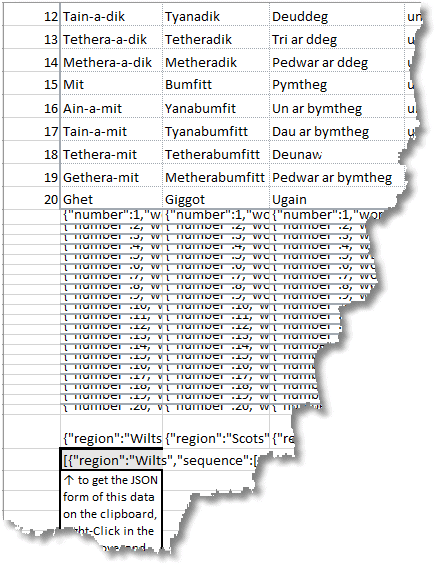 And the final version
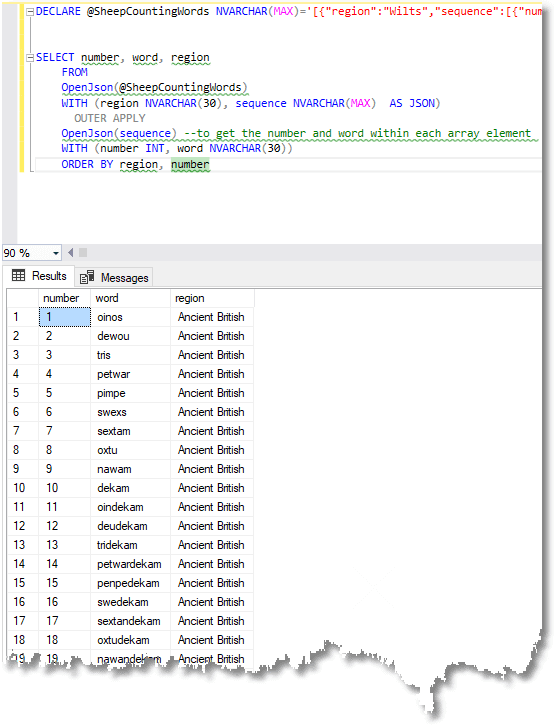
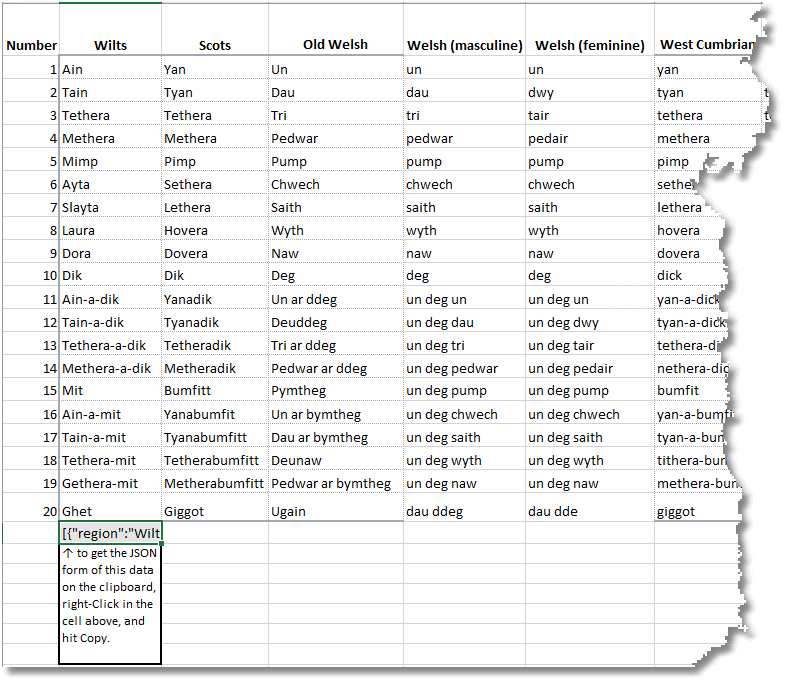 And we check out the JSON in SSMS
 We can, (and have done), added many regional variations, merely by selecting a column, copying it, and inserting the copied column. This copies all the relevant formulas. I thin merely changed the data in the copied data-cells.
Conclusion
This technique works and saves a lot of time in transferring data. It saves time in gathering data due to excel’s wonderful promiscuity on collecting data. It saves time in importing the data into SQL Server because one can be so flexible in the way we arrange the JSON schema. We can even cope with data that goes across multiple worksheets. You may need to ‘escape’ the data if it contains banned characters such as the double-quote marks used as string delimiters or the control characters. I’ve found that this technique works best where excel data is structured into forms in a reasonably disciplined ways, so it is worth taking time to create handy templates. I’ve noticed that a lot of business people relate very quickly to weekly or monthly charts of data and will be grateful for an accommodation towards the way that they naturally think about data. The collection of the data can be done by ODBC or by automation of Excel rather than cut’ n paste. See Getting Data between Excel and SQL Server using ODBC for the details.Sample Spreadsheets
FAQs
1. How do I import an Excel spreadsheet into SQL Server?
Several options, depending on your environment: (1) Via JSON – convert the Excel file to JSON using PowerShell’s ImportExcel module, then load with OPENJSON in SQL Server. Works cross-platform, no ACE/OLE DB required, preserves types reasonably well (the approach in this article). (2) Via CSV – save Excel as CSV, load with BULK INSERT or OPENROWSET. Simple but loses type information; Excel’s CSV export has delimiter-quoting quirks. (3) ACE OLE DB provider – query Excel directly from SQL Server using OPENROWSET. Requires matching bitness between SQL Server and ACE; Windows-only; installation quirks. (4) SSIS or Azure Data Factory – production-grade but heavyweight for one-off imports. (5) Redgate Data Pump or similar – commercial tools. For ad-hoc Excel imports, the PowerShell + JSON approach is the most portable and reliable.
2. What is the PowerShell ImportExcel module?
ImportExcel is an open-source PowerShell module by Doug Finke that reads and writes Excel files without requiring Excel to be installed (it uses the EPPlus library under the hood). Core cmdlets: Import-Excel reads an .xlsx file into PowerShell objects (one object per row, properties matching column headers); Export-Excel writes PowerShell objects to .xlsx; Open-ExcelPackage and Close-ExcelPackage manage the underlying Excel object for advanced scenarios. For Excel-to-JSON conversion, a one-liner works: Import-Excel Input.xlsx | ConvertTo-Json -Depth 5 | Set-Content Output.json. The module handles multi-sheet workbooks via the -WorksheetName parameter and can skip header rows, handle merged cells, and deal with common Excel quirks.
3. How do I use OPENJSON to load JSON data into SQL Server?
Read the JSON file into a variable (SQL Server 2017+ can use BULK INSERT with a format file or OPENROWSET BULK; or pass the JSON as a parameter from your import script), then call OPENJSON with a WITH clause that specifies the target columns and types. Example: SELECT name, value FROM OPENJSON(@json) WITH (name NVARCHAR(100) ‘$.name’, value FLOAT ‘$.value’). For a nested JSON structure, use CROSS APPLY OPENJSON to expand inner arrays. Target the result set with INSERT INTO TargetTable SELECT … to populate the table. For very large JSON documents, stream the load in batches rather than loading the full document into a single variable.
4. How do I handle merged cells and multi-row headers in Excel imports?
Both are common in human-authored Excel files and break naive imports. For merged cells, ImportExcel’s default behaviour is to give the value to the top-left cell of the merge and null to the others – the common fix is to forward-fill nulls from the preceding non-null value after import. For multi-row headers (where row 1 has category groupings and row 2 has specific column names), read the file with -StartRow pointing to the actual data rows, then construct the column names manually by combining the header rows. The article shows specific PowerShell patterns for both cases using the rainfall and sheep-counting example datasets, which exercise these quirks naturally.
This document contains proprietary information and is protected by copyright law.
Copyright © 2026 Red Gate Software Limited. All rights reserved







Load comments