


ng2-pdfjs-viewer is an Angular component that renders PDFs inline or in a separate window, built on Mozilla’s PDF.js and viewer.js. This article covers installing and configuring it, hooking into its loading and printing events, and rendering a PDF returned as a byte array from a server API — with a C#/ASP.NET Core example.
Angular developers like myself have suffered greatly due to a lack of a quality library that can be used to show a PDF without losing the user experience.
Now, enter ng2-pdfjs-viewer, and the Angular developer’s fight with PDF is finally over!
The ng2-pdfjs-viewer component is built on top of Mozilla’s viewerjs and pdfjs, so its core is solid. It does have easy-to-use attributes along with the ability to customize anything which pdfjs supports. You can find the code demonstrated in this article here.
Usage can be as simple as:
|
1 |
<ng2-pdfjs-viewer pdfSrc="sample.pdf"></ng2-pdfjs-viewer> |
And viola, the PDF sits right inside the Angular application like this:
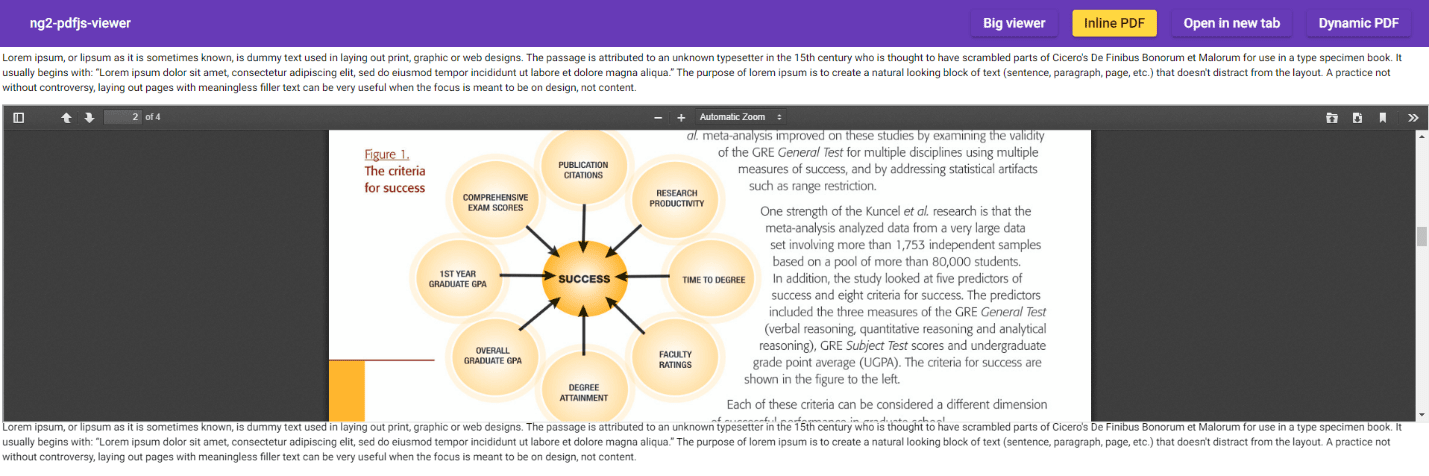
Now the question is – what else can I get out of it?
Here are some examples. Suppose you wanted to show two versions of the same document for comparison side by side in your web application. Now you can. Do you want to open the PDF in a separate browser window for traditional viewing? No problem. Do you like to show a print preview dialog automatically after opening the PDF in a new browser window? Piece of cake. Automatically download the pdf? Got it.
This pdf viewer supports tons of other features, and you have fine control of what to do with it.
How to set up ng2-pdfjs-viewer in an Angular application
Follow these steps to set up the component:
1. Installation – Like any other package – get it from the npm registry
|
1 |
$ npm install ng2-pdfjs-viewer --save |
This is a standard npm package installation command. Make sure it gets installed in dependencies using the --save parameter.
2. Configuration – Let your app know you would like to use it
Set it up in your angular AppModule:
|
1 2 3 4 5 6 7 8 9 10 11 12 13 14 15 16 |
import { BrowserModule } from '@angular/platform-browser'; import { NgModule } from '@angular/core'; import { AppComponent } from './app.component'; import { PdfJsViewerModule } from 'ng2-pdfjs-viewer'; // <-- Import PdfJsViewerModule module @NgModule({ declarations: [ AppComponent, ], imports: [ BrowserModule, PdfJsViewerModule // <-- Add to declarations ], providers: [], bootstrap: [AppComponent] }) export class AppModule { } |
As shown here, the module to be imported is PdfJsViewerModule; this is required as this is the module that makes sure ng2-pdfjs-viewer is ready to be used.
It is equally important to add the module PdfJsViewerModule into the imports section of @NgModule. With this step, you are almost ready to use the inline PDF viewer.
3. Build – Add a build step, so that your angular app has a copy of pdfjs
The ng2-pdfjs-viewer component is built on top of pdfjs, which also means that it’s needed for this angular component to work properly. There are several ways this can be achieved, from the manual process of copying relevant files to automated build scripts. Here are the two most popular mechanisms angular developers use when they need extra files to be copied as part of the build step.
Either add an angular build step into angular.json:
|
1 2 3 |
"assets": [ { "glob": "**/*", "input": "node_modules/ng2-pdfjs-viewer/pdfjs", "output": "/assets/pdfjs" }, ] |
Or use webpack or similar bundlers (Hmm, are you still using webpack?)
|
1 2 3 4 5 6 7 |
var TransferWebpackPlugin = require('transfer-webpack-plugin'); ... plugins: [ new TransferWebpackPlugin([ { from: 'node_modules\ng2-pdfjs-viewer\pdfjs', to: path.join(__dirname, 'assets') } ]) ] |
PDF loading events
Often, you might like to tap into the PDF pipeline of printing or loading to execute a task. This could be to show a message to the user that the PDF is loaded for large PDFs or that the PDF is successfully printed, etc. The code found here provides several events hooks for that.
HTML
|
1 2 3 4 5 6 7 |
<!-- your.component.html --> <ng2-pdfjs-viewer pdfSrc="gre_research_validity_data.pdf" viewerId="MyUniqueID" (onBeforePrint)="testBeforePrint()" (onAfterPrint)="testAfterPrint()" (onPagesLoaded)="testPagesLoaded($event)"> </ng2-pdfjs-viewer> |
For events to work properly, you should set viewerId. This helps event routing understand which component the event is to be sent to, even if there is more than one ng2-pdfjs-viewer component on the page. viewerId should be a unique id (like a guid).
Angular component
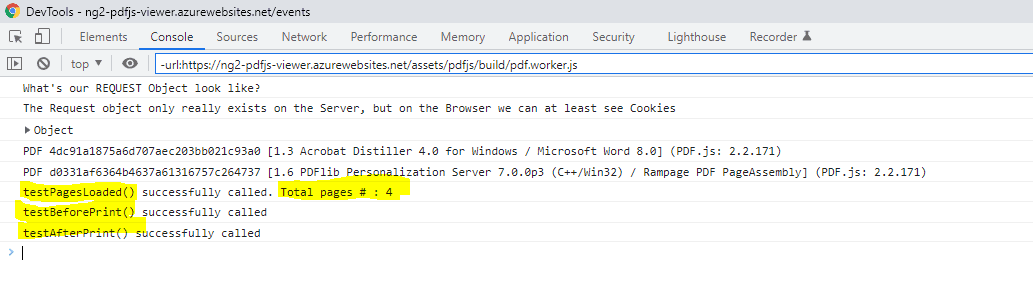
Once capturing these events, developers can execute custom tasks/code to take action based on these events. Given below is an event which emits and displays a number of pages in PDF.
|
1 2 3 4 5 6 7 8 9 10 |
<!-- your.component.ts --> public testBeforePrint() { console.log("testBeforePrint() successfully called"); } public testAfterPrint() { console.log("testAfterPrint() successfully called"); } public testPagesLoaded(count: number) { console.log("testPagesLoaded() successfully called. Total pages # : " + count); } |
You can see the events that are emitted on the developer console as shown below.
What about PDF files returned from an API?
The ng2-pdfjs-viewer component can also work with other server-side APIs to render returned PDFs. To get this going, you would convert the PDF into a byte[] array or blob and give it to the viewer.
A bit of HTML in an Angular component
|
1 2 3 4 |
<!-- your.component.html --> <div style="height: 600px"> <ng2-pdfjs-viewer #pdfViewer></ng2-pdfjs-viewer> </div> |
Notice the #pdfViewer. This is your reference.
Some download code
The downloadFile() function calls the API; you may use any HTTP querying mechanism here. The requirement is that the API endpoint returns the pdf as a byte array.
|
1 2 3 4 5 6 7 8 9 10 11 12 13 14 15 16 17 18 19 |
<!-- your.component.ts --> @ViewChild('pdfViewer') public pdfViewer; constructor(private http: HttpClient) { let url = "api/document/getmypdf"; this.downloadFile(url).subscribe( (res) => { this.pdfViewer.pdfSrc = res; // pdfSrc can be Blob or Uint8Array this.pdfViewer.refresh(); // Ask pdf viewer to load/refresh pdf } ); } private downloadFile(url: string): any { return this.http.get(url, { responseType: 'blob' }) .pipe( map((result: any) => { return result; }) ); } |
A sample API using C# and ASP.NET Core
|
1 2 3 4 5 6 7 8 |
[HttpGet] [Route("GetMyPdf")] public IActionResult GetMyPdf() { var pdfPath = Path.Combine(Directory.GetCurrentDirectory(),"sample.pdf"); byte[] bytes = System.IO.File.ReadAllBytes(pdfPath); return File(bytes, "application/pdf"); } |
I used ASP.NET Core and some C# here. Don’t worry; you can do this in Python or Ruby or whatever server-side technology you prefer, or any APIs supplying pdf through HTTP endpoints.
Conclusion
The ng2-pdfjs-viewer component is a powerful tool to display PDF files without losing the user experience. If you are a student programmer who is building a pdf book library angular app or an enterprise programmer who wants to display a PDF stored away somewhere in SharePoint, this library is useful.
The ability to show more than one PDF on the same page also helps with the comparison of different versions of a document.
Save 35% on Redgate’s .NET Developer Bundle
FAQs
1. How do you detect when a PDF has finished loading in ng2-pdfjs-viewer?
Bind to the onPagesLoaded event on the <ng2-pdfjs-viewer> element, which emits the total page count once loading completes. Set a unique viewerId first if the page has more than one viewer instance, so events route to the right component.
2. Can ng2-pdfjs-viewer display a PDF returned from a server API instead of a static file?
Yes — have the API return the PDF as a byte array or blob, assign it to the viewer’s pdfSrc property via a @ViewChild reference, then call .refresh() to render it.
3. Does ng2-pdfjs-viewer require a specific backend technology?
No — the article’s example API uses C# and ASP.NET Core, but any backend that can return a PDF as a byte array over HTTP works the same way from the Angular side.
This document contains proprietary information and is protected by copyright law.
Copyright © 2026 Red Gate Software Limited. All rights reserved

Load comments