


Have some important information stored out there on the cloud? Want a way to get a copy of it down to your local machine? Here you go. A nice neat little backup tool from Red Gate, SQL Azure Backup.
Let me talk about this a bit. First off, you need to know, you will pay data charges for performing these backups. Unlike your local server, you might want to consider whether or not you need a daily backup. If the data you’re storing up there in the cloud is that vital though, then getting the backup down to somewhere local is vital and therefore worth the charges.
Once you download it, there’s nothing to install. It just runs on your local machine. Define the connection to your SQL Azure server and local SQL Server as shown:
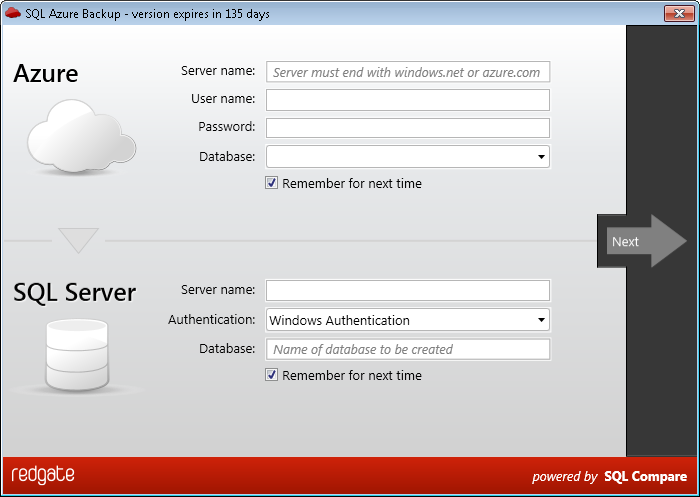
You have to supply access to your SQL Azure system and you can have the app remember where you’ve been connecting to. Connections to your local box can be either through Windows Authentication or a SQL Login. And, again, you can remember for next time. If the database you want doesn’t exist, it’ll create it. If it does exist, you’re going to need to drop that database so that it can be created. This is not a full blown copy of SQL Compare, so no differentials. Full copy only for now (by the way, SQL Compare already works with SQL Azure, so you can use that for incremental changes).
Clicking Next just opens up an “are you really sure” dialog:
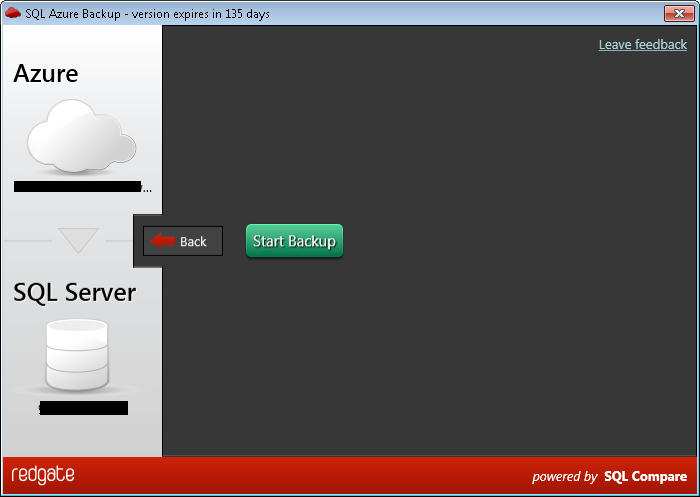
You’ll see the Azure database you’re connected with and the SQL Server instance you’re going to copy a database to. If you need to make adjustments on either, just hit the Back button. Otherwise, hit the Start Backup button and you’ll see the process unfold like this:
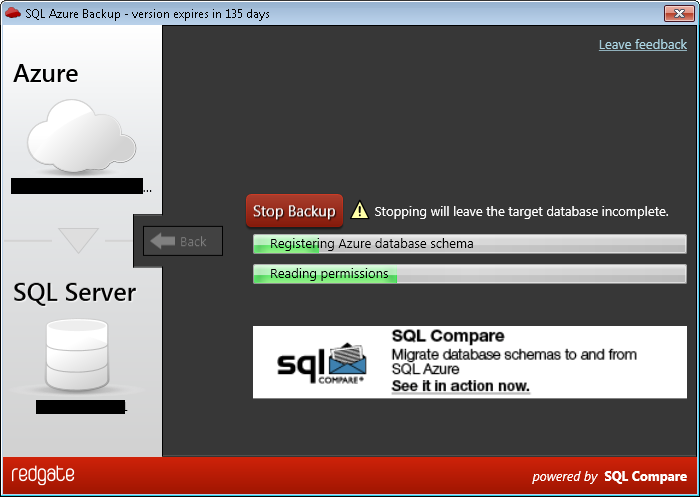
You can stop it in the process in the middle if you need to, but, like the warning says, you will get an incomplete database. It might take a little while, depending on the size of your SQL Azure database (which can be up to 10gb), but it will complete and you’ll see this:
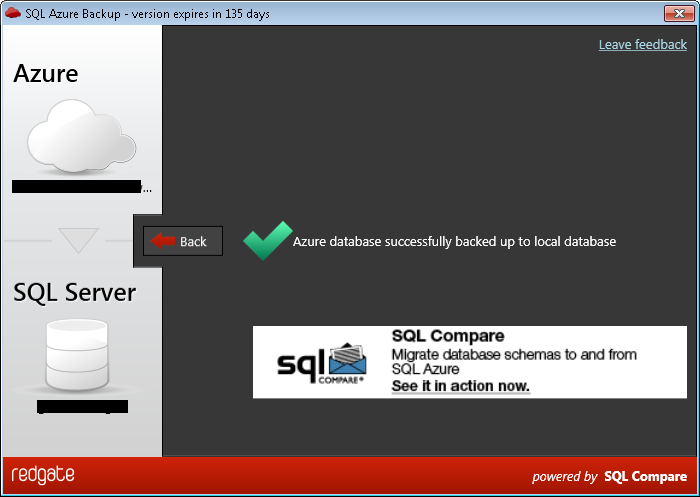
At which point you can now go to your local server and see a full fledged copy of your database, backup complete. or not. Now you can run a real backup of the database and put that on the side if you’re so inclined. Either way, you can hit the Back button and pick another database if you want and keep going.
Never forget, you will pay for data access for this, so it’s not free, but there isn’t any other way, yet, to do a backup, so any mechanism in place today is going to suffer from data access charges. If you are concerned about keeping an eye on your charges, don’t forget about Cloud Tally.
I’ve been playing with SQL Azure Backup for weeks and it works really well. Keep watching my blogs. I’ve got lots more SQL Azure stuff coming, and so does Red Gate evidently.
This document contains proprietary information and is protected by copyright law.
Copyright © 2026 Red Gate Software Limited. All rights reserved





Load comments