



Getting the “too many connections” error in PostgreSQL? You’ve hit the database’s max_connections limit — and it’s one of the most common issues developers run into as traffic grows.
In this guide, we’ll reproduce the error on a local PostgreSQL setup using a simple Python script, then walk through practical fixes: from closing unused connections to setting up connection pooling and monitoring active sessions with pg_stat_activity. By the end, you’ll know exactly why this error happens, and how to stop it from recurring.
What are database connections, and what happens when there are too many?
Database connections are essential for any program to manage and access data in the database. When a server already has too many active and open connections – a result of a large number of users creating numerous, simultaneous demands on the system – no new connections can open, and the system indicates that it has reached its maximum connection limit.
This issue can be caused by several factors, including connections that are opened unnecessarily and no longer used by the application, programs that create a large number of connections, incorrectly configured connection pools, and a sudden increase in traffic.
When these issues aren’t managed properly, the system encounters request failures – resulting in no new connections being made.
What is the “too many connections” error in PostgreSQL?
The “too many connections” error in PostgreSQL is raised when a user tries to create a new connection a database that has exceeded the default maximum limit of 100 connections.
In other words, the database already has 100 connections to it and cannot accept any more – it’s at its limit. This limit can be reached for two reasons.
First, a program establishes a connection to the database when it wants to utilize PostgreSQL and will use as many connections as it requires.
Second, there’s the factor of additional users who also want to establish their own connections to the database.
Why does the connection limit get reached?
When an application wants to establish a database connection to PostgreSQL, it checks the limit established by the max_connections setting. The default limit is 100. When the limit is reached, the connection fails, and thus the“too many connections” error is raised.
Here are some of the reasons why the connection limit may be reached.
Rapid connection creation per request
As mentioned earlier, a program or application establishing a connection to a PostgreSQL database will use as many connections as it requires. So, if the program generates a new database connection for each request, the number of connections increases rapidly, and the limit is reached sooner.
Ghost connections from terminated programs
There’s also the issue of a program perhaps being terminated, but its connections are still active. This is because, even when the program isn’t executing a query (or being used for anything), an open connection still uses a connection slot. These are known as ghost connections.
Idle or long-lived connections
Another aspect to look at are idle (or long-lived) connections. Because some programs purposefully leave connections open for reuse, an idle connection is not always an issue. However, the number of slots available for future requests may be decreased by unforeseen connections that stay open for an extended period of time.
Insufficient max_connections for your workload
Lastly, database connection resources are limited. Connection failures may occur when the application wants a very large number of connections and you haven’t increased the max_connections limit to accommodate for it.
Increasing max_connections alone isn’t the solution, however. It’s also crucial to properly manage and monitor all active database connections.
How to reproduce the “too many connections” error in PostgreSQL (step-by-step)
In this section, I’ll demonstrate how to reproduce the problem on your local system. This will give you a better understanding of what the error looks like and how it works.
If you want to get straight to the solution, feel free to skip this section.
Installing PostgreSQL
This guide assumes you have PostgreSQL already installed. If not, download the installer here.
Connect to PostgreSQL using pgAdmin
Open Windows and search for pgAdmin 4, where you’ll register the local PostgreSQL server to make it usable.
You may also be interested in: Getting connected to PostgreSQL for the first time (featuring pgAdmin).
How to register the local PostgreSQL server
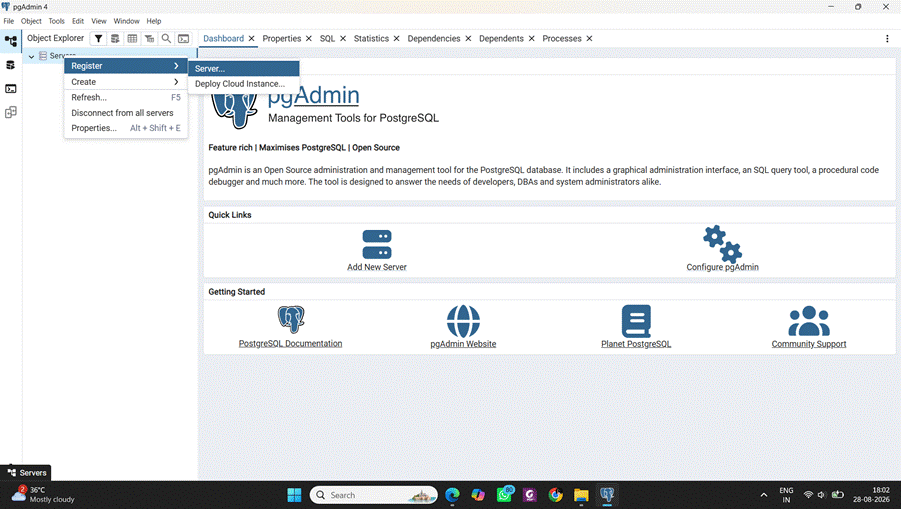
Open pgAdmin 4. On the left side you’ll see Servers — right-click on Servers, then Register, then Server. You’ll see something like this:
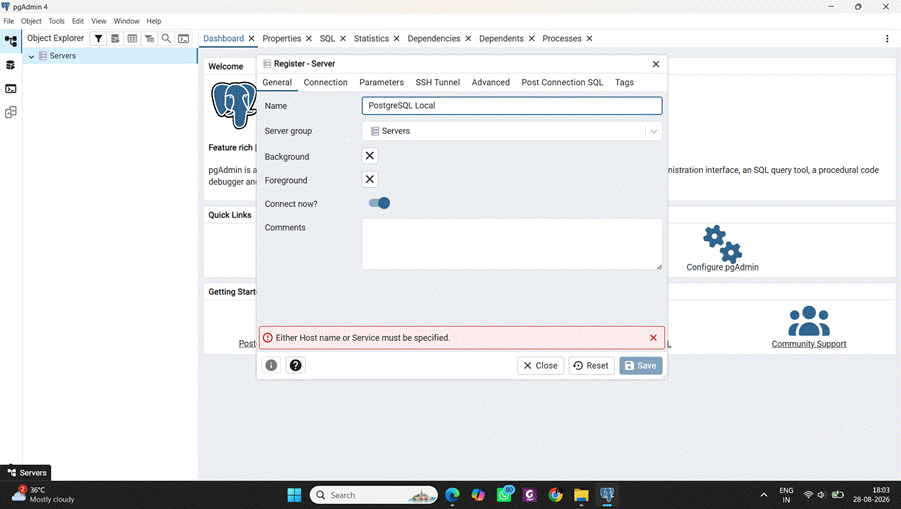
You’ll see the Register – Server page. On that page, in the General section, enter the following details:
- Name- PostgreSQL Local
- Server Group – Server
And everything remains the same:
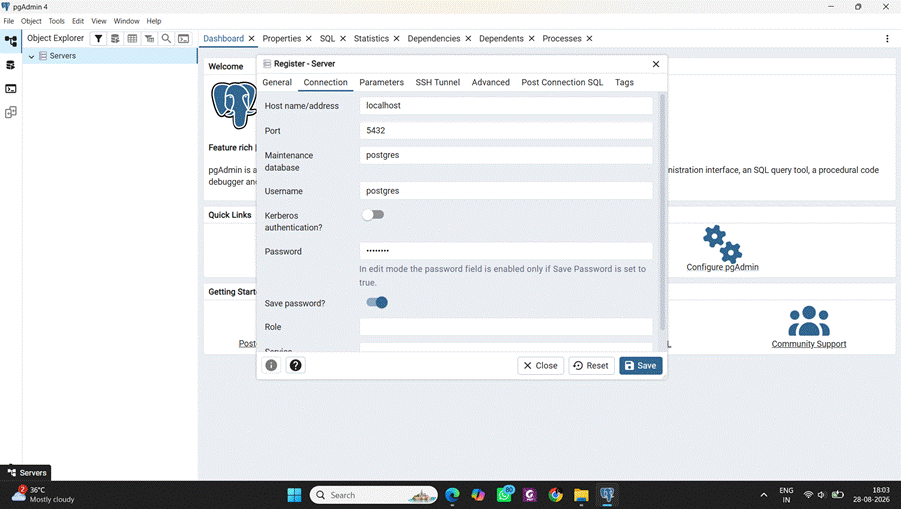
Now click on the Connection tab and add the following details:
- Host name- localhost
- Port- 5432
- Maintenance database – postgres
- Username- postgres
- Password- “enter your admin password”
Here, use the password you created when installing PostgreSQL:
Leave all the other sections as they are, then click Save. You can now create the server on which you’ll run the queries.
You’ll now see the following page, where PostgreSQL Local appears under Servers:
Open the PostgreSQL Query Tool
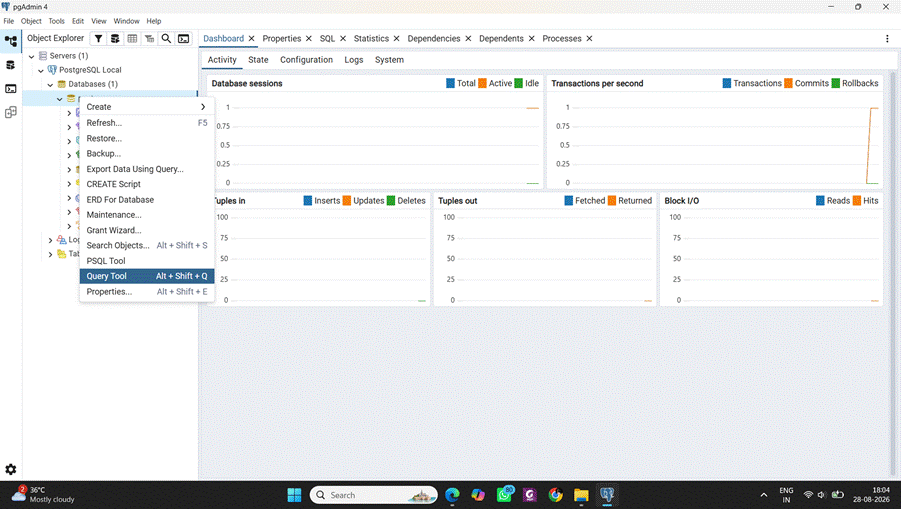
To run a query, open the Query Tool under the PostgreSQL Local server you created earlier.
How to create a SQL Query session
To create the SQL query session under PostgreSQL Local, left-click on the database, then click on the Query Tool:
Verify the PostgreSQL installation
It’s important to verify that everything has installed to PostgreSQL correctly.
How to verify (check) the version of PostgreSQL you’re running
To check the version of PostgreSQL you’re currently running, run the SELECT version(); command.
You should receive this output:
In the output, you’ll see the version of PostgreSQL you’re currently running. Having this output appear means everything is working correctly, so you can continue onto the next step.
Get started with PostgreSQL – free book download
Check PostgreSQL’s connection limit
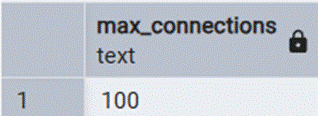
Next, check the maximum connection limit of your PostgreSQL server. By default, it’s 100 — this is the maximum number of concurrent client connections the database server will accept at one time.
How to find the max_connections value
To find the maximum connection (max_connections) value, run the SHOW max_connections; command. This command shows how many connections your server accepts at any one time:
The output shows 100 connections that the database server will accept at one time. This is also the default.
Check the current PostgreSQL connections
It’s now time to check the current PostgreSQL connections — in other words, how many connections are active in your system.
How to count the existing PostgreSQL connections
Run:
SELECT count(*) |
The output you should receive is:
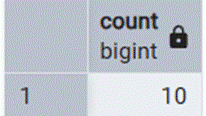
Record how many connections there are before going any further. The output above shows that there are currently 10 PostgreSQL connections.
Inspect the active PostgreSQL sessions
Now that you’ve checked the total number of connections (10), the next step is to look at the individual PostgreSQL sessions. You’ll use the pg_stat_activity system view for this. This view contains information about the current connections, and what activity they’re doing in the session.
The following SQL query prints the current connection details:
SELECT |
The different columns tell us where a connection came from, which database is used, and whether the connection is active or inactive.
The output you should receive is:
Create a dedicated test database
The next step is to create a test database purely for this recreation (to be used later on). This is just to ensure you don’t have to interfere with your existing local database. To do this, run CREATE DATABASE test_connection;.
After running the query, you should have now successfully created the database:

Temporarily lower the connections limit
Now it’s time to reproduce the error – and then fix it. As mentioned earlier: the maximum connections limit is 100, by default, so you’ll reduce it to 20 and then run multiple connections for the purpose of triggering the “too many connections” error.
First, run SHOW max_connections; to again check that the connections limit is currently 100.
Next, run the ALTER SYSTEM SET max_connections = 20; query to reduce the connections limit to 20. You should see:

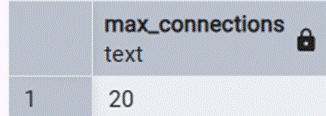
Your maximum connections limit should now be 20.
How to verify the new limit
To verify this, restart PostgreSQL and, once reopened, run the SHOW max_connections; query. You should now see:
Create multiple PostgreSQL connections
So, the next step is to create multiple PostgreSQL connections – all connecting to the test_connection database you created a bit earlier.
To put it simply, the test_connection database is like a room, and each connection is like a person entering that room. We’re now going to deliberately put too many people in the room. This will trigger the “too many connections” error.
Create the Python connection test
First, though, you’ll need to create a small Python program. When we run the program, the code will open multiple connections for us automatically.
Don’t have Python installed on your system?
Download and install it from the official Python website here.
If you’re unsure whether you have Python installed already, or simply want to check which version you have, you can run the python --version command through Command Prompt.
How to create a local connection test
The Python program you’ll create has one purpose only: open multiple connections on PostgreSQL (and keep them open for some amount of time.)
Before creating the Python program, you’ll need a folder on the local system to hold it. Create one called postgres-test, open it, and open Command Prompt within the folder.
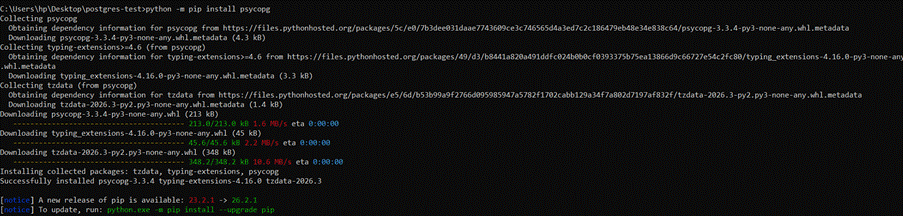
Now, install the PostgreSQL Python driver by running python -m pip install psycopg.
This should only take a minute or two and, when finished, you should see some indication that psycopg installed successfully:
With psycopg installed, you can now create the Python test file.
What is psycopg?
psycopg is a popular PostgreSQL adapter for Python – learn more here (website) and here (documentation).
You may also be interested in…
How to create the Python test file and add the connection test code
In the postgres-test folder, create a Python file and save it as Test.py. Open this in Notepad and paste in the following code, which will create multiple connections (and keep them open):
import psycopg |
This code uses psycopg to open 30 separate PostgreSQL connections. Each successful one is stored in a Python list, where they remain open for 300 seconds – allowing you to observe their effect on the PostgreSQL server.
Remember, you previously changed max_connections to 20, so this Python program will give you the “too many connections” error you want to trigger. It’ll also report if any of the connections suffer failures within the 300 seconds they are open.
In the code, replace the password with the one you created when you installed PostgreSQL.
How to check the current PostgreSQL connections (again)
Before running the Python program, check the current PostgreSQL connections again (in other words, how many connections are active in your system.) It’s the same process as earlier – simply run:
SELECT count(*) |
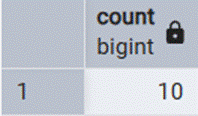
It should give you the output above, confirming that your system currently has 10 active sessions.
Run the connection test
Now go back to your command prompt and run the Python program: Python test.py. This will show you the results:
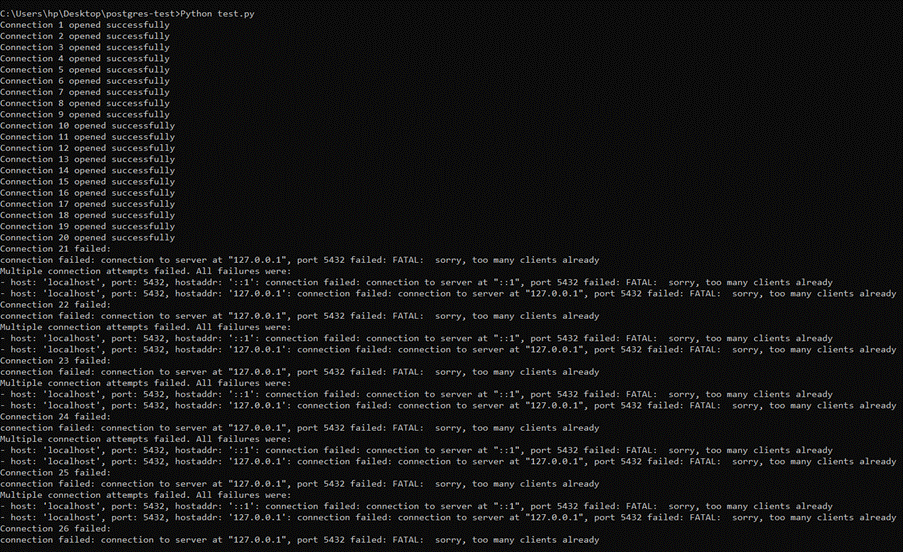
You can clearly see that the connection attempts began failing once the available connection slots were exhausted. For example, connection 21 failed (which you can also see in Command Prompt.) So, that confirms you’ve successfully recreated the error.
Don’t close Command Prompt just yet! It deliberately sleeps for 300 seconds so the connections remain available for inspection.
How to check the connections from pgAdmin
While the Python program is still running, go back to your pgAdmin 4 page and run the same query as above:
SELECT count(*) |
You should now see that, during the test, there are 28 active connections – a big jump from the earlier 10.
Inspect the connections
You now need to inspect the connections during the test. The Python program keeps successful connections open for 300 seconds, so go back to the Query Tool and run the SQL query to see the 28 active sessions opened by the program.
The SQL query is:
SELECT |
This query displays the active PostgreSQL sessions. Since you now have 28 active sessions, it shows the process ID, username, database, application name, client address, and connection state for all of them. This is useful for checking whether the database connections are still active.
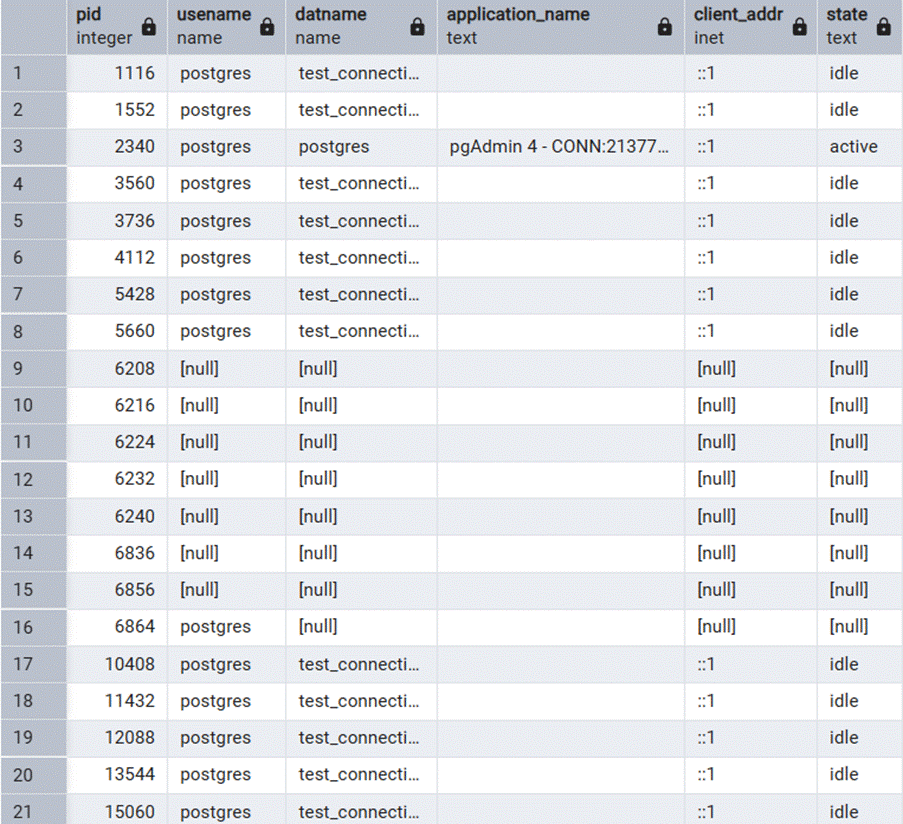
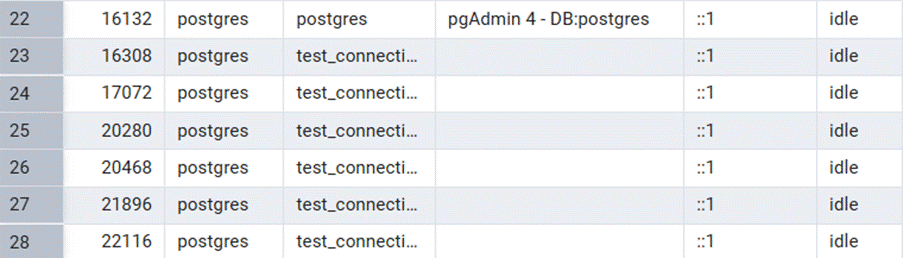
As you can see, the output shows all 28 active sessions.
Observe the failed connections
Take another look at Command Prompt, where you ran the Python program. You’ll see that the available connection slots were exhausted during the test, and the server returned the “too many clients already” error.
The program tried to open 30 connections but, since the limit was set to 20, it failed to open the 21st connection. This is exactly what you wanted to happen.
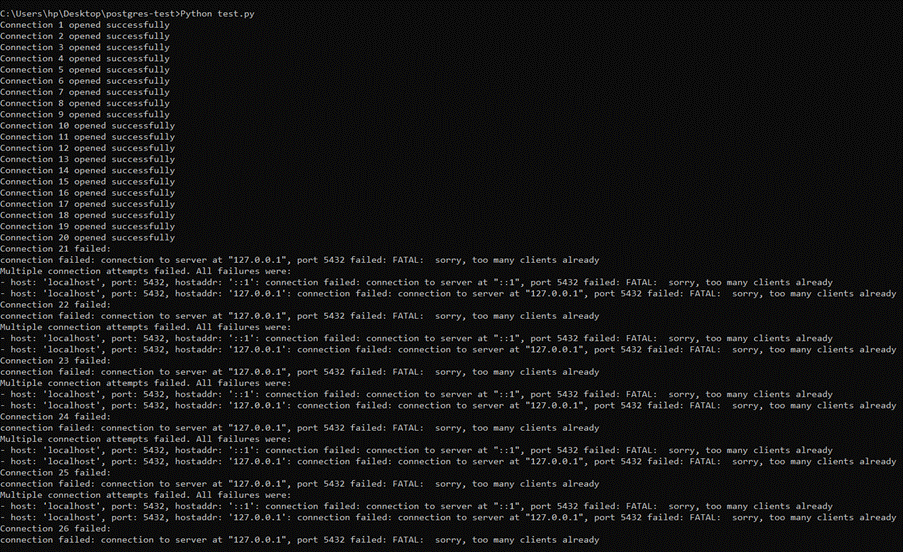
Look at the failed connection in Command Prompt. You’ll see the “sorry, too many clients already” error:

Compare before and during the test
Comparing the connections, you’ll see that before the experiment, pg_stat_activity showed 10 PostgreSQL sessions. During the experiment, that increased to 28 sessions. And then, after the Python program finished, the number returned to 10 sessions.
Stop the Python test
The code automatically stops after 300 seconds, closing all the active connections and terminating the program: time.sleep(300)
Check what happens after the program stops
After the program stops, check the active connections again, using the same command as earlier:
SELECT count(*) |
You should see that the number of connections decreased once the Python program terminated and closed all its connections. The active connection count is now back to 10 (from 28):
Run this SQL query to inspect the connections:
SELECT |
The query displays the active PostgreSQL sessions. Since you now have 10 active sessions, it shows the process ID, username, database, application name, client address, and connection state for all of them:
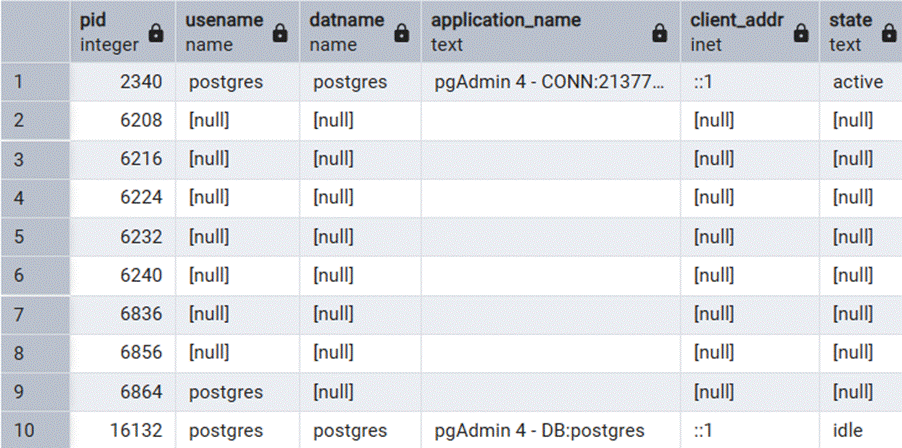
After closing the Python program, all of the extra sessions will be closed as well.
This experiment/recreation showed that we can only open a limited number of connections. Once that limit is reached, new connections fail, triggering the “too many connections” error.
Free desktop tool for fast PostgreSQL monitoring and diagnostics
Restore your PostgreSQL configuration
With the recreation complete, don’t forget to change your PostgreSQL server’s configuration back to the default max_connections value of 100, using the ALTER SYSTEM SET max_connections = 100; command.
It’s now time to fix the “too many connections” error – and there are a few different ways to do so.
How to fix the “too many connections” error in PostgreSQL
Here are a few ways to fix (and prevent) the “too many connections” error in PostgreSQL.
Close database connections properly
Your application code may create connections and then forget to close them. So, check that you always close database connections after completing your work. It sounds simple, but it’s a common mistake. To close the connections, run the time.sleep(300) command.
Use database connection pooling
Database connection pooling is another good approach to fix and prevent “too many connections”. Instead of establishing a new connection for each request, connection pooling lets you reuse a finite number of database connections. Applications then reuse these connections, so far fewer connections are used overall.
Avoid blindly increasing max_connections
If max_connections is increased, more client sessions may be able to connect, but PostgreSQL will also use more resources. Only increase or decrease this setting once you understand the program’s real connection needs.
Investigate and clean up idle connections
To find connections that have been inactive for an extended period, use pg_stat_activity. This generates any idle connection – one that is no longer active in the PostgreSQL database. An idle connection could be a sign of improper connection release by apps, or ineffective connection handling.
However, some idle connections may be maintained intentionally by connection pooling, so do not blindly close them! Investigate each idle connection – especially long-lived ones – before taking action.
Use the following query to raise a list of idle connections no longer in use:
SELECT |
The summary of an idle connection will look like this:

Monitor connection usage regularly
It’s recommended to use pg_stat_activity to regularly monitor the number (and state) of PostgreSQL connections. Tracking every connection helps to identify unusual increases before they result in errors.
To see the current number of sessions, run the following query:
SELECT count(*) |
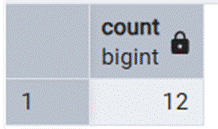
The output shows that there are currently 12 active sessions in your database.
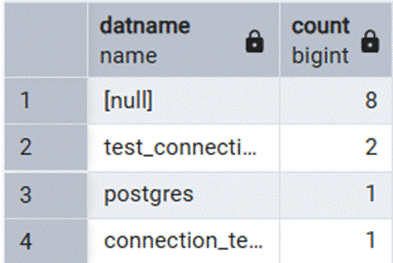
For troubleshooting, you can also individually inspect sessions by running this query:
SELECT |
The query groups all PostgreSQL connections by the database they’re associated with, and returns a count for each. It also identifies which database has the most connections.
FAQs
1. What causes the "too many connections" error in PostgreSQL?
It happens when the number of active database connections reaches the max_connections limit (100 by default). Common causes include unclosed connections, misconfigured connection pools, ghost connections from terminated programs, and sudden traffic spikes.
2. How do I check my current PostgreSQL connection limit?
Run SHOW max_connections; in your query tool. To see how many connections are currently active, run SELECT count(*) FROM pg_stat_activity;
3. Should I just increase max_connections to fix the error?
Not necessarily. Increasing max_connections without addressing the root cause uses more server resources and can mask deeper issues like connection leaks or missing pooling. Fix the underlying problem first.
4. What is connection pooling, and does it help?
Yes — connection pooling lets your application reuse a fixed set of database connections instead of opening a new one for every request, drastically reducing total connection usage.
5. How can I find idle or "ghost" connections?
Query pg_stat_activity filtered by state = 'idle'. This reveals connections that are open but inactive — though some idle connections are intentional (e.g., pooled), so investigate before closing them.
Conclusion
The “too many connections” error is usually a sign of unclosed connections, missing pooling, or unmonitored traffic growth. By reproducing the issue locally, you can see exactly how connection limits behave under pressure and apply the right fix: closing connections properly, implementing pooling, and regularly monitoring pg_stat_activity.
Get these fundamentals right, and you’ll rarely see the PostgreSQL “too many connections” error in production again.
This document contains proprietary information and is protected by copyright law.
Copyright © 2026 Red Gate Software Limited. All rights reserved

Load comments