





One-click SQL Prompt Using a Stream Deck
The elusive keystroke combo
I use SQL Prompt's code completion constantly and rely on Format SQL to lay out my code the way I like it. I also regularly use the "tidy-up" features to remove square brackets, add missing semicolons, and clean up code after I've got it working. More recently, I've started using the Prompt AI features and writing a lot of prompts to help me write or tune queries.
No individual feature is hard to use or even hard to find, but when I'm in the middle of writing code, I can't always remember the shortcut I need, which breaks my flow. It means either I'm hunting through menus or trying to guess the elusive keystroke combo (occasionally with unintended side effects).
What do you do with commands you use often enough to know what you need…but not often enough to remember their shortcuts? You automate them! And that's where a Stream Deck comes in very handy.
Staying in the SQL flow with Stream Deck and SQL Prompt
A Stream Deck is just a small programmable keypad that can trigger shortcuts and macros at the press of a button. It was originally designed for streamers to switch between scenes during a live broadcast, but it works just as well as a shortcut pad for developers.
I use an Elgato Stream Deck, either the physical device or the iOS mobile app, but any device or app that lets you assign multi-step macros to a button will work. The key feature is that each button can trigger a sequence of actions. That might mean a hotkey combination, entering text, or both.
Once the device is connected and the software installed, you'll get a layout that mirrors the physical buttons on the device (mobile versions are more configurable). From there, you can start assigning actions to each key. Here's what my keypad looks like, with a mix of SQL Prompt and SSMS actions I use every day:
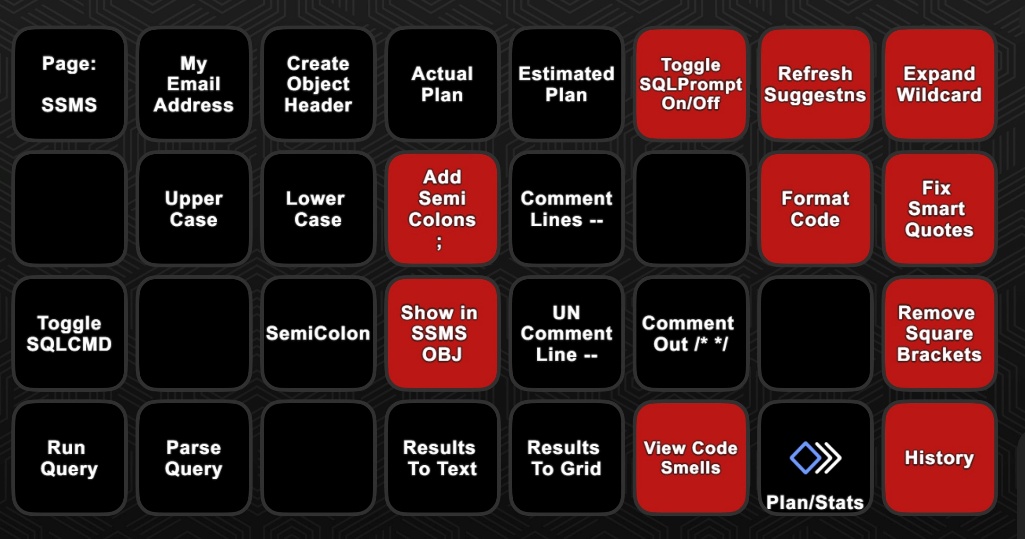
This way, instead of trying to remember that (Ctrl+B, Ctrl+C) inserts semicolons, that another sequence expands wildcards, or that SSMS has its own shortcut for sending results to text, I can map each action to a single button with a descriptive name. I can even use it to store a few well-crafted AI prompts.
Automating SQL Prompt shortcuts
Let's look at a few practical examples of how I use my Stream Deck to automate SQL Prompt shortcuts. They will show three basic methods:
- Hotkeys – use the Hotkey action to map a single key (e.g. F5) or key combination (e.g., Shift+Windows+S) to a button.
- Entering text – auto-insert frequently used text and code snippets
- Multi Actions – chain hotkeys and text entry into a single button
If you're feeling more ambitious by the end of this, there are many more features that I use for tasks other than coding, and Elgato even has a marketplace where you can get add-ons to add functionality beyond just hotkey sequences.
Hotkey Actions: SQL History, Code Analysis, and more
The Hotkey action in Stream Deck sends a single keystroke or a key combination pressed simultaneously (ctrl, shift, alt, cmd plus a character key). Many SQL Prompt features use these single-step shortcuts. For example, Alt+Z opens Prompt AI, Alt+I analyzes the indexes for a query, and Alt+S opens the Prompt command palette.
There are also plenty of "Ctrl+Shift+letter" shortcuts that I need regularly. But which letter does what? Well, it's +D to refresh suggestions, +X to open the SQL History pane, and +Y to review any 'code smells'. Of course, I can never remember that, so on the keypad they go!
Open object in SSMS object explorer
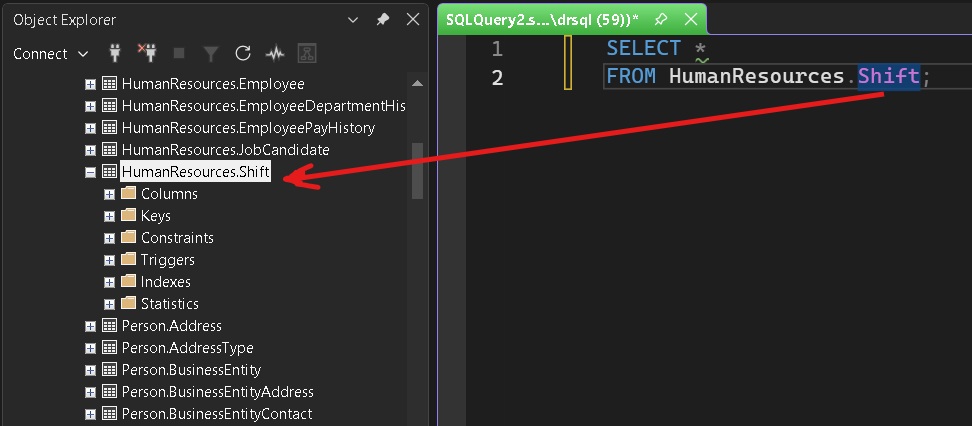
To give you an example, I'll show how to set up a hotkey button for one of SQL Prompt's lesser-known-but-cool features that lets you jump from a table or view in a query to the same object in Object Explorer (Ctrl+F12). Any of the other examples I gave above will work in the same way.
Open the Stream Deck software on the device where you're using SQL Prompt. On the right-hand menu, find the Hotkey entry, under the System section, and drag it onto an empty button in the Stream Deck palette.
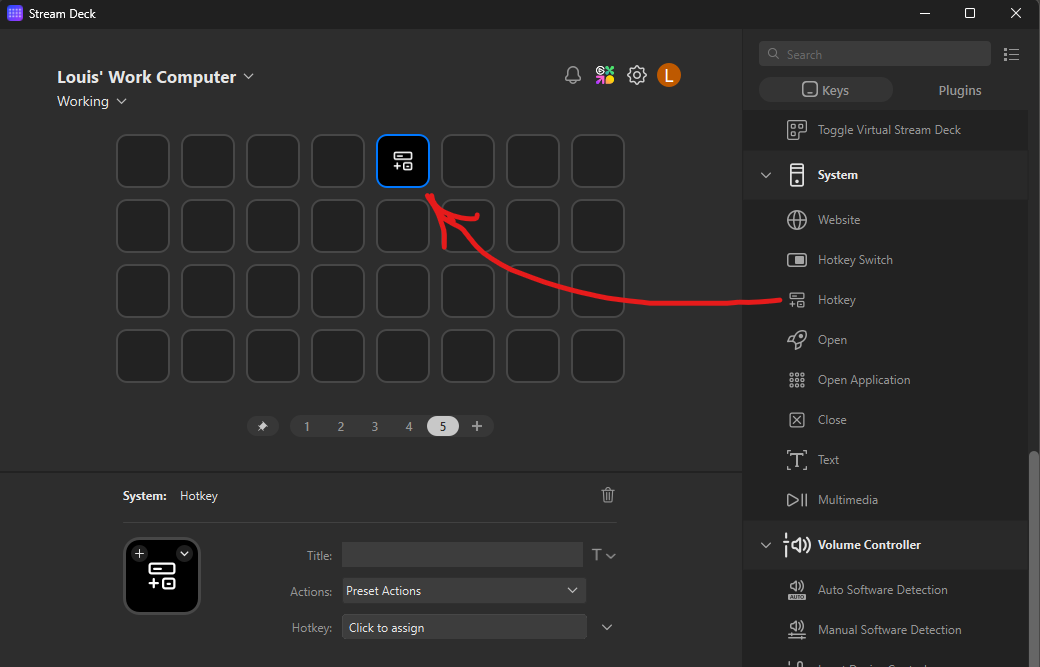
In the lower half of the screen, give it a title such as "Show in SSMS OBJ". To make it look better, enter the text and insert a carriage return after "in" and "SSMS", so the label wraps neatly. Then, click the Hotkey: entry and then click Ctrl+F12. The keys you pressed will show up in text.
Finally, I like to assign an image to each button - just to set its background color. I have two basic images saved, a red one for SQL Prompt actions and a black one for everything else:


Then, I drag the image file onto the button preview to set the icon. Alternatively, from the dropdown on the button preview, a menu will take you to an icon library.
Now, open an SSMS query window and try it out. Hover over any object, a table or schema, and if the information you need isn't in the object definition tooltip, just hit the button. Assuming SSMS Object Explorer is connected to the same server, it jumps to the object.
Instant SQL Prompt code analysis
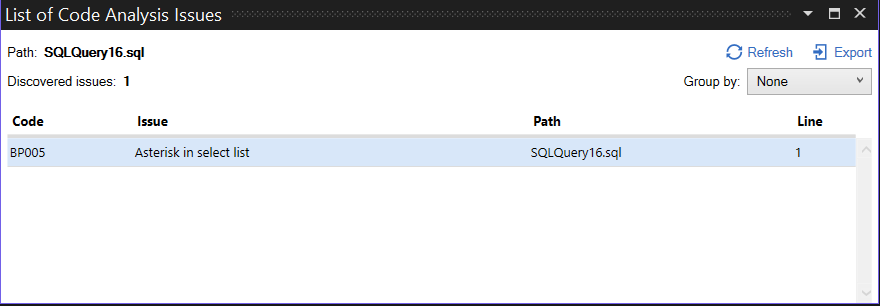
As a bonus, see that little green squiggly line under the asterisk? It means that SQL Prompt has detected a "code smell".
If you map the code analysis shortcut (Ctrl+Shift+Y) to another button (I called it "View Code Smells") and then press it while hovering over the green squiggle, you will immediately see a dialog describing the code issue detected:
Entering text: turbocharging Prompt AI
It isn't the first thing most people think of with a Stream Deck, but using it to insert blocks of text that you use a lot turns out to be surprisingly useful. For example, I have buttons for adding my email address, a semicolon, code headers, or even SQL Prompt AI prompts!
Adding code headers to a script
As a simple first example, I use comment dividers to break long scripts into neat sections. To turn this into a one-button action, drag System:Text onto an empty key, name it something like Code Header, and enter the divider text in the Text box:
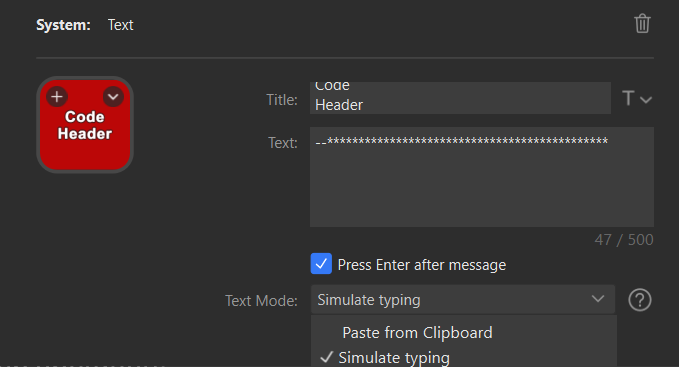
If you choose Simulate Typing, the text is inserted at the cursor as normal typed input in the SSMS query pane. If you choose Paste from Clipboard, Stream Deck pastes the text via the clipboard instead, which is faster for larger blocks, but it overwrites whatever you currently have copied.
Using Prompt AI to fix smart quotes
Another nice, more recent use case is storing text prompts for SQL Prompt AI. For example, I often reuse scripts from my blog and find that they've been "corrupted" with smart quotes. Now, though, I can just tell SQL Prompt AI to Fix the smart quotes in this query, and they'll be straightened out in seconds.
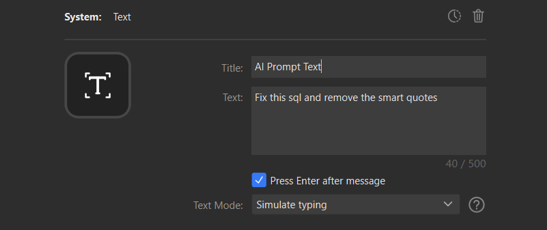
Create a new Text button, call it something like "AI Fix Smart Quotes", with carriage returns between words for neatness, and enter "Fix this SQL and remove the smart quotes" as the text. If you want the prompt to be submitted automatically, check the option to add Enter at the end. I usually leave this off, but in this case, it saves an extra key press.
To try it out, type this into an SSMS query window:
|
1
|
SELECT (‘these are “smartquotes”’);
|
Then, click Alt+Z to open Prompt AI and hit the "AI Fix smart quotes" button:
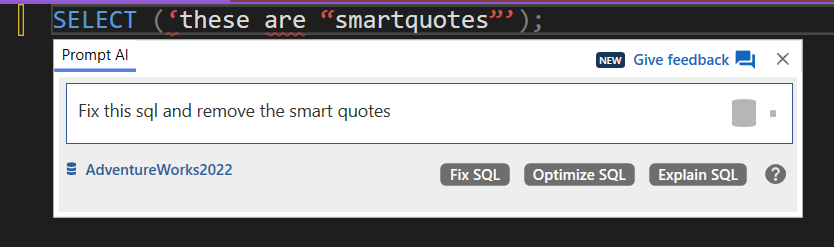
It thinks a little, and then a few seconds later, no more smart quotes:

But perhaps you are thinking, "hey, I still had to remember a shortcut here (Alt+Z)!" Hold that thought, because we can fix that easily with a Stream Deck Multi Action.
Multi Actions: formatting, refactoring, reusable snippets, and more
Whereas we can use a single Hotkey action for a shortcut like Ctrl+Shift+X or Alt+Z, a sequence such as Ctrl+B followed by Ctrl+C is a two-step operation. This requires a Multi Action, which, as the name implies, combines multiple actions into a single button.
The same approach works when you want to chain different actions together, such as a hotkey action followed by text entry. In this section, I will demonstrate a few ways to use Multi Actions to automate repetitive parts of your coding process.
Click-button SQL Prompt AI
We just saw in the previous section how to store a reusable text prompt to fix smart quotes. To turn that into a one-click action, we just create a single button that opens SQL Prompt AI (Alt+Z), enters the "fix smart quotes" prompt, and submits it automatically.
You can do this by dragging a Multi Action item onto a new button keypad, or over an existing button if you want to update it to a Multi Action (or you can right-click an existing button and select "Create Multi Action"):
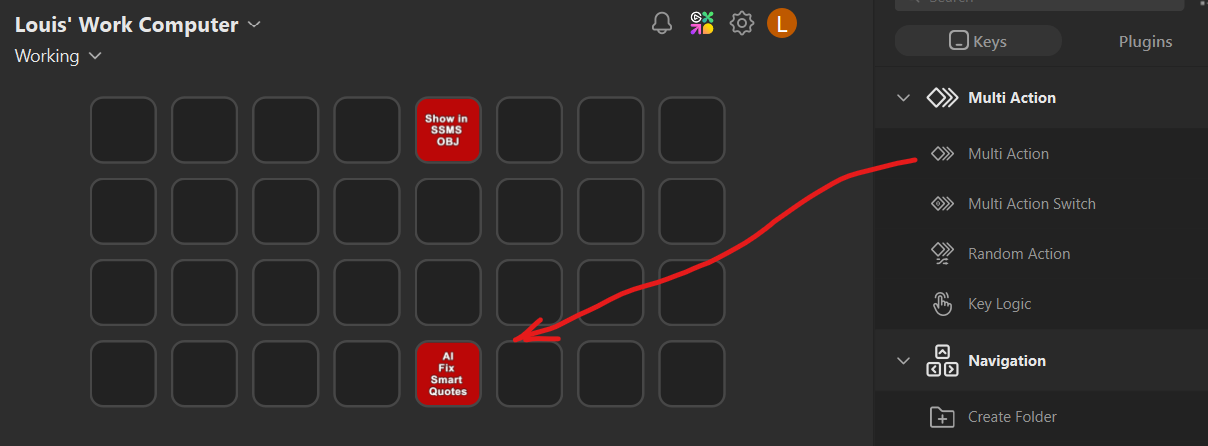
The first step is to drag over a Hotkey action, click the Hotkey: entry, hold Alt and type Z. This will open SQL Prompt AI. The second step is to drag over a Text action and enter the "fix smart quotes" prompt, exactly as we did earlier.
This is how the completed Multi Action looks (notice that Press Enter...is activated):

Once that's set up, I can highlight the code I want to fix, press the button, and let SQL Prompt AI handle the rest!
Tidying up code with SQL Prompt Actions
Many of my most-used SQL Prompt "code tidy up" commands require me to remember the correct two-step keystroke combo, typically while holding down the Ctrl Key:
- Format SQL (Ctrl+K, Ctrl+Y)
- Expand wildcards (Ctrl+B, Ctrl+W)
- Insert semicolons (Ctrl+B, Ctrl+C)
To save me from that pain, I map the ones I use most to dedicated buttons.
All of these are Multi Actions that require two Hotkey actions, in sequence. For the "Insert Semicolons" example:
- Add a Ctrl+B Hotkey action – click the Hotkey: entry, hold Ctrl, type B
- Add a Ctrl+C Hotkey action

Once both steps are in place, pressing the button will send the two shortcuts in sequence. So, I can go back to SSMS, and write something like:
|
1
2
|
SELECT 'Query1;'
SELECT * FROM Person.Address AS a
|
…and then press the button. SQL Prompt instantly adds the missing semicolons and won't add duplicates when a statement already ends with one.
Automating SQL Prompt code snippets
I love SQL Prompt code snippets and use them constantly for repetitive tasks. This might mean running an admin or DMV query, or a validation check after a deployment, or just pulling in small sections of boilerplate code that I don't want to keep rewriting.
One snippet in my library that I use a lot creates a "safety wrapper" for destructive statements such as large UPDATEs or DELETEs. It starts a transaction and stops the batch immediately on error:
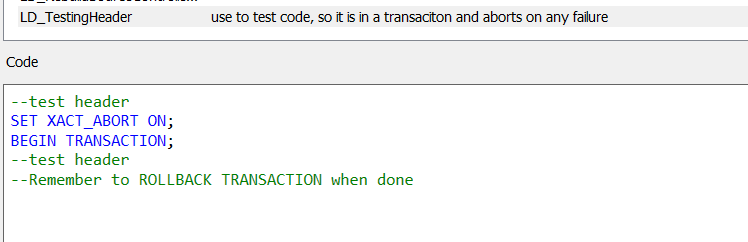
To insert this snippet manually, I can either find it in the SQL Prompt Action menu or start typing the name of the snippet into the query pane and press "Tab" to expand it. I never remember what I called the snippet, so I've mapped it to a Stream Deck Multi Action:
- Add a Text action that types the snippet name (for example, LD_TestingHeader)
- Add a Hotkey action that presses Tab

Now I can insert the snippet with one button press instead of typing the name each time, which is especially handy if you have lots of similar snippets.
The sky is the limit
In this article, I've shown a few practical ways to use a Stream Deck to automate SQL Prompt, especially for features I use often enough to need, but not often enough to remember.
Alongside these, I also keep buttons for actions I use constantly while writing code, such as uppercasing keywords with Ctrl+Shift+U. When I'm formatting code for blog posts or reviews, having these tools one button away makes a real difference.
My own setup changes every few weeks as I discover new shortcuts worth automating. Some buttons are for SQL Prompt actions, some simply type common characters, and others are shortcuts I've built up over time. It's very much a personal toolkit.
Using a Stream Deck with SSMS and SQL Prompt has saved me dozens of hours each year. Tasks that used to take 15 seconds now take one. And anything that makes it easier to access the full power of SQL Prompt is a win in my book.
This document contains proprietary information and is protected by copyright law.
Copyright © 2026 Red Gate Software Limited. All rights reserved
Tools in this post
SQL Toolbelt Essentials
10 simple tools for fast, reliable and consistent SQL Server development.
You may also like

Article
What’s new in SQL Prompt Version 11.0
We’re excited to announce the release of SQL Prompt Version 11.0. SQL Prompt Version 11.0 adds support for SQL Server Management Studio 21 (SSMS 21) and includes compatibility with Azure Synapse Dedicated SQL Pools—building on our existing support for Azure Synapse Serverless SQL Pools. Read on to find out more about this new support along with other recent improvements to SQL Prompt. What’s new in SQL Prompt Version 11.0 SSMS 21 support To ensure customers can use SQL Prompt seamlessly when working with the latest version of SSMS, we’ve released support for SSMS 21. In SSMS 21, you can find SQL
Article
Quick SQL Prompt tip - restore your tabs, even if you closed them by mistake
It’s sometimes too easy to close SQL Server Management Studio (SSMS) without saving your work. It’s also easy to get rid of tabs and scripts that you later wish you had back. SQL Prompt can help with both these problems. Take a look at the Options for SQL Prompt and you’ll find a set of options under Tabs > History: You can enable or disable tab history according to your own preferences. Once it’s enabled, you get a number of behaviors that can prove extremely helpful. First up, you can restore on launch all the tabs you had open when you

Article
Gathering SQL Server Performance Counters for Multiple Servers
SQL Multi Script can easily be persuaded to run queries at the server level rather than the database level. It is also able to combine results from many databases even if the results aren't identical but have some different columns. Phil Factor demonstrates how this works, when collecting a set of performance counters from all databases on a distribution list of servers.

Article
SQL Prompt and other Tools now use a Dedicated Entra ID Application for Azure SQL Databases – Update Required
If you use Microsoft Entra ID to connect Redgate tools, such as SQL Prompt, to Azure SQL Databases, please update to the versions listed below before July 31, 2025. These versions use a new, dedicated Entra ID app to authenticate. Earlier versions use an authentication method that will no longer work after July 31st. This change only affects connections to Azure SQL Databases. What’s changed and why? As part of its ongoing security enhancements, Microsoft is deprecating a redirect URI associated with the public client application “Azure SQL Database and Data Warehouse”, a shared Microsoft Entra ID app that these tools
Article
SQL Prompt by Keyboard
Phil Factor shares a handy keyboard shortcut diagram that reveals some of the most useful of Prompt's keyboard shortcuts, and a wallchart showing every piece of Prompt functionality, what it does, where to find it in the various menus, and of course its keyboard shortcut.
Article
Bulk Formatting of the SQL Server SQL Files
How to apply SQL formatting styles as part of an automated process, using the SQL Prompt command line formatter, with examples of bulk applying styles from the command prompt, PowerShell or a DOS batch.
Loading comments...