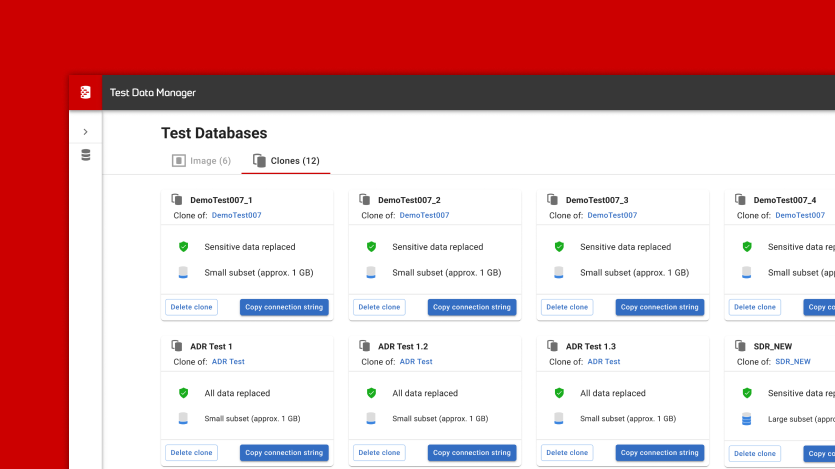
Security and compliance
Ensure data security and compliance with data masking, monitoring, and change traceability
Ensure data security and compliance with data masking, monitoring, and change traceability
Monitor and understand your databases with full visibility into performance and change
Build, test, and deploy database changes with confidence
Simplify and speed up database development workflows
Prepare reliable data foundations for AI initiatives
Simplify and secure database modernization across platforms
Control costs and boost efficiency in database operations
Simplify and speed up cloud database transformation
SQL Data Compare is the industry-standard tool for comparing and deploying SQL Server database contents.
You can work with live databases, backups, or SQL scripts in source control. Damaged or missing data can be restored to a single row, without the need for a full database recovery.
SQL Data Compare helps you compare and deploy changes quickly, simply, and with zero errors.
1 Year Subscription
Considering a longer-term contract?
Ask us about available discounts on SQL Data Compare

Select what you want to compare
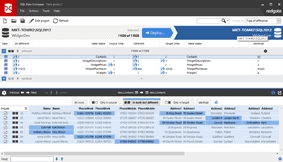
Select data to deploy
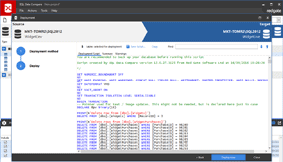
Create a manual deployment script
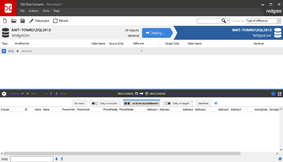
The databases are identical
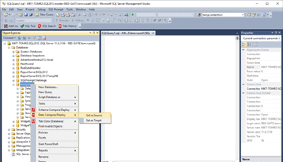
Compare and manually deploy database contents from within SSMS

Software architect and Microsoft MVP Troy Hunt uses SQL Data Compare Pro to sync data back down from production, to his test and development environments.
Read the article