Security and compliance
Ensure data security and compliance with data masking, monitoring, and change traceability
Ensure data security and compliance with data masking, monitoring, and change traceability
Monitor and understand your databases with full visibility into performance and change
Build, test, and deploy database changes with confidence
Simplify and speed up database development workflows
Prepare reliable data foundations for AI initiatives
Simplify and secure database modernization across platforms
Control costs and boost efficiency in database operations
Simplify and speed up cloud database transformation
This walkthrough describes how to profile a sample website called NerdDinner and improve ASP.NET performance. You can download the original source code from CodePlex, but for this example, the NerdDinner code has been modified to illustrate a performance problem.
Download the modified version of NerdDinner
Open the solution in Visual Studio, and rebuild the application to ensure that the pdb files point to the correct locations. The database is hosted in SQL CE, so no configuration is needed.
A user has reported that NerdDinner is slow to return results for a search on the home page. You want to know whether you can do anything in the application to improve ASP.NET performance, before you investigate performance on the database, or spend money to improve the hardware the site runs on.
There are three main steps:
Set up ANTS Performance Profiler for ASP.NET profiling
Use NerdDinner
Analyze the profiler's results
In this example, NerdDinner is profiled in the Visual Studio Web Development Server. To set up ANTS Performance Profiler:
In the ANTS Performance Profiler start screen, select New profiling session then open the Web dev. Server – ASP.NET tab.
In ASP.NET web application (path), browse to the NerdDinner folder.
Choose the required profiling mode. Here, we'll use line-level and method-level timings for methods with source only.
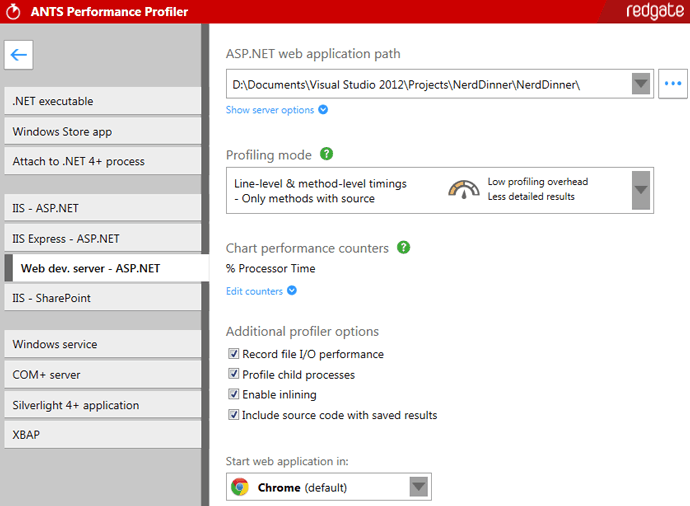
Click Start profiling.
The default browser launches and loads NerdDinner.
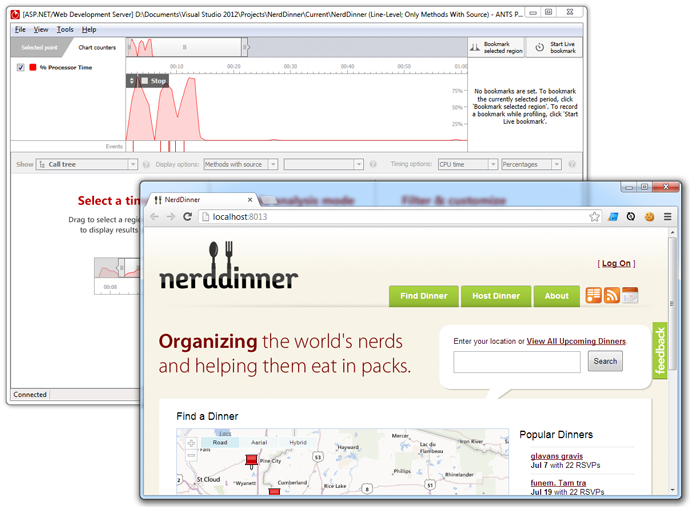
In this example, the NerdDinner site includes several pages that rely heavily on database queries, as well as some static HTML. Imagine users have reported that the site's location search feature is slow: we start the investigation by exercising that feature, entering a place name in the search box and hitting Search. The search is designed to return a list of events near a specified location.
While we use the site, ANTS Performance Profiler's timeline shows the CPU usage the application has caused:
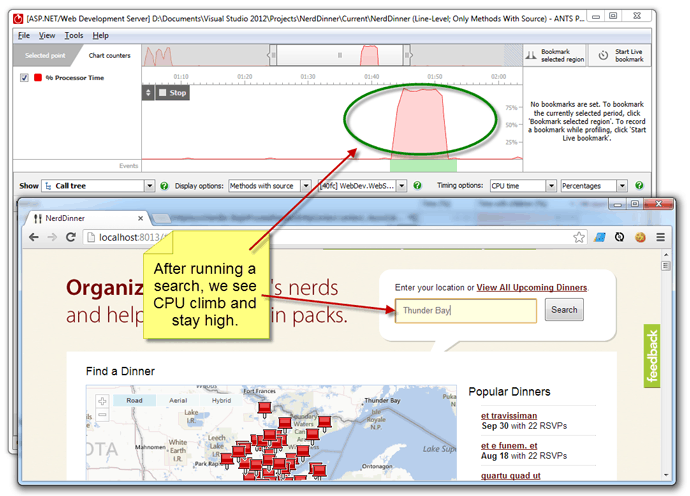
There's a brief, expected CPU peak when the site launches. CPU then returns to near zero until we start our search, when it begins to grow to 100%, staying high for around 10 seconds. This clearly indicates a performance bottleneck in the search feature.
Now we see where the bottleneck may lie, we can explore the results in detail.
Click and drag on the profiler's timeline to select the region of time where CPU usage was high. After a few moments, full results are shown.
At the top of the call tree, ANTS Performance Profiler shows the 'hottest' stack trace; that is, the code that contributes the greatest proportion of CPU time. This is usually a good place to start looking for opportunities to optimize the code.
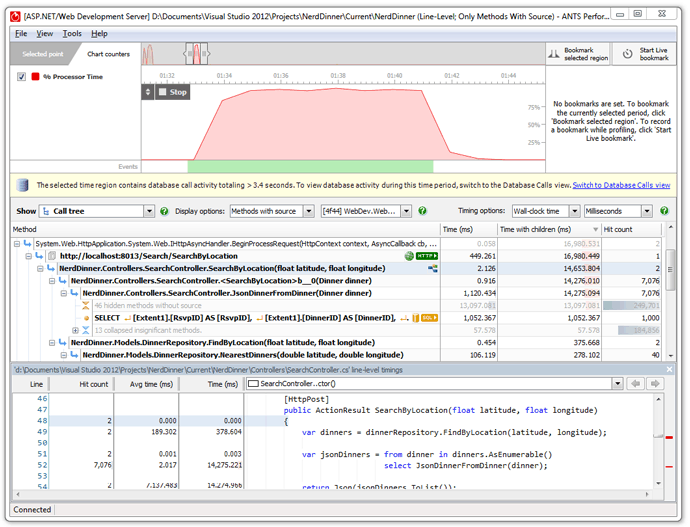
At the top of each call tree stack, we see the HTTP request that triggered the calling of the .NET methods. As expected, the hottest stack trace during the whole profiling session descends from the request http://localhost:8013/Search/SearchByLocation, child methods of which account for most of the total time spent in the profiling session.
Looking down the hot stack, we can see that this request called a .NET method, JsonDinnerFromDinners(Dinner dinner), that was hit 7076 times - and the SQL SELECT query it ultimately runs was hit 1000 times.
For more information on hot stacks and HTTP nodes, see Working with the call tree.
If we select the method's parent, SearchByLocation(float latitude, float longitude), we can view its source code. Because we used a profiling mode with line-level timings, we can also see where inside the method the greatest time was spent. This shows us that the method retrieves the full list of all recorded events from the database:
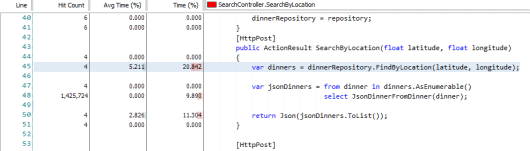
The method FindByLocation(float latitude, float longitude) then tries to process the result set in the web page, to filter by location:
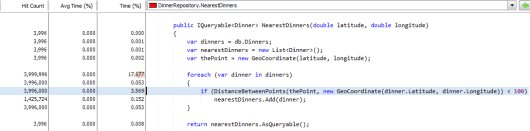
These methods are good candidates for optimization. The same results could be achieved via AJAX calls, and by returning from the database only events that meet specified latitude and longitude criteria.
For more on the source code view, see Working source code.
After profiling, we now have a clear idea of which HTTP requests are associated with slow performance, and which of our .NET methods contain the source of those slowdowns. We know which methods to rewrite to remove bottlenecks, and the steps we'll need to reproduce in the application to check that the problem has gone.