Security and compliance
Ensure data security and compliance with data masking, monitoring, and change traceability
Ensure data security and compliance with data masking, monitoring, and change traceability
Monitor and understand your databases with full visibility into performance and change
Build, test, and deploy database changes with confidence
Simplify and speed up database development workflows
Prepare reliable data foundations for AI initiatives
Simplify and secure database modernization across platforms
Control costs and boost efficiency in database operations
Simplify and speed up cloud database transformation
Save time comparing and deploying SQL Server database schemas with SQL Compare. Find and fix errors, and create deployment scripts in minutes.






SQL Compare is the industry standard for comparing and deploying SQL Server database schemas quickly and accurately.
71% of the Fortune 100 use SQL Compare to compare SQL Server databases – because it's relentlessly tested, easy to use, creates flawless deployment scripts, and saves time.
Whether you need to deploy changes or explore the differences between two SQL Server databases, SQL Compare helps you do the job quickly, simply, and with zero errors.
1 Year Subscription
Considering a longer-term contract?
Ask us about available discounts on SQL Compare
Compare SQL Server database schemas, large or small, and including Temporal Tables, with advanced filtering of database objects.
You can explore what’s changed in each database object, down to individual lines of SQL. When you’re ready to deploy, you can create an error-free deployment script in minutes.
Troubleshoot database differences and create reports in HTML or Excel.
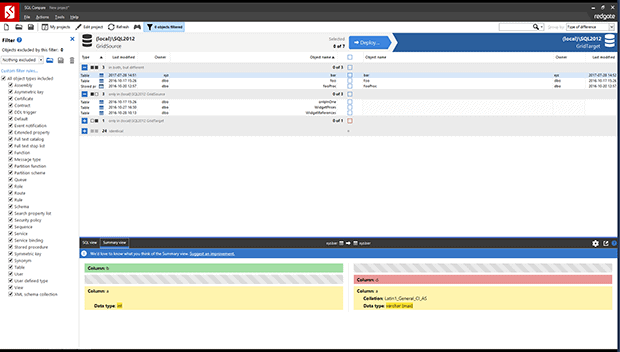
SQL Compare scripts dependencies in your database in the right order, to make sure deployment is successful.
You get notifications about any issues, such as data loss, before you deploy.
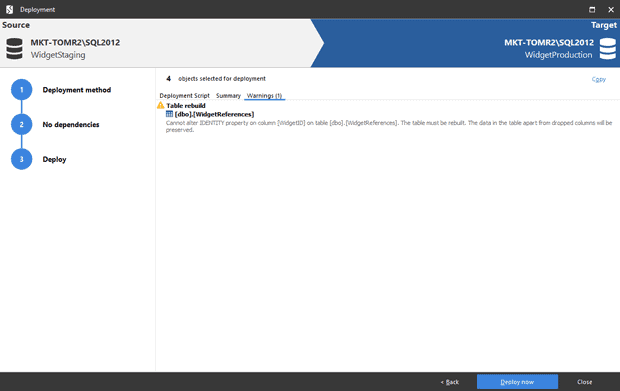
Migrate individual schema differences, a selection of them, or all of them.
Build sophisticated rules to selectively limit what to deploy.
You can run deployments directly from the UI or command line, save deployment scripts for later use, or automate your deployments using SQL Change Automation.
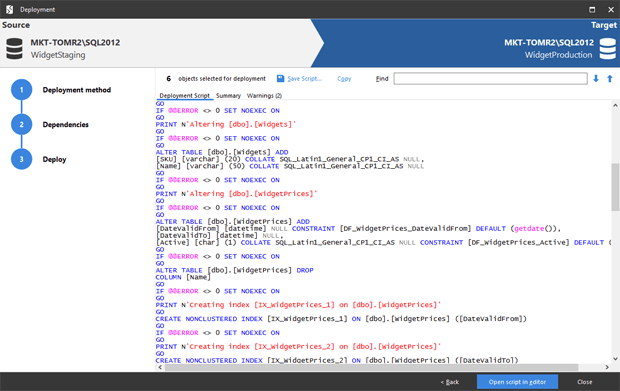
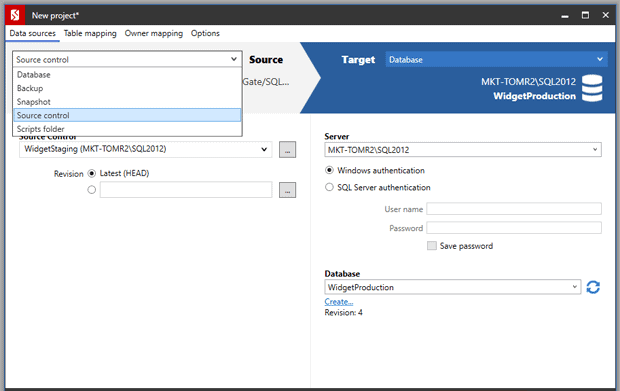
To fix errors in your production database, compare it to a backup, scripts in source control, or a database snapshot. You can deploy single objects to fix the issue fast.
If you need to fix static data, use SQL Data Compare to deploy changes without the need for full database recovery.
“We’ve freed up the DBA team by 70-80%. That’s the ROI, and the leadership team can understand that too.”
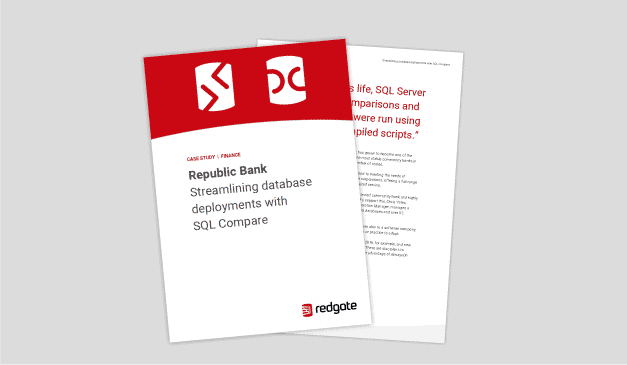
Read how Republic Bank streamlined database deployments with SQL Compare, cutting down deployment times from one hour and a quarter to less than 15 minutes and freeing up the DBA team by 70-80%.

“The whole of the Redgate family are really reliable tools. It gives you results, you know those results are going to be right.”
Chris Yates, Serge Krasnay, Lindsay Clark, Arthur Daniels, Nick Fry, and Tjay Belt explain how useful they find SQL Compare every day, why they love and trust SQL Compare, and why they'd recommend it to others.
| What can I compare, synchronize, and deploy? | Standard | Pro |
|---|---|---|
| SQL Server 2008, 2012, 2014, 2016, 2017, 2019, SQL Azure, & SQL Server on Amazon RDS databases, including Temporal Tables | ||
| Snapshots of the schema | ||
| Backup files (both native SQL Server & Redgate SQL Backup Pro) | ||
| Folders of SQL scripts (for source control) |
| Features | Standard | Pro |
|---|---|---|
| New Linux command-line support (beta) | ||
| Compare and deploy changes to SQL Server database schemas (from dev, to test, to production) | ||
| New Support for Temporal Tables | ||
| Compare two SQL Server databases, synchronize, and deploy from within SSMS | ||
| Automatically create error-free deployment scripts | ||
| Generate T-SQL scripts that update one SQL Server database to match the schema of another | ||
| Save deployment scripts for later use | ||
| Automatically create error-free synchronization scripts | ||
| Comparison and deployment of large databases | ||
| New Choose how to examine differences: SQL View or Summary View | ||
| Migrate individual schema differences, a selection of them, or all of them | ||
| Build sophisticated rules to selectively limit what to deploy | ||
| Deploy individual schema differences, a selection of them, or all of them | ||
| Support for reading encrypted database objects | ||
| Fine-grained filtering of database objects | ||
| Troubleshoot database differences | ||
| Dependency checking, so objects are scripted in the correct order for updates | ||
| Warnings about anything you need to be aware of before deploying SQL Server schemas | ||
| Save schema snapshots for audit and roll-back purposes | ||
| New Improved HTML report generation detailing database differences | ||
| Troubleshoot database differences and explore schema changes to see what's going on in development | ||
| New Support for Retention Tables | ||
| New Azure Active Directory authentication | ||
| New Support for SQL Graph | ||
| New Securely save database and server login details | ||
| New Support for connections to SQL Server instances on Linux | ||
| Run deployments from the command line* | ||
| Automatically output a database into individual object creation scripts | ||
| Deploy a live database from a set of SQL object scripts | ||
| Restore just a single object (or selection of objects) from a backup file |
| SQL Compare features available with additional licensing | SQL Toolbelt | Redgate Flyway |
|---|---|---|
| Deployments automatically detected and displayed in Redgate Monitor | ||
| Command line automation on CI/CD systems |
* To use Redgate's command line tools as part of a Redgate Pipeline (an automated database change delivery process) a Redgate Flyway Enterprise, Redgate Deploy or SQL Toolbelt license is required. For more information, see the Product Specific Terms.
Get started with SQL Compare
Download a fully-functional 14-day free trial, and start saving time with your database deployments today.

If you'd like any help, or have a question about our tools or purchasing options, just get in touch.