Security and compliance
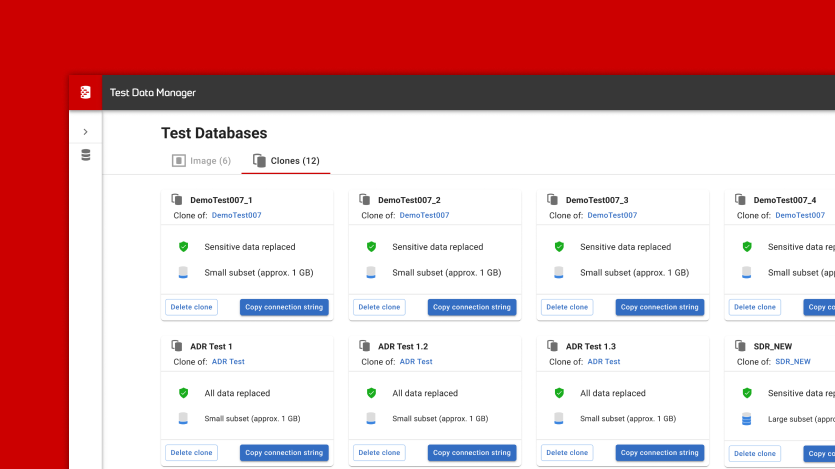
Ensure data security and compliance with data masking, monitoring, and change traceability
Ensure data security and compliance with data masking, monitoring, and change traceability
Monitor and understand your databases with full visibility into performance and change
Build, test, and deploy database changes with confidence
Simplify and speed up database development workflows
Prepare reliable data foundations for AI initiatives
Simplify and secure database modernization across platforms
Control costs and boost efficiency in database operations
Simplify and speed up cloud database transformation
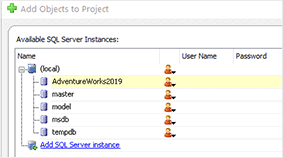
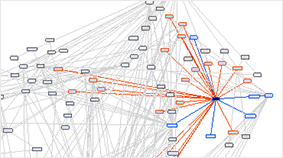
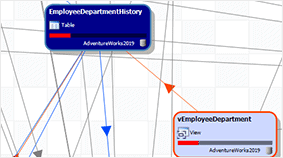
Dynamically explore and document all your database object dependencies
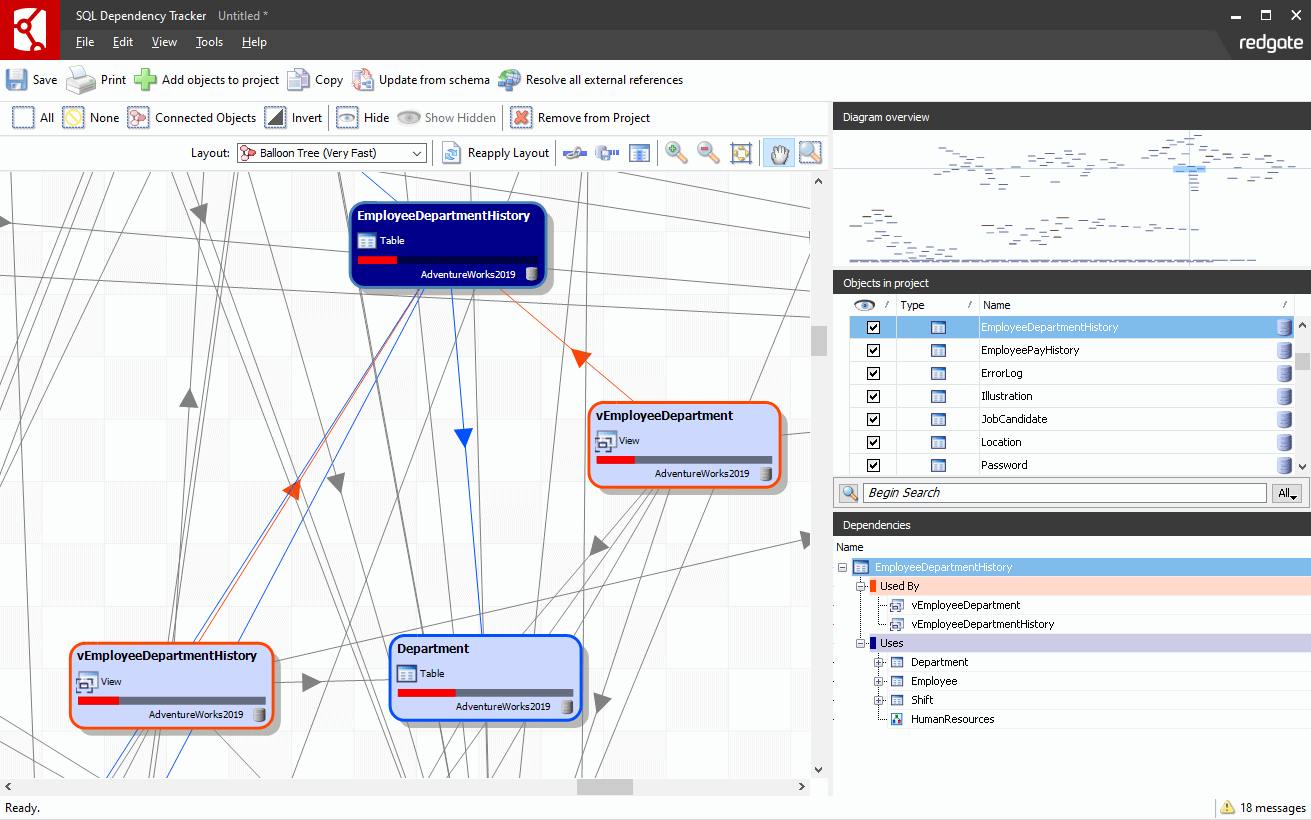
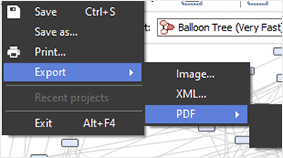
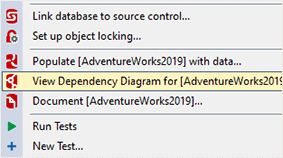
SQL Dependency Tracker integrates with SQL Server Management Studio, so you can explore a database by right-clicking in the Object Explorer.
1 Year Subscription