Security and compliance
Ensure data security and compliance with data masking, monitoring, and change traceability
Ensure data security and compliance with data masking, monitoring, and change traceability
Monitor and understand your databases with full visibility into performance and change
Build, test, and deploy database changes with confidence
Simplify and speed up database development workflows
Prepare reliable data foundations for AI initiatives
Simplify and secure database modernization across platforms
Control costs and boost efficiency in database operations
Simplify and speed up cloud database transformation
Create large volumes of data within a couple of clicks in SQL Server Management Studio
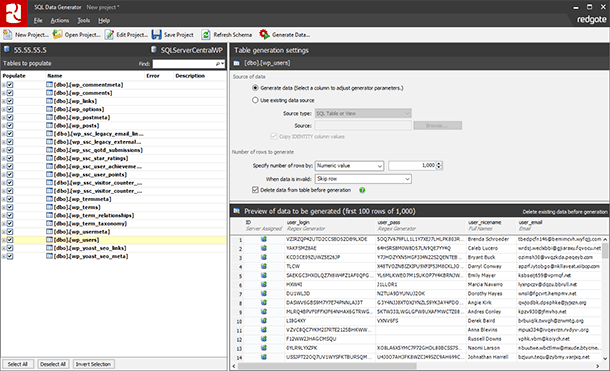
It can instantly provide generators based on table and column names, field length, data types, and other existing constraints. They can be customized to meet your requirements.
1 Year Subscription
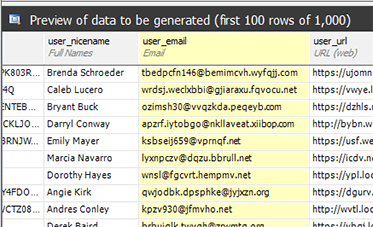
Preview and customize the data
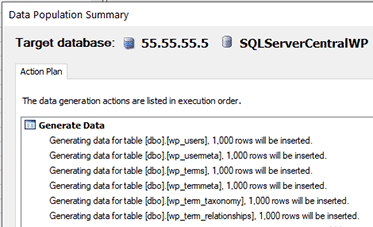
Generate your test data
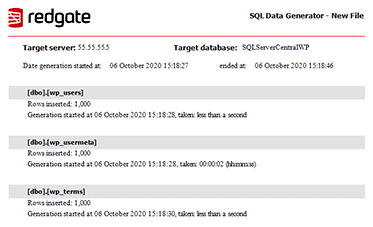
The data has been created
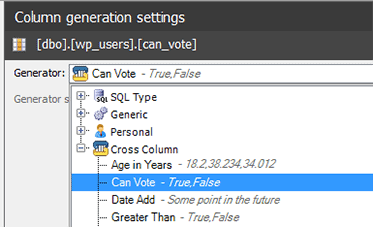
Cross column generators generate data based on other columns
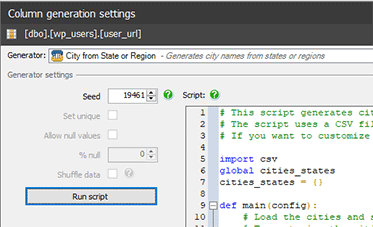
Use Python scripts to generate your own custom data
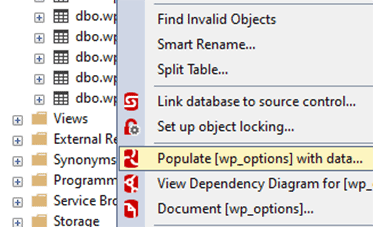
Generate data from within SQL Server Management Studio
Case Study
Stephanie Beach explains how the speed, simplicity and intelligence of SQL Data Generator have proved invaluable in setting up QC departments for start-up companies.

Software architect and Microsoft MVP Troy Hunt uses SQL Data Compare Pro to sync data back down from production, to his test and development environments.
Read the article